Adding/Removing Devices (Binding)
You can click the Add Device button on the DASSET home page and enter an invitation code to bind a DASSET device shared by others.
Methods of Adding Devices
"Add Device" supports two methods:
- Invitation code: Enter the invitation code shared by another user to complete binding with their DASSET device.
- LAN search: Search for all DASSET devices on the same local network as your terminal and bind them.
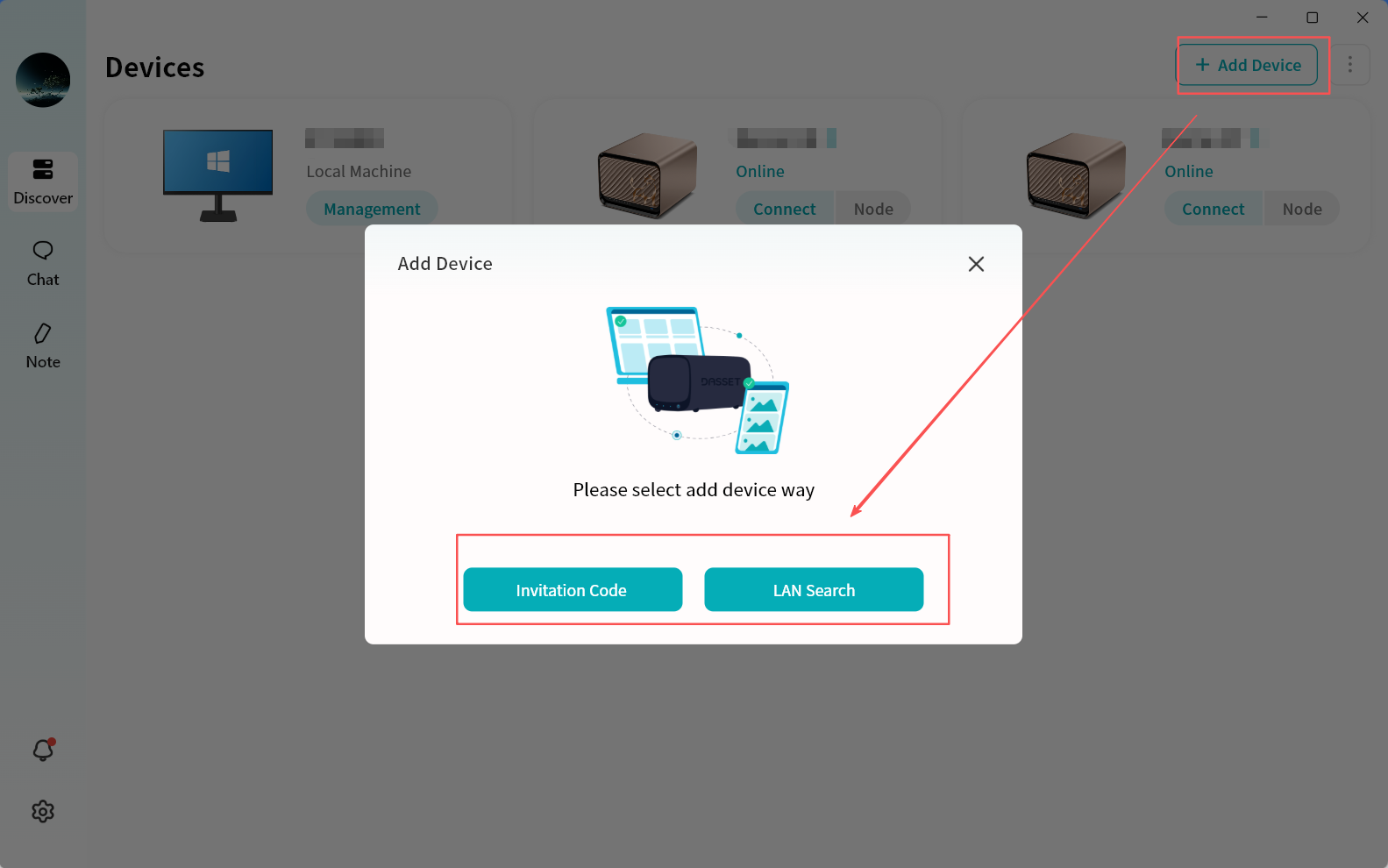
Add Device via Invitation Code
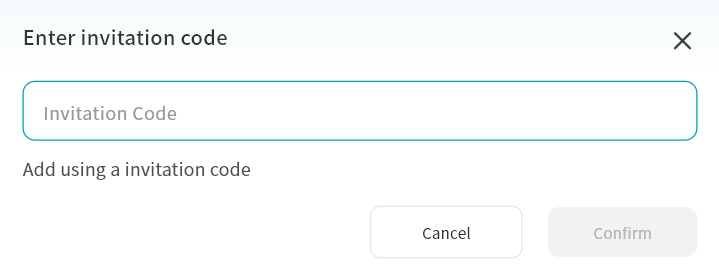
- Enter the Invitation Code provided by another user (usually an 8-character string).
- Click Apply for Binding.
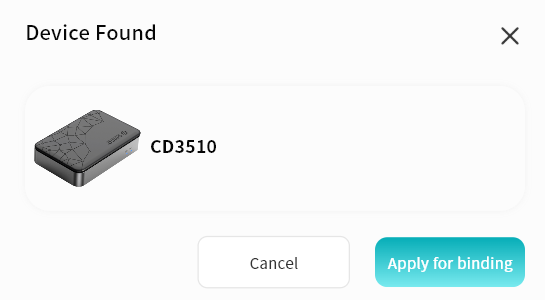
If the selected device requires Owner approval, the binding will only be completed after confirmation by the Owner.
- Once binding is completed, the device will appear in your device list.
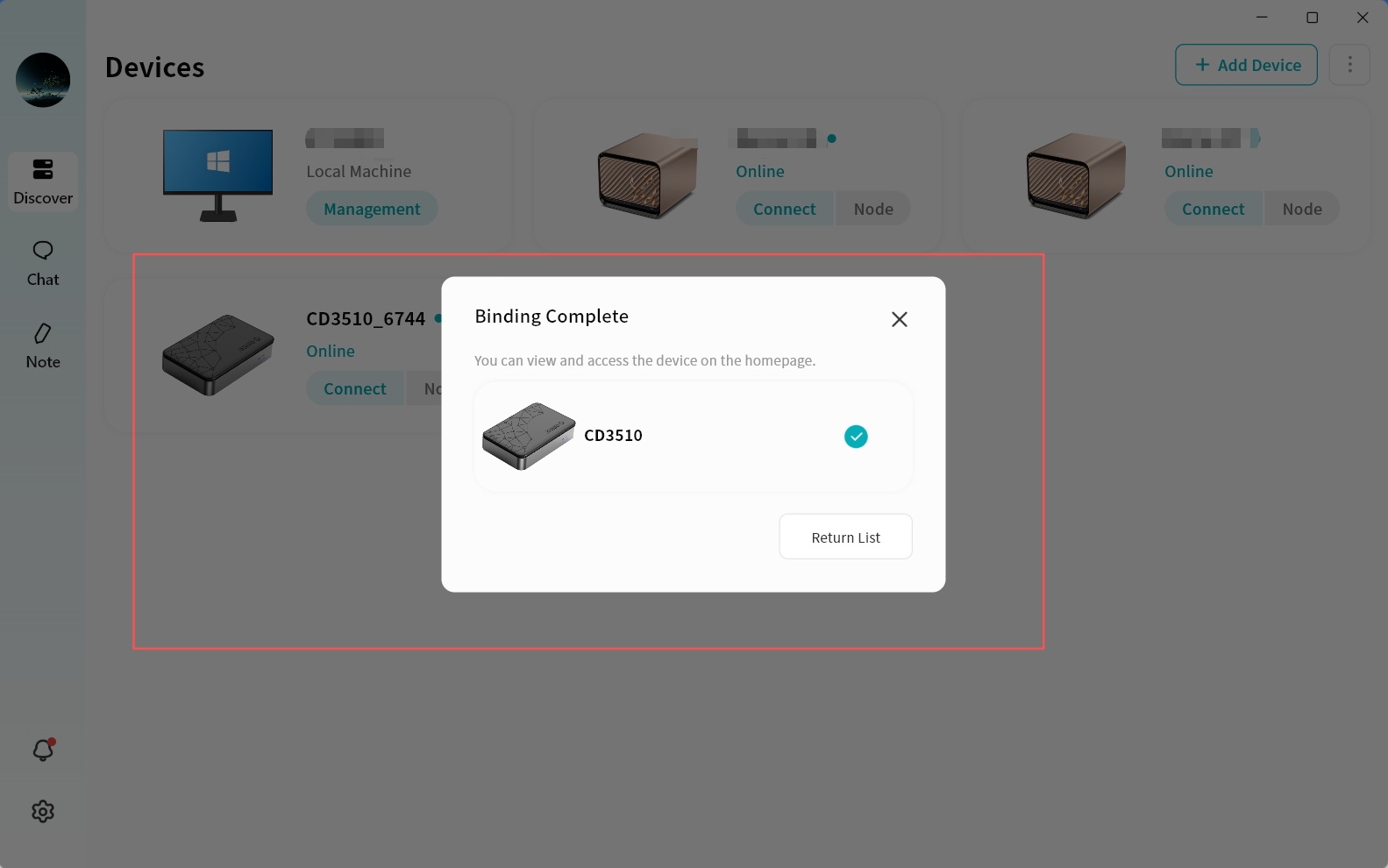
- Click the Connect button on the device icon to access the device.
Add Device via LAN Search
- Click Add Device LAN Search.
- From the search results, select the desired device and click Bind This Device to complete binding.
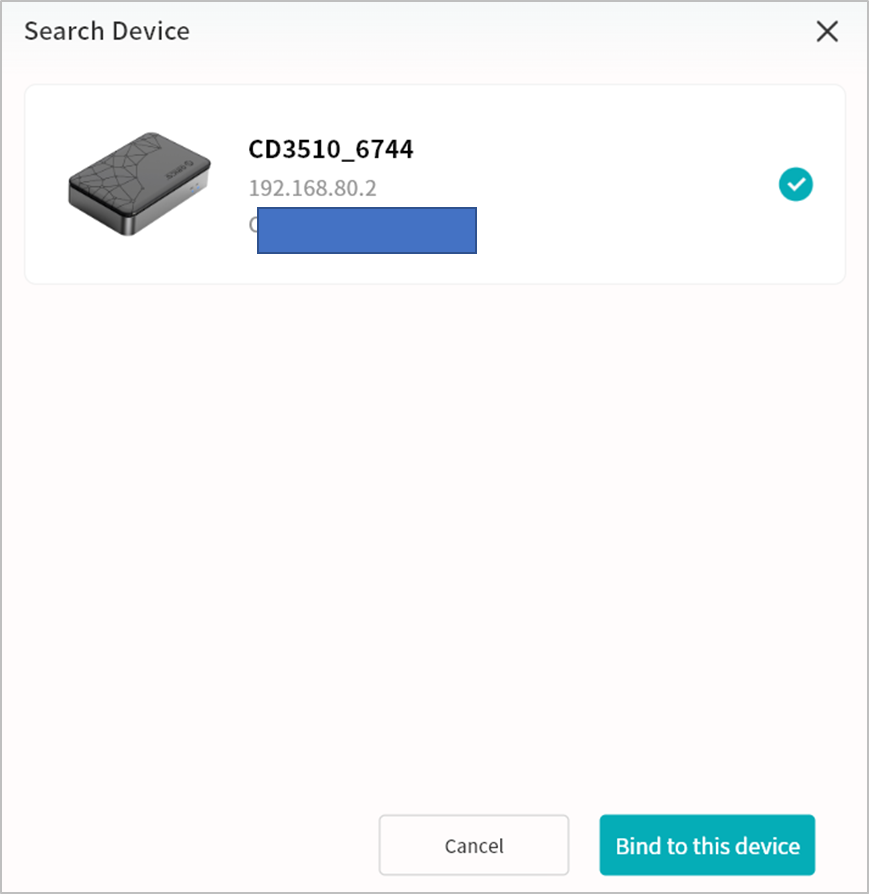
If the selected device is already bound to another user, LAN search binding will not be available.
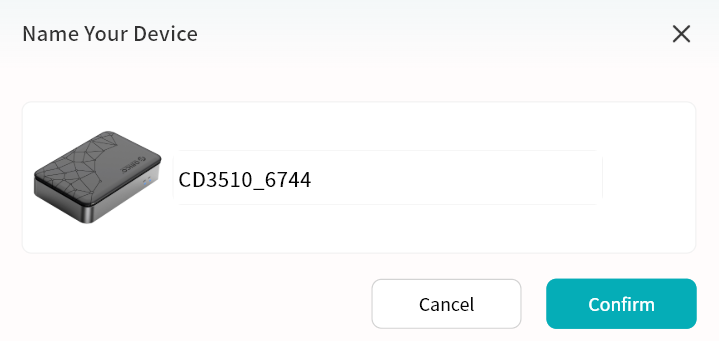
- Assign a custom name to the device for easier identification.
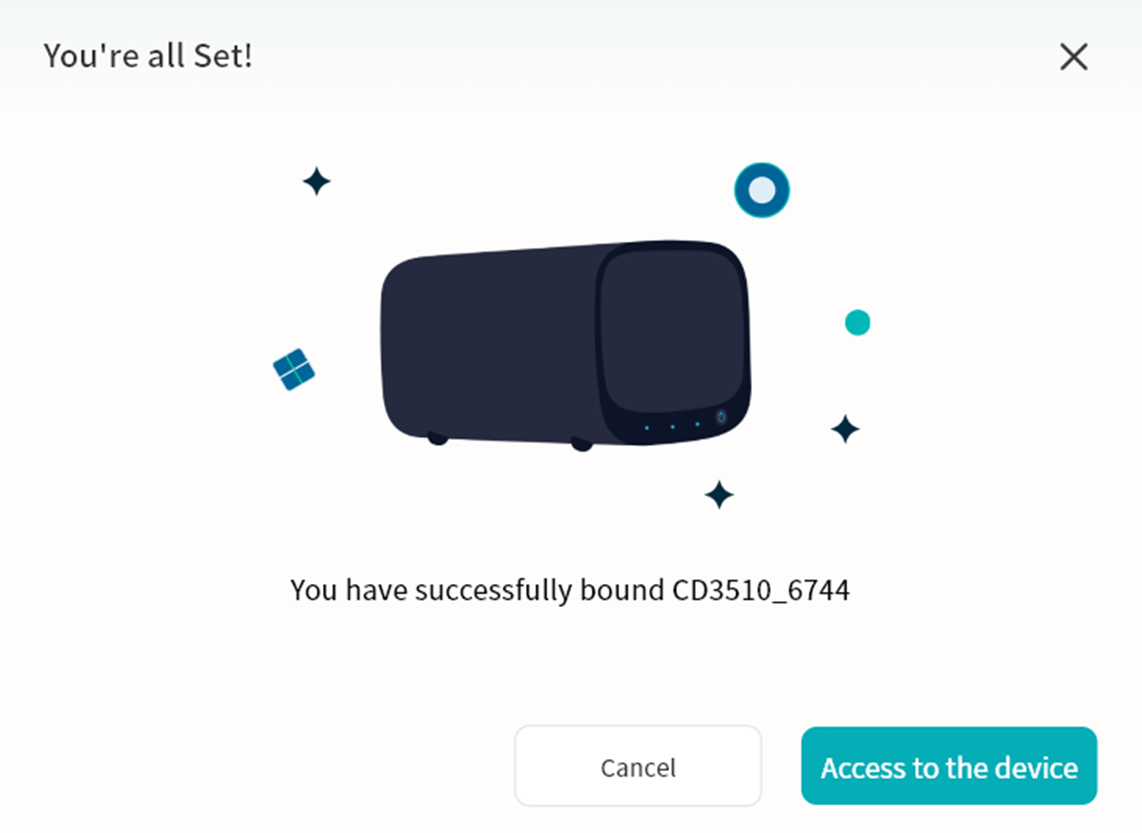
- After binding, click the device to enter its home page.
Device Unbinding
Owner Unbinding
The Owner can unbind their DASSET device. After unbinding, all users on this hardware device will be automatically unbound.
- Enter the device home page and click the upper-right corner.
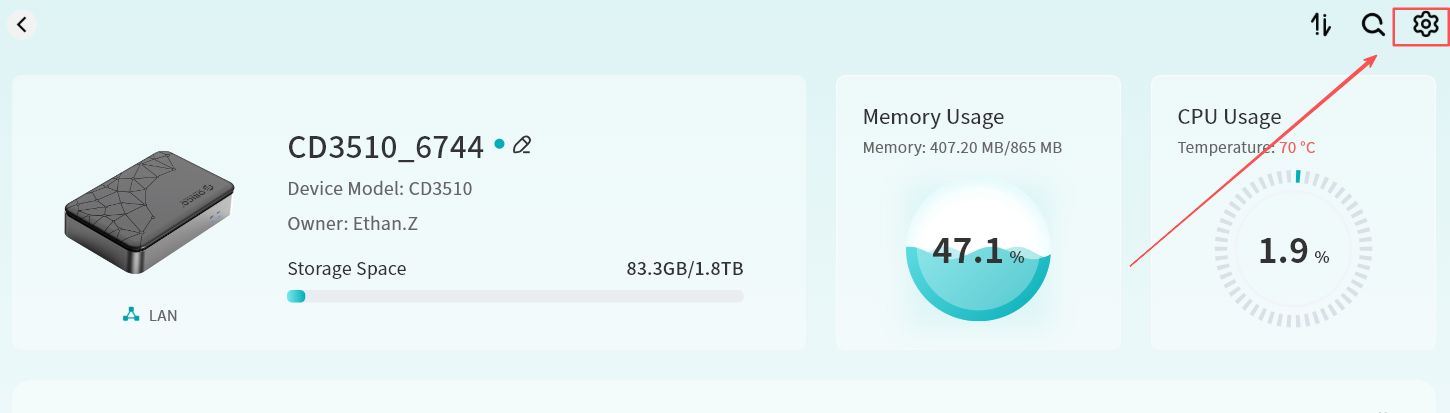
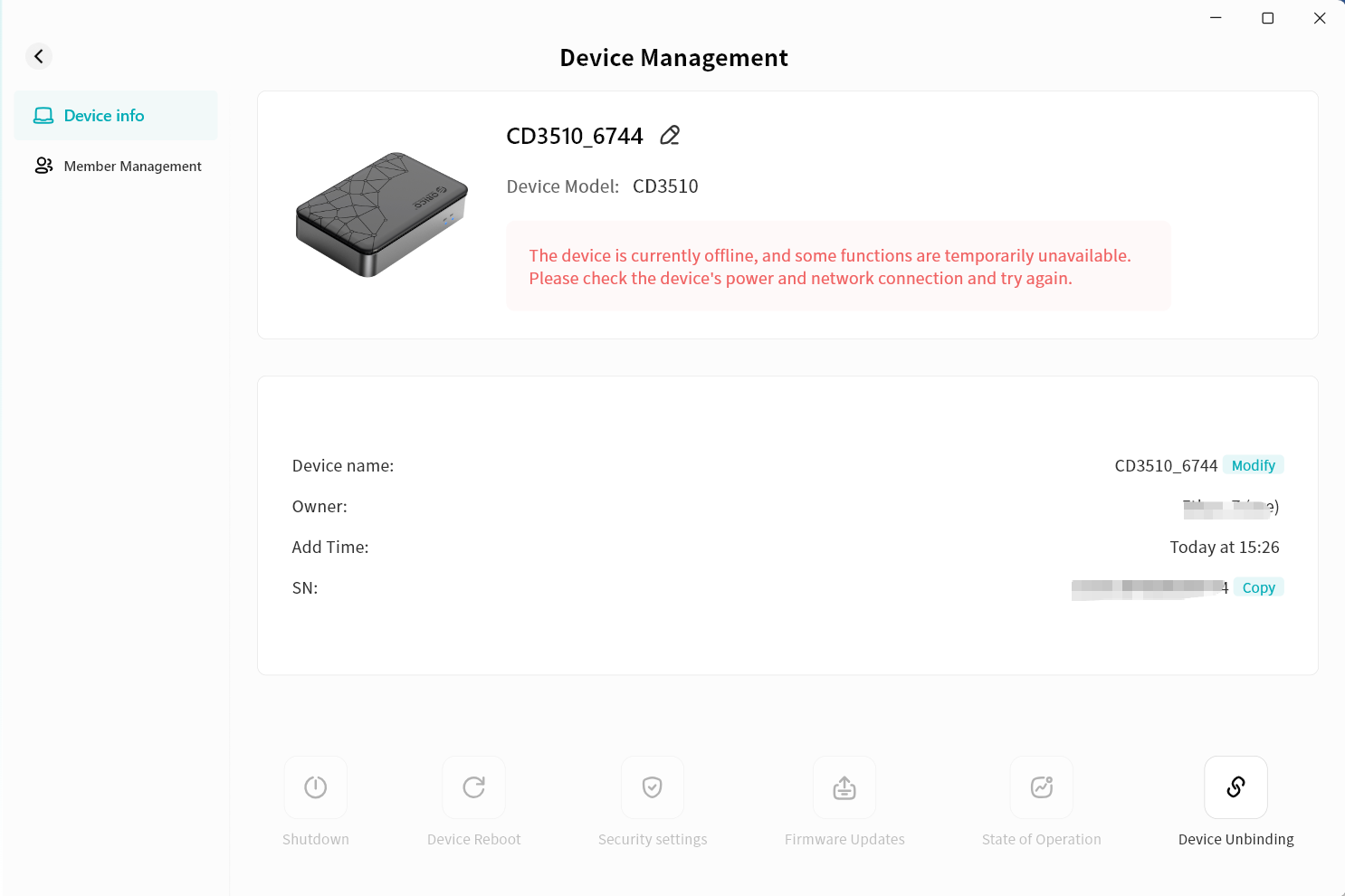
- On the Device Management page, click Device Unbinding.
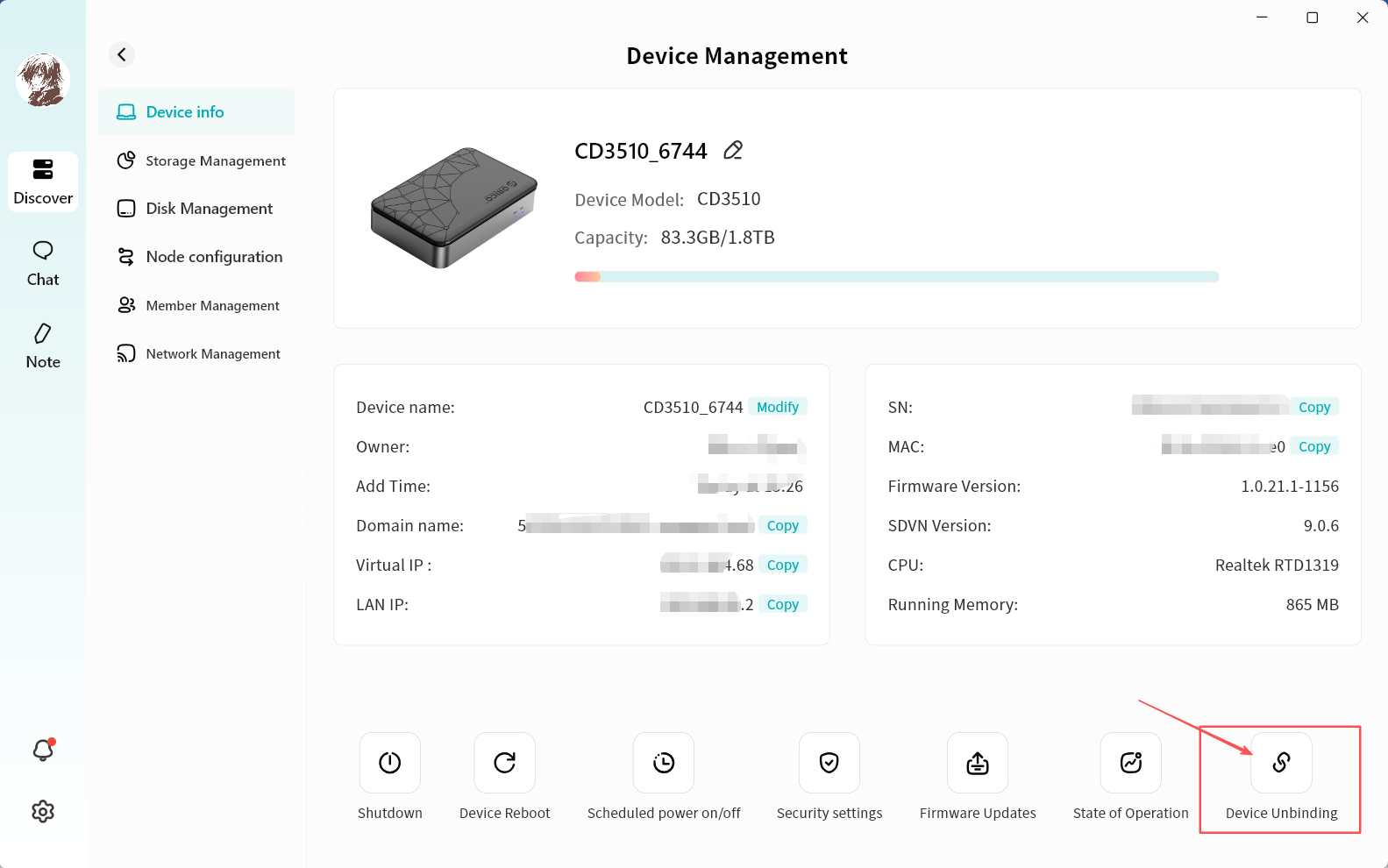
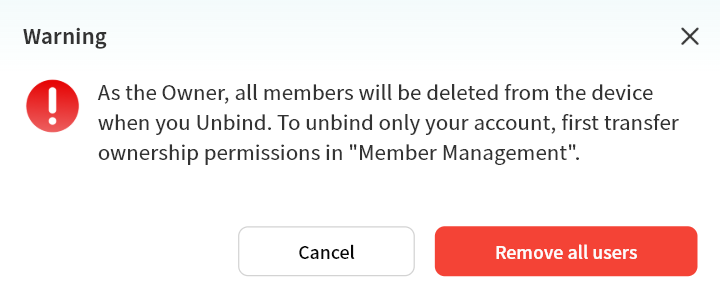
- As the Owner, you will receive an unbinding warning.
- If you do not wish to remove all members, you can transfer Ownership to another member before unbinding.
- If you decide to proceed, click Remove All Members.
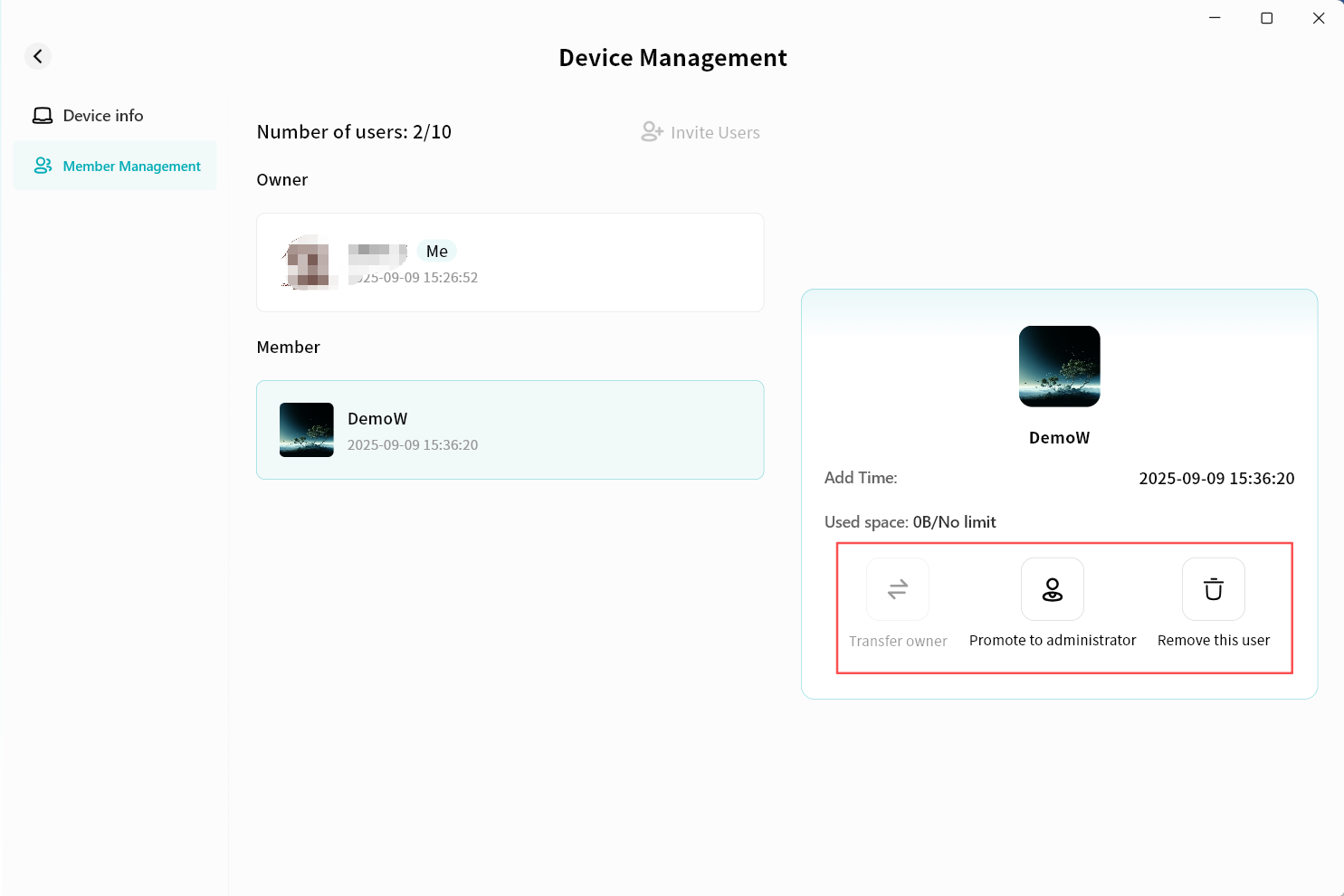
- Ownership can be transferred to another member via Member Management.
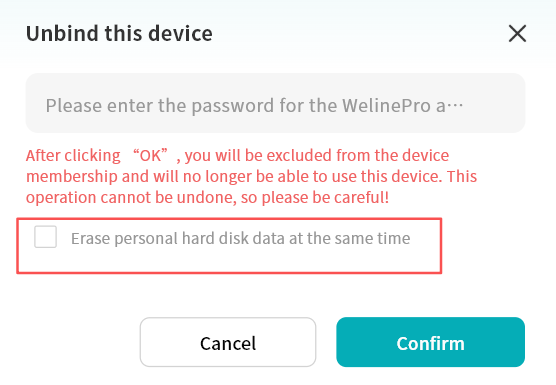
- In the pop-up window, enter your DASSET account and password.
- If you no longer need the data stored on this device, it is strongly recommended to check Erase Personal Hard Disk Data at the Same Time.
- Once selected, after your account is unbound from the DASSET device, all data in My Space will be automatically deleted to protect your privacy.
Member Unbinding
You can unbind from a device at any time. After unbinding, the device will no longer appear in your device list.
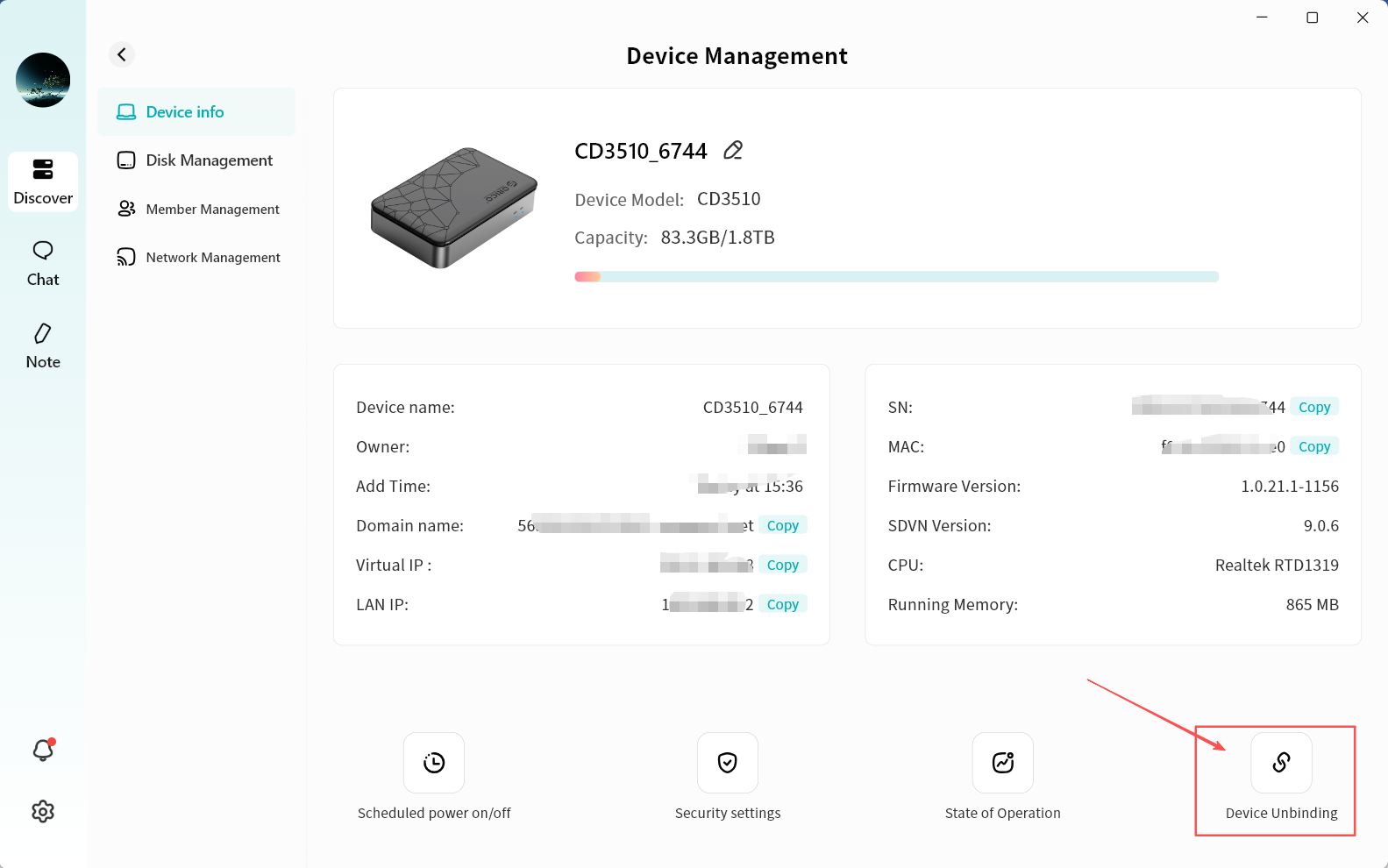
- Enter the device home page and click the upper-right corner.
- On the Device Management page, click Device Unbinding.
- In the pop-up window, enter your DASSET account and password.
- If you no longer need the data stored on this device, it is strongly recommended to check Erase Personal Hard Disk Data at the Same Time.
- Once selected, after your account is unbound from the DASSET device, all data in My Space will be automatically deleted to protect your privacy.
Device Offline
When the device is offline, you can perform the following operations:
- Device Information
- View basic device information, including device name, remarks (editable), device Owner, add time, and device SN.
- Unbind from the device.
- Member Management
- View accounts currently bound to the device.
- Promote a regular member to Administrator.
- Demote an Administrator to regular member.
- Remove a member.
For detailed instructions, please refer to the Member Management section.
If you are binding a DASSET device for the first time, you must use the DASSET mobile client to scan the QR code on the device to complete the binding.