Files Sync & Deduplication
Files Sync
Files Sync allows you to synchronize files between devices including PCs/Macs and other DASSET devices.
Files Sync is only available to the Owner of the DASSET device.
- Synchronize files between DASSET devices and computers, ensuring data consistency across devices.
- Synchronize files between DASSET devices, enabling remote backup and improving data redundancy.
DASSET supports three synchronization modes:
- Two-Way Synchronization: Keeps files consistent between a DASSET edge device and a computer, or between two DASSET devices. Any file change on one side will be automatically synchronized to the other side.
- Sync from Device A to Device B: Only new or modified files from Device A will be synchronized to Device B. File changes on Device B will not be synchronized back to Device A.
- Sync from Device B to Device A: Only new or modified files from Device B will be synchronized to Device A. File changes on Device A will not be synchronized back to Device B.
Configure Synchronization Between DASSET device and a Computer
- Go to Files Sync - Sync with PC - Add Sync.
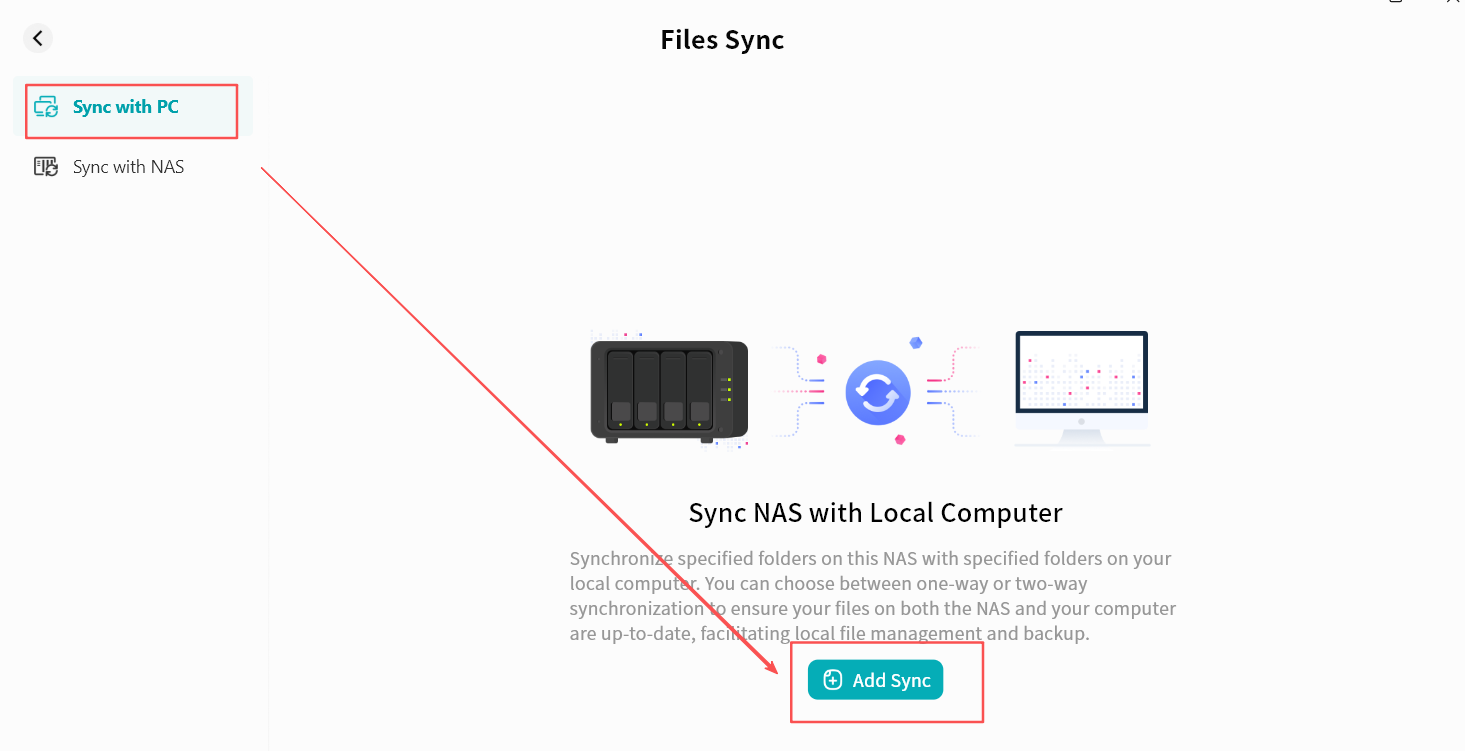
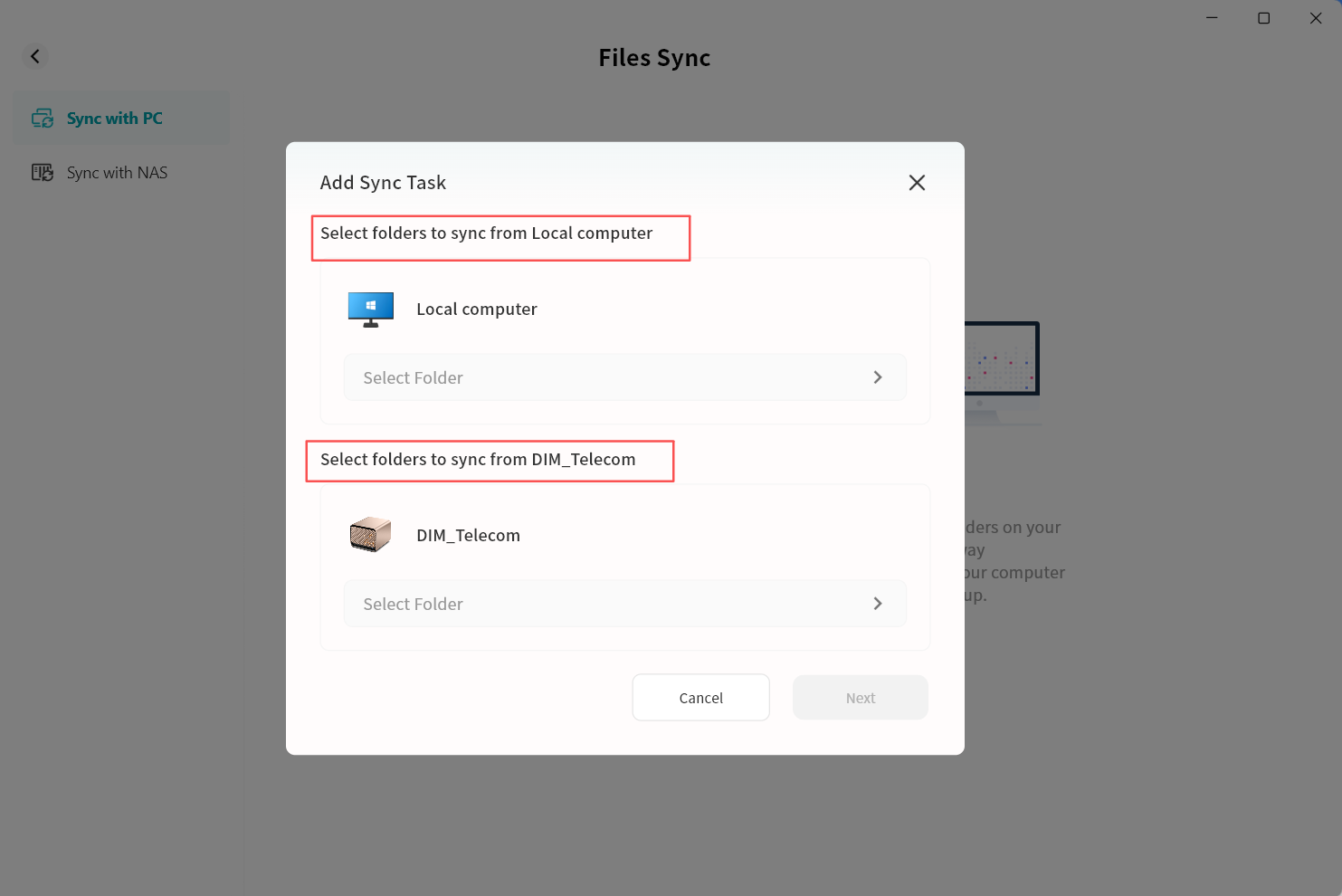
- In the pop-up window, set the directories for synchronization:
- Select folders to sync from Local computer: on the local computer, select the folder that will be synchronized with the DASSET device.
- Select folders to sync from DASSET device: on the DASSET edge device, select the folder for synchronization. You can choose from My Space, Public Space, or Group Space.
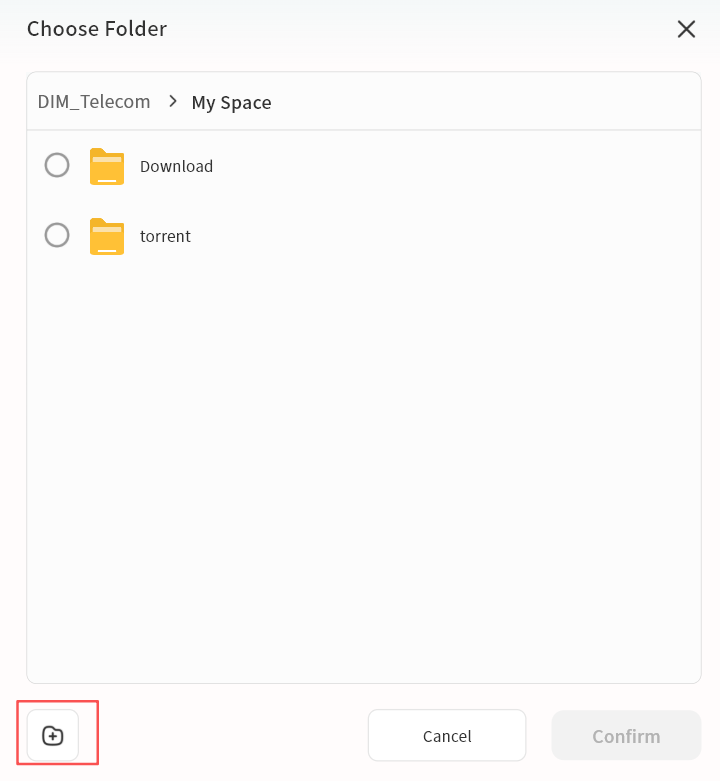
- On the DASSET device, select the folder to be synchronized. You may use an existing folder or create a new one.
- On the local computer, click Select Folder, then choose the desired directory in the file explorer and confirm.
The local computer refers to the machine where the DASSET client is running. The selected folder will be used as the synchronization directory.
- In the Add Sync Task window, confirm that both the synchronization folder and the synchronization target are correctly set. Click Next to continue.
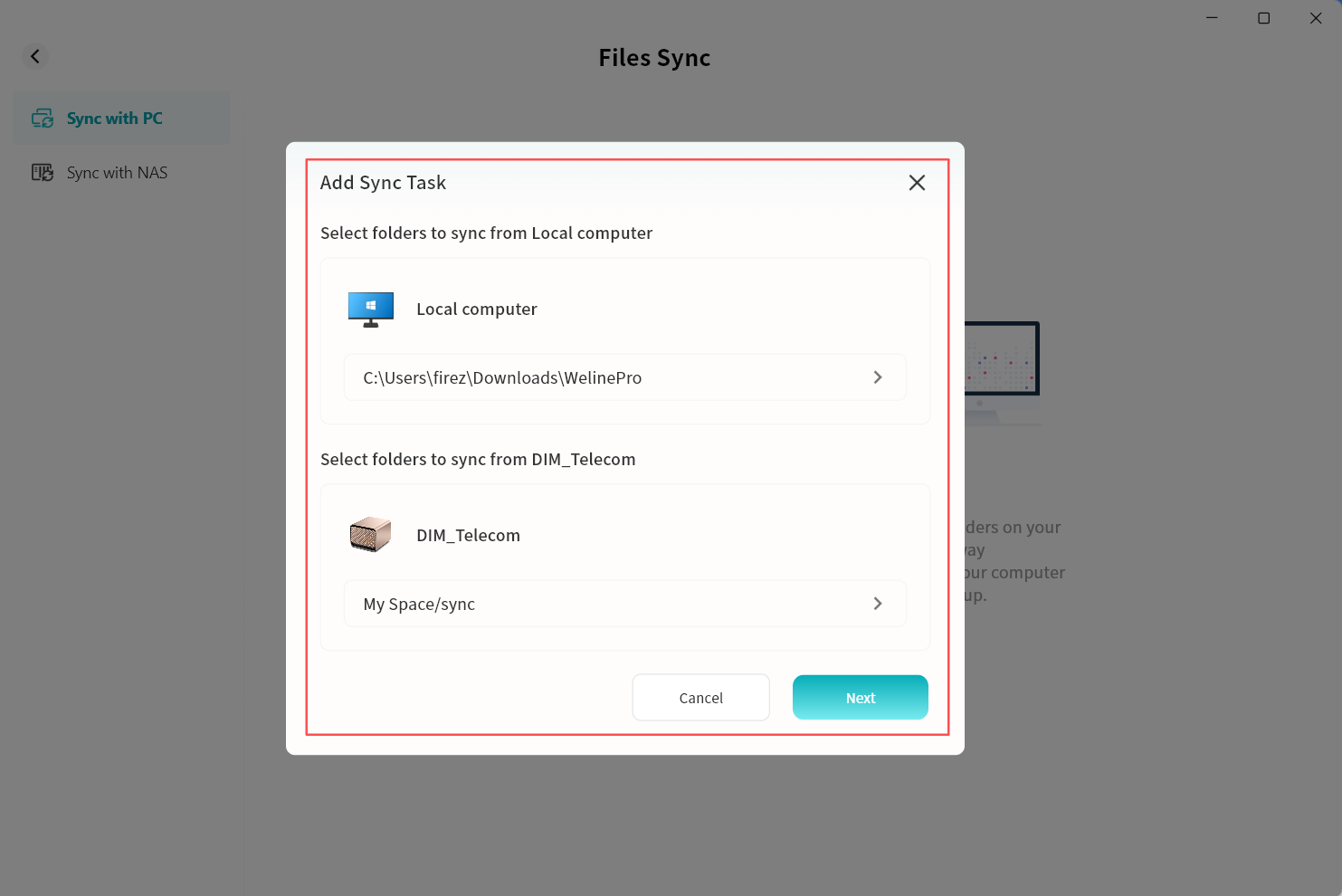
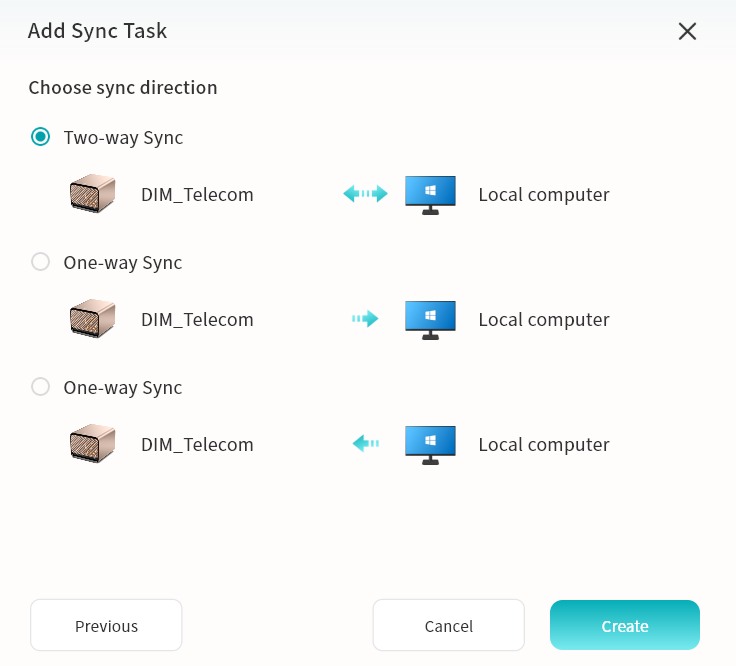
- Select the required synchronization mode and then click Create:
- Two-way sync: Keeps files consistent between the DASSET device and the computer. Changes on either side will be synchronized automatically.
- One-way sync from device to local computer: Only new or modified files from the DASSET device will be synchronized to the computer. Changes on the computer will not be synchronized back.
- One-way sync from local computer to device: Only new or modified files from the computer will be synchronized to the DASSET device. Changes on the DASSET device will not be synchronized back.
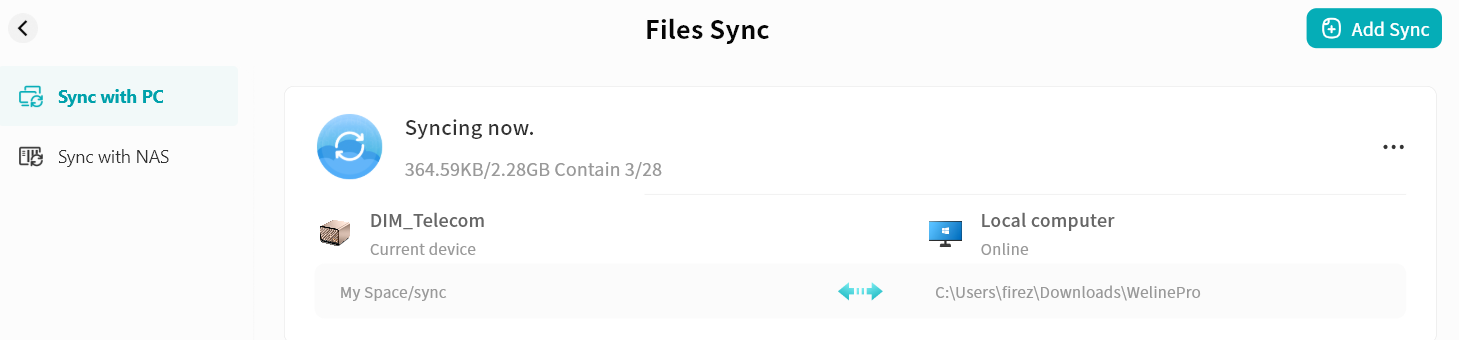
- The synchronization task will start automatically. While the DASSET client remains online, any detected changes in the selected directories on either the computer or the DASSET device will trigger synchronization.
Configure Synchronization Between two DASSET Devices
- Go to Files Sync Sync with NAS Add Sync.
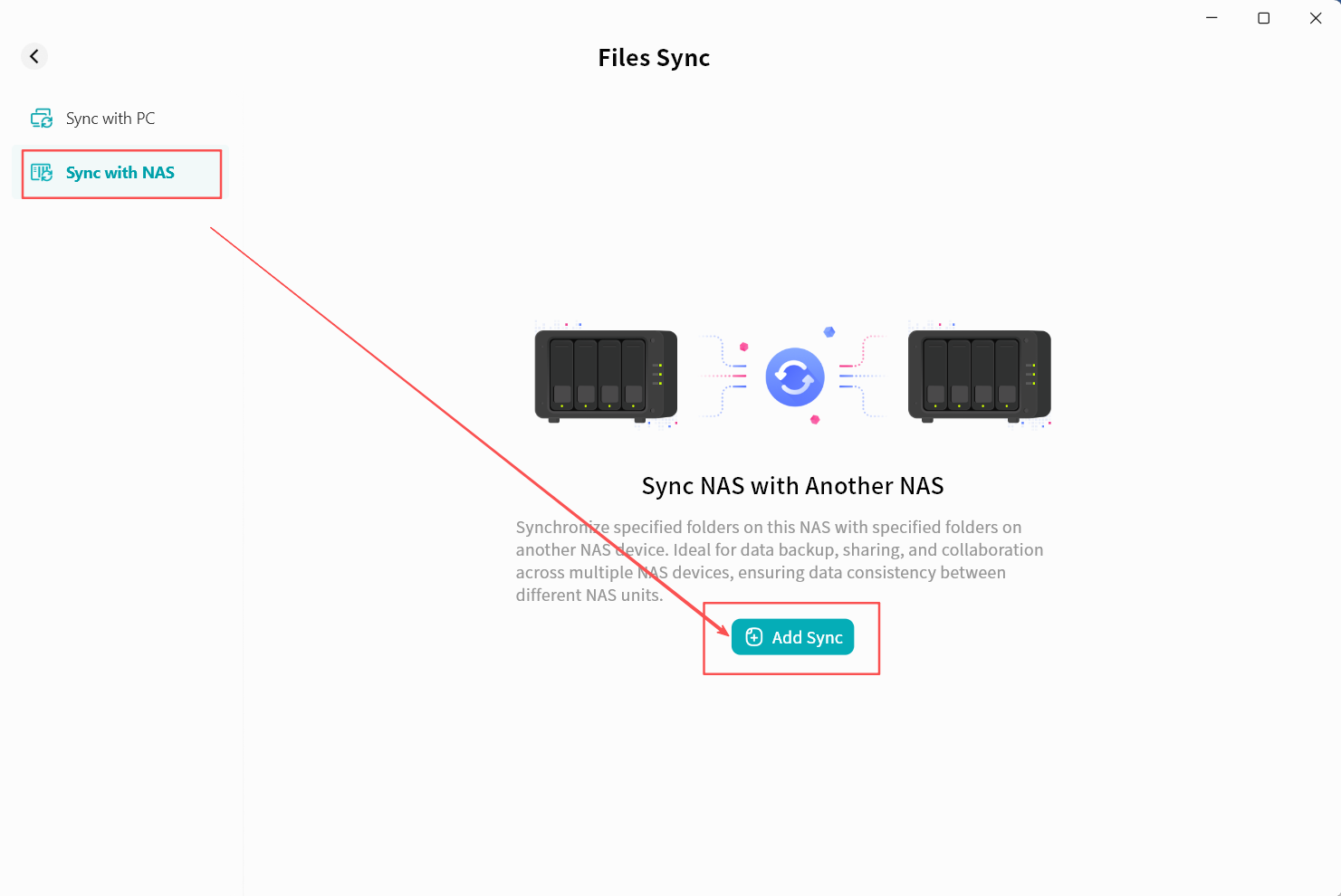
- In the Add Sync Task window, select another DASSET device to participate in synchronization and click Confirm.
Only devices owned by you will be displayed. You must select one of your owned devices as the synchronization target.
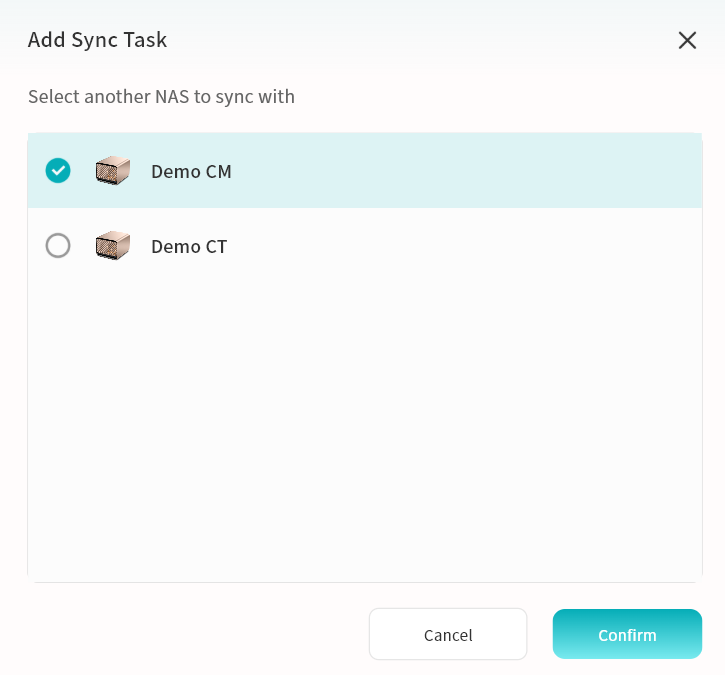
- In the pop-up window, choose a directory on the target DASSET device to serve as the synchronization directory. You may select a folder from My Space, Public Space, or Group Space.
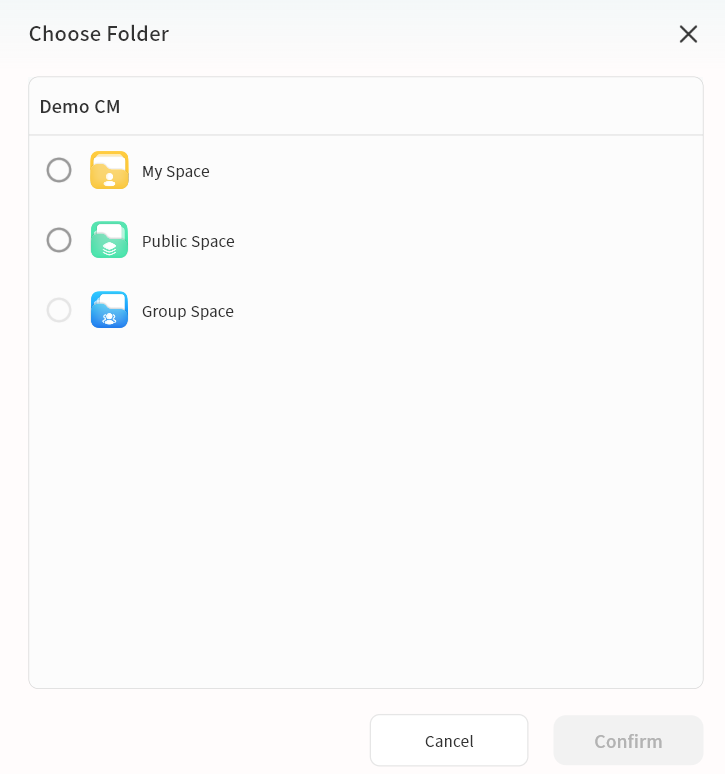
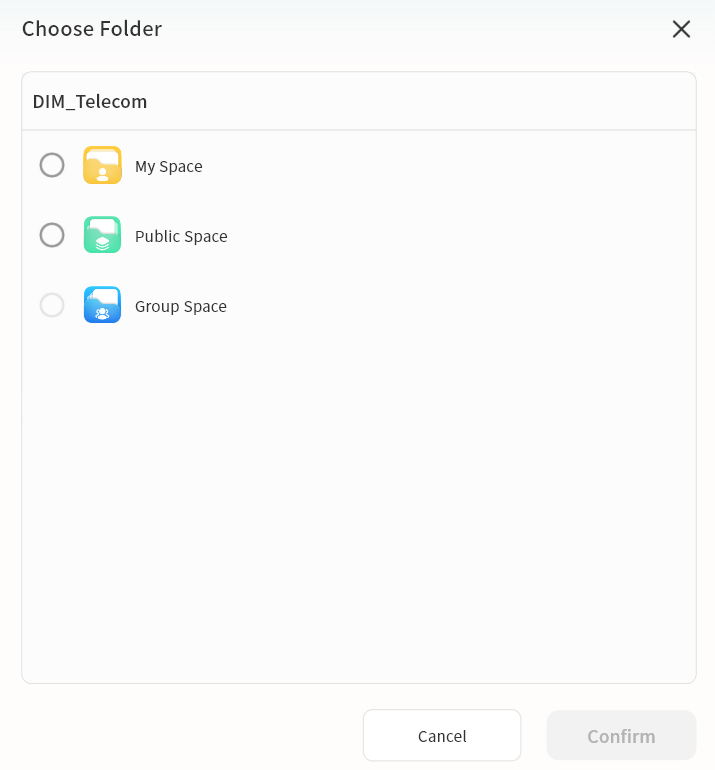
- The target synchronization folder on the other DASSET device will be displayed. On the current device, select a folder to serve as the synchronization directory.
- Specify the folder to be synchronized. You may use an existing folder or create a new one.
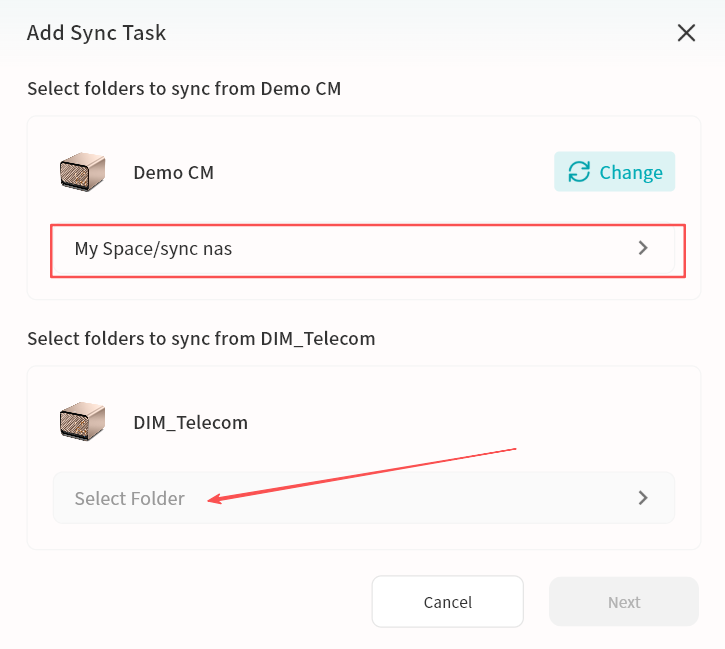
- In the Add Sync Task window, confirm that both the folder to be synchronized and the synchronization target are correctly set. Click Next to continue. You may also click Change if you need to modify the synchronization folder.
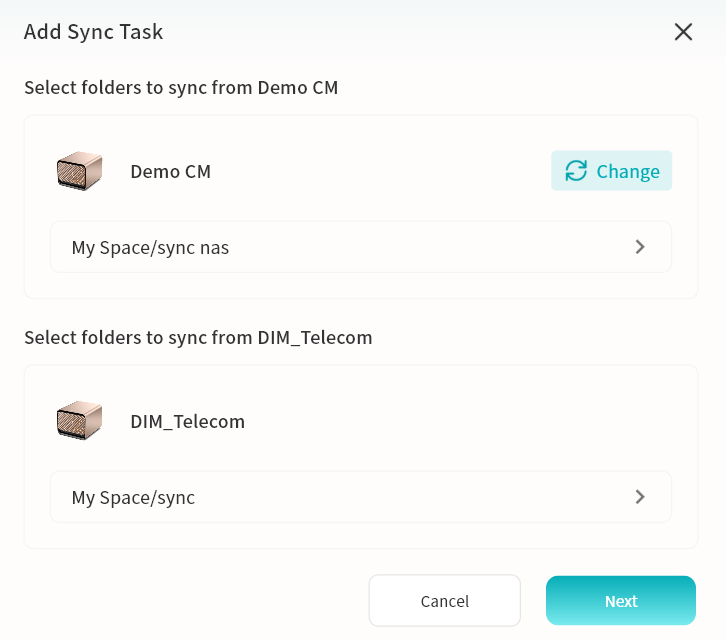
- Select the required synchronization mode and click Create:
- Two-way sync: Keeps files consistent between the two DASSET edge devices. Any changes on either side will be automatically synchronized.
- One-way sync: Transfers only new or modified files from one DASSET device to the other, as indicated by the direction of the arrow.
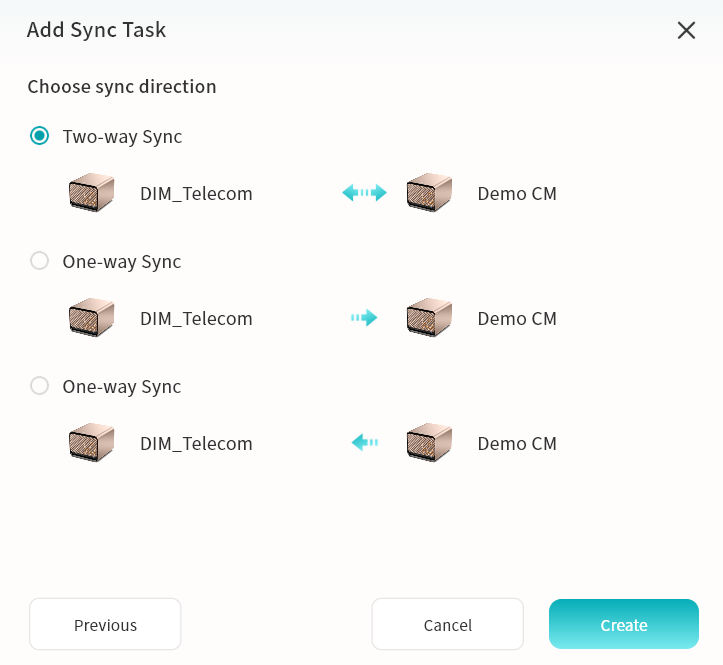
- The synchronization task will start automatically. Once changes are detected in the designated synchronization directory on either device, synchronization will be triggered.
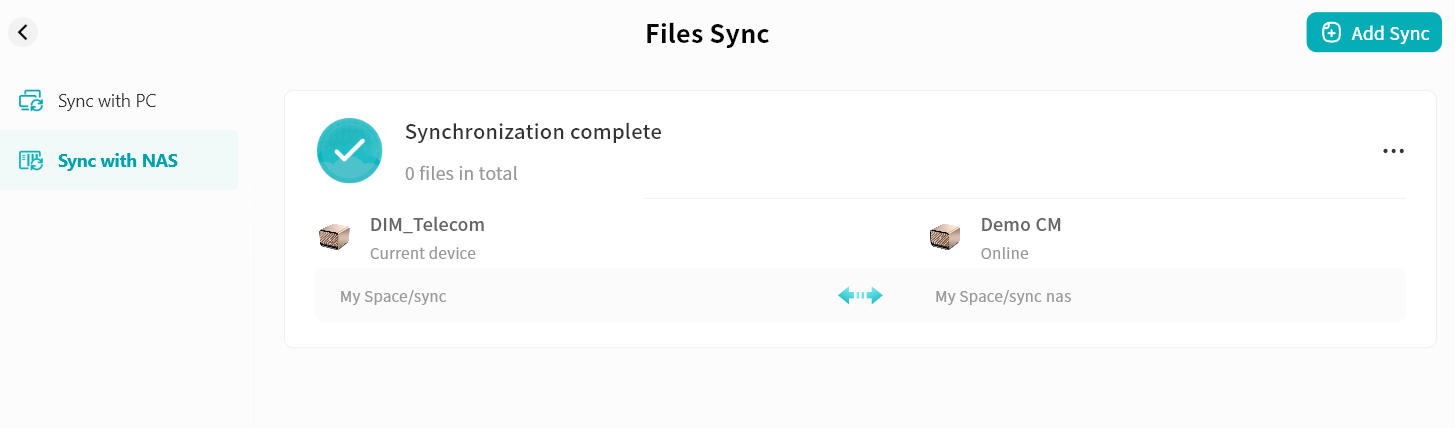
Viewing Synchronization Tasks
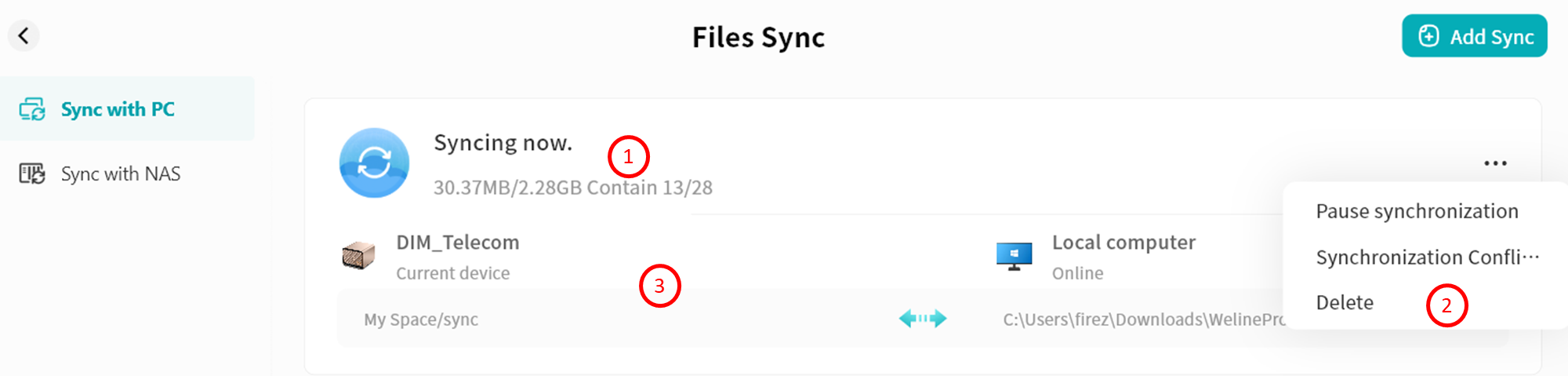
You can view the synchronization tasks you have configured:
- Task Status
- Synchronization status: In Progress, Completed, or Error
- Size of synchronized files
- Number of synchronized files
- Task Configuration Menu
- Pause/Resume synchronization: You can pause or start the synchronization task
- Synchronization configuration: You can change the synchronization mode
- Delete: You can remove the synchronization task
- Detailed Information You can view the device names of both sides, the synchronization directory paths, and the synchronization mode icons.
File Dedupe
File dedupe helps identify and remove duplicate files on the DASSET device, saving storage space.
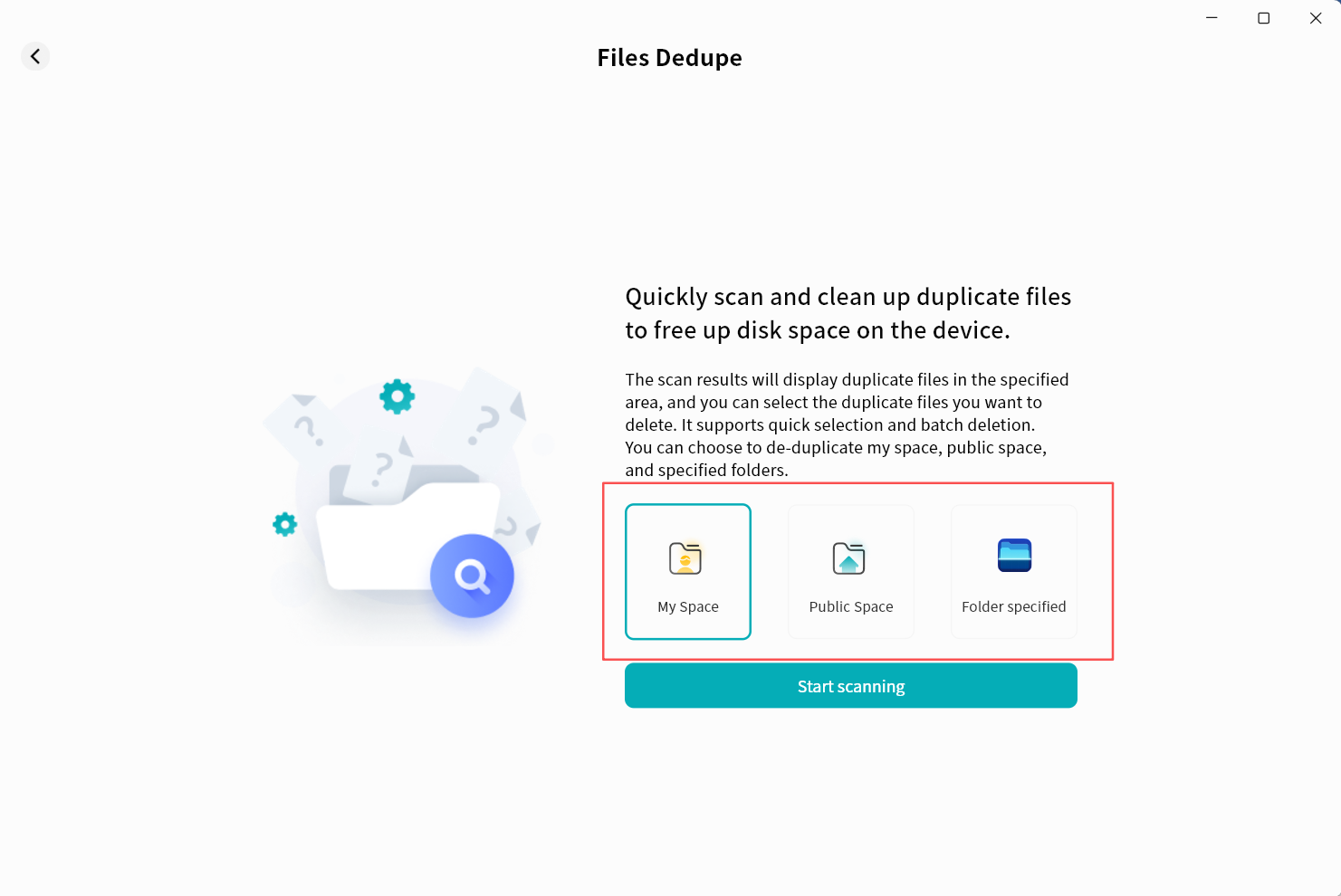
Deduplication can be performed in three ways:
- My Space: Find duplicates within My Space.
- Public Space: Find duplicates in Public Space (Owner/admin only).
- Folder specified: Scan selected folders where you have permission for deduplication.
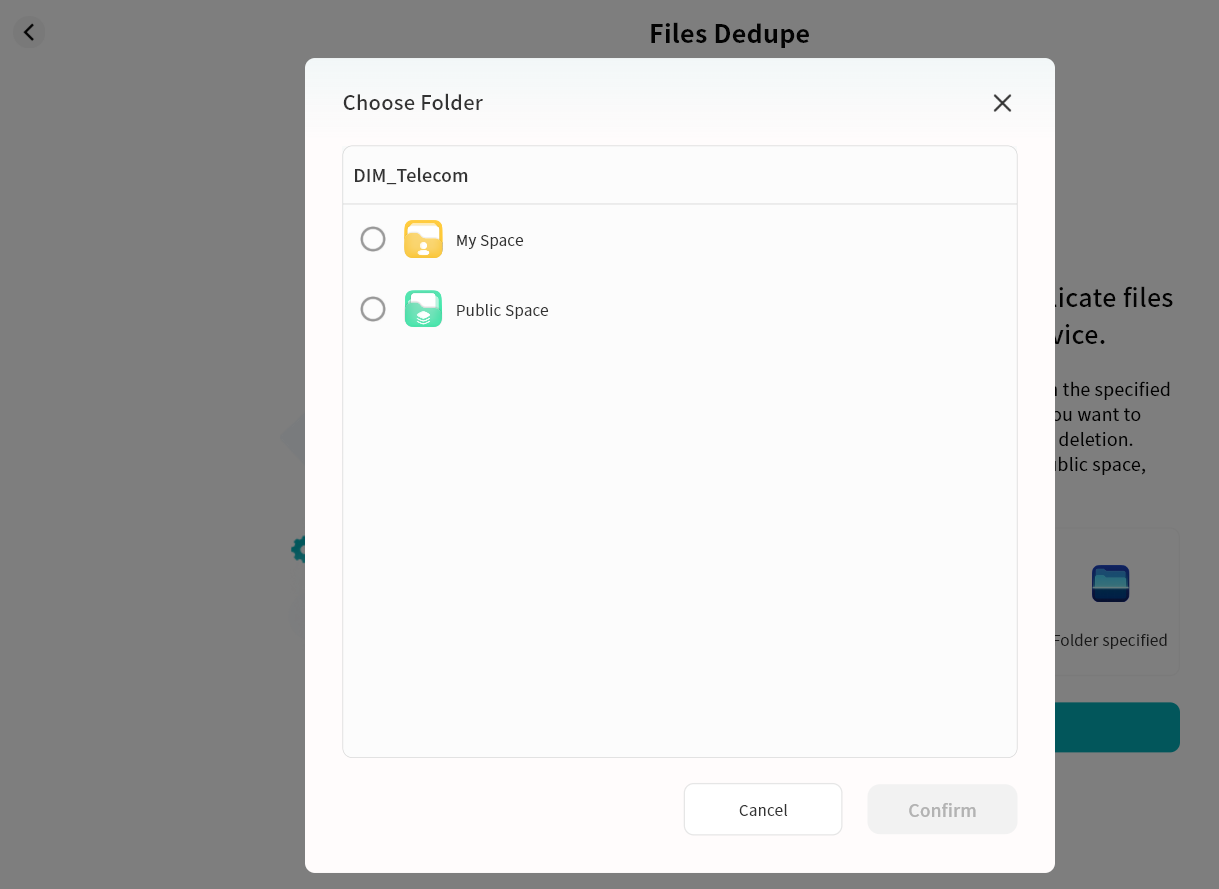
Multiple paths can be selected for deduplication. After selection, click Start Scanning to begin duplicate file scanning.
Deduplication Operation
After specifying the target path, DASSET will automatically search for duplicate files and display the results in a list. Once confirmed, click Delete the selected one to remove duplicates.
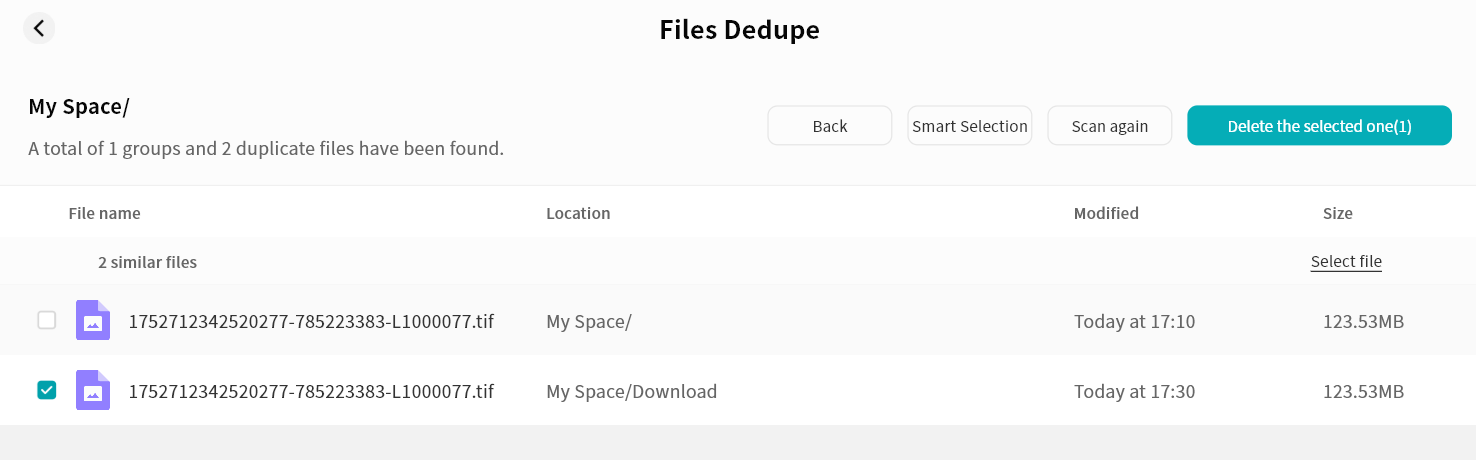
Deduplication Rules
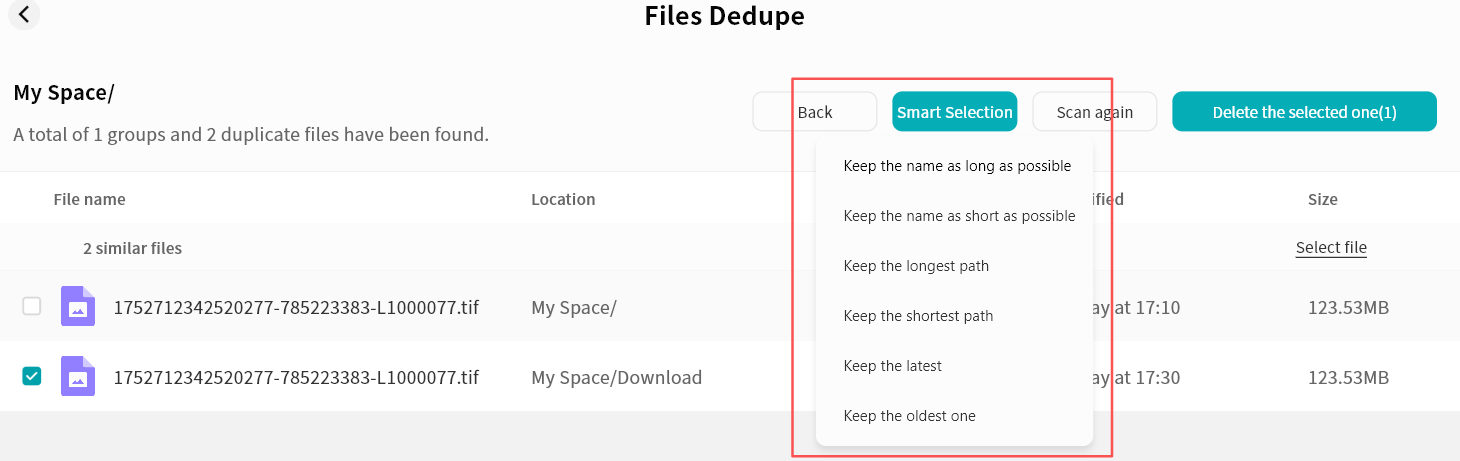
Click Smart Selection in the duplicate file list to define deletion rules:
- By file name length
- By file path length
- By file modification time (earliest/latest)