Registration and Login
When using DASSET for the first time, you will need to create an account. DASSET supports both mobile phone numbers and email addresses as account credentials.
The current DASSET version for Windows and macOS does not allow mobile phone number registration.
DASSET empowers you to define your own security standards for Password Strength. For optimal protection of your sovereign assets, we recommend using a complex, high-security password to minimize potential privacy vulnerabilities.
If you forget your password, you can easily reset it on the DASSET login page by using the mobile phone number or email address registered with your account.
Registration
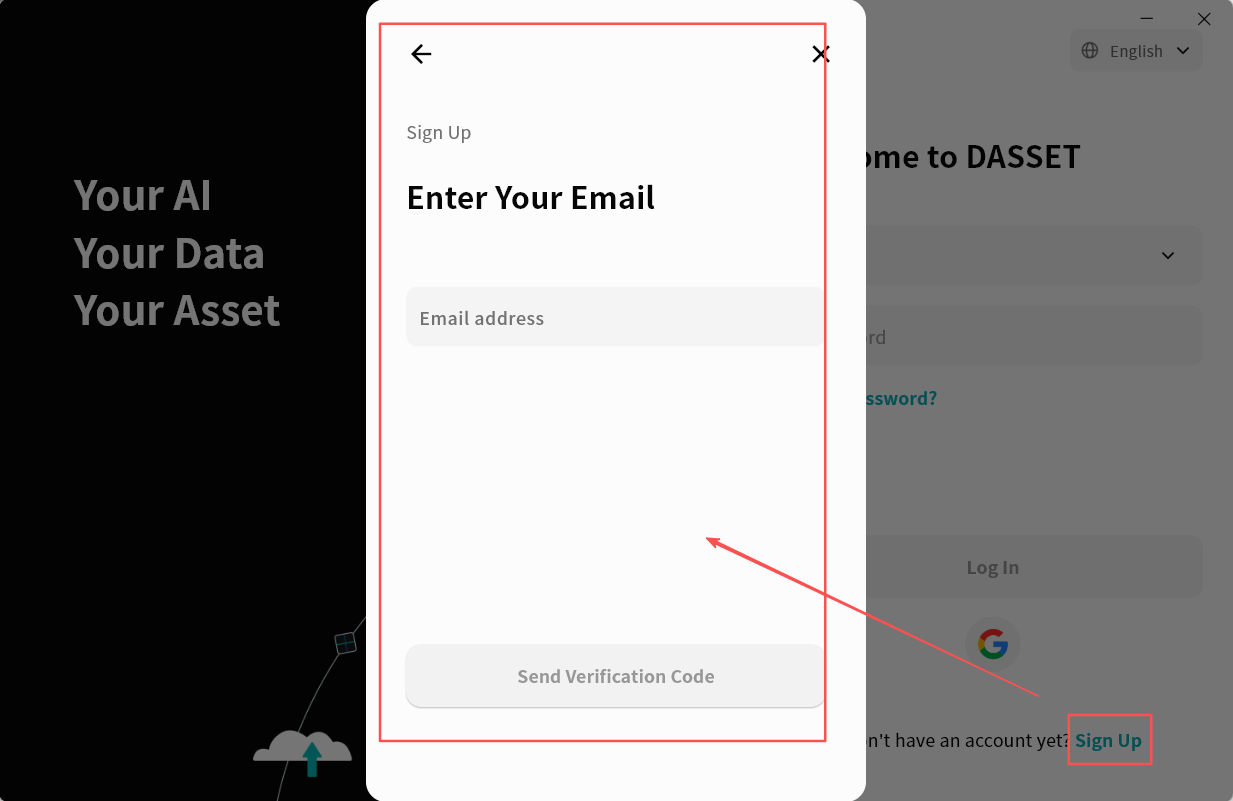
DASSET supports two registration methods: mobile phone number and email. To register, click the Register button on the login page and follow the instructions to complete the account setup.
External security filters and aggressive ISP settings can occasionally intercept DASSET registration emails. If you have not received your Verification Code, please check your Spam folder.
Password Reset
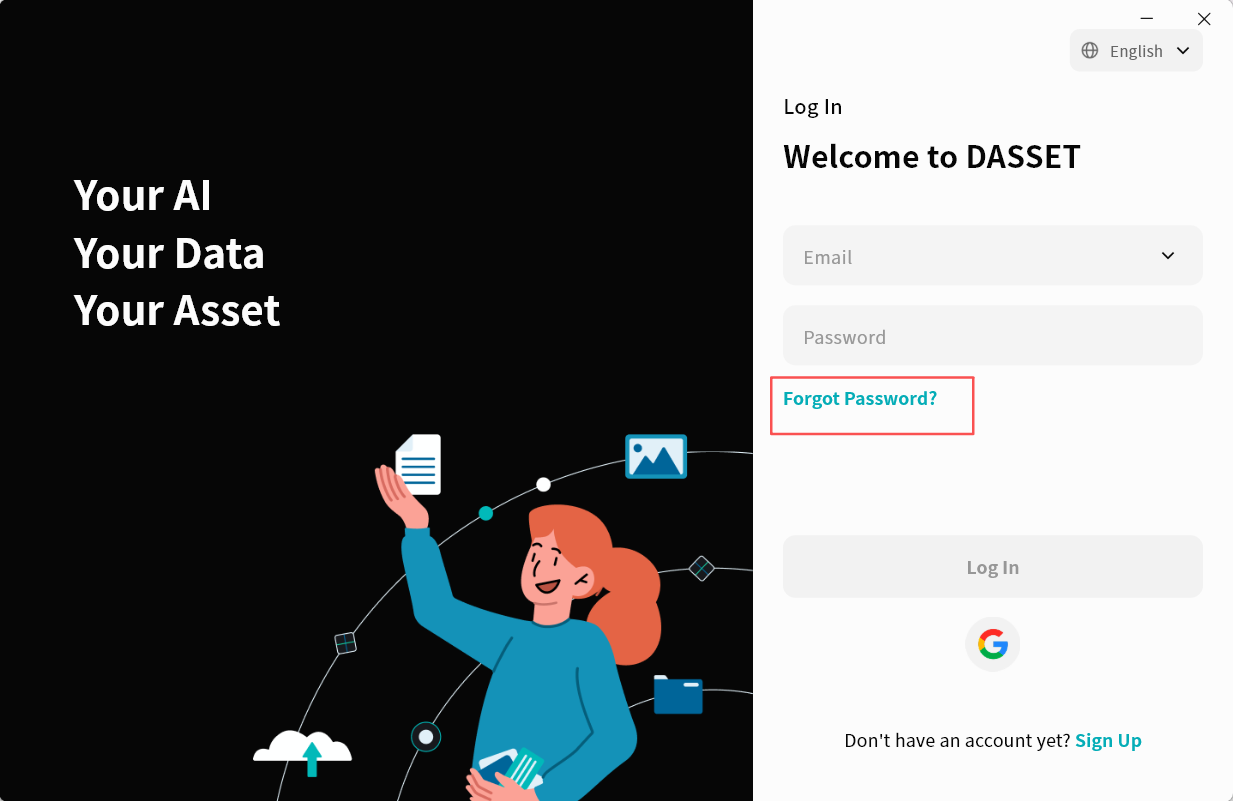
If you forget your DASSET login password, click Forgot Password on the login page and follow the on-screen instructions to reset your password.
Login
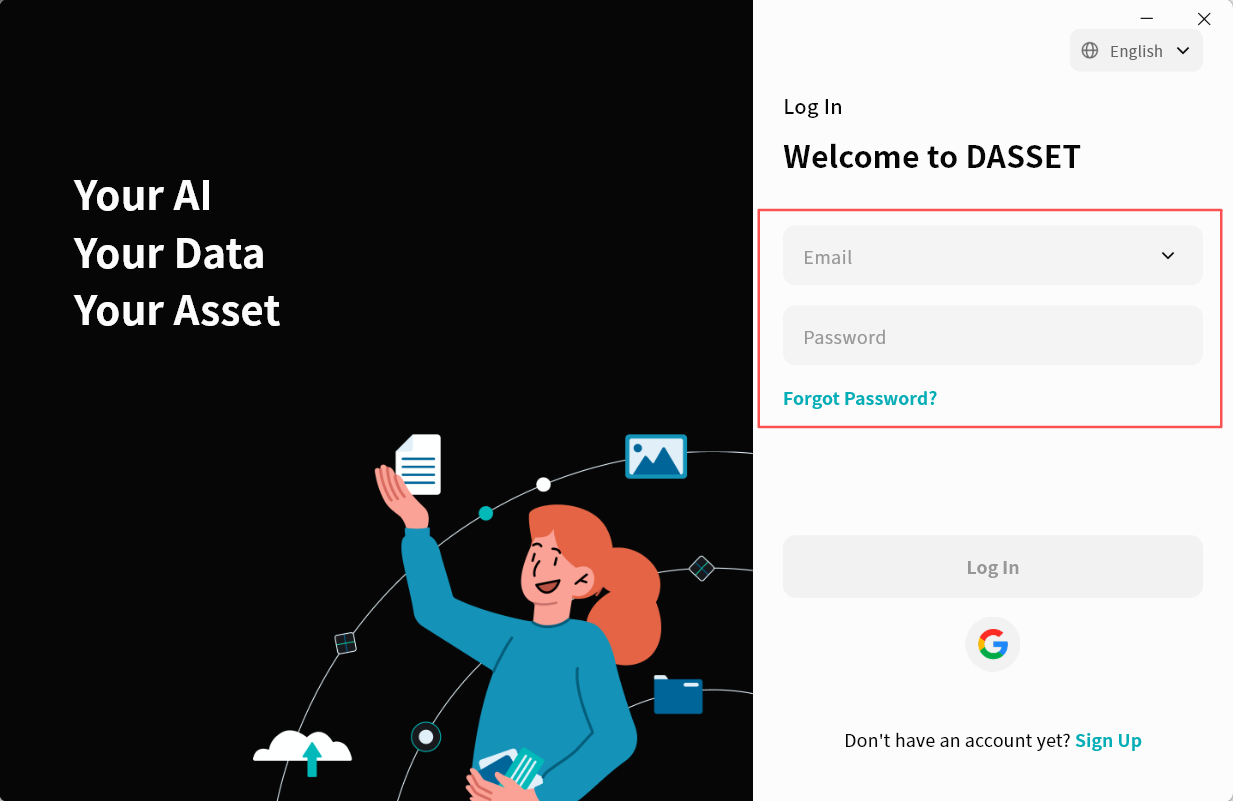
DASSET supports login via both email and mobile phone number. Enter the email or phone number you registered with, along with your password, then click Login to proceed. You may also click the dropdown arrow next to the account input field to select a previously used account (if saved) and log in directly.
Quick Login with Google Account
You can log in to DASSET with one-click authorization using your Google account, without the need to register.
- On the DASSET login page, click the Google icon.
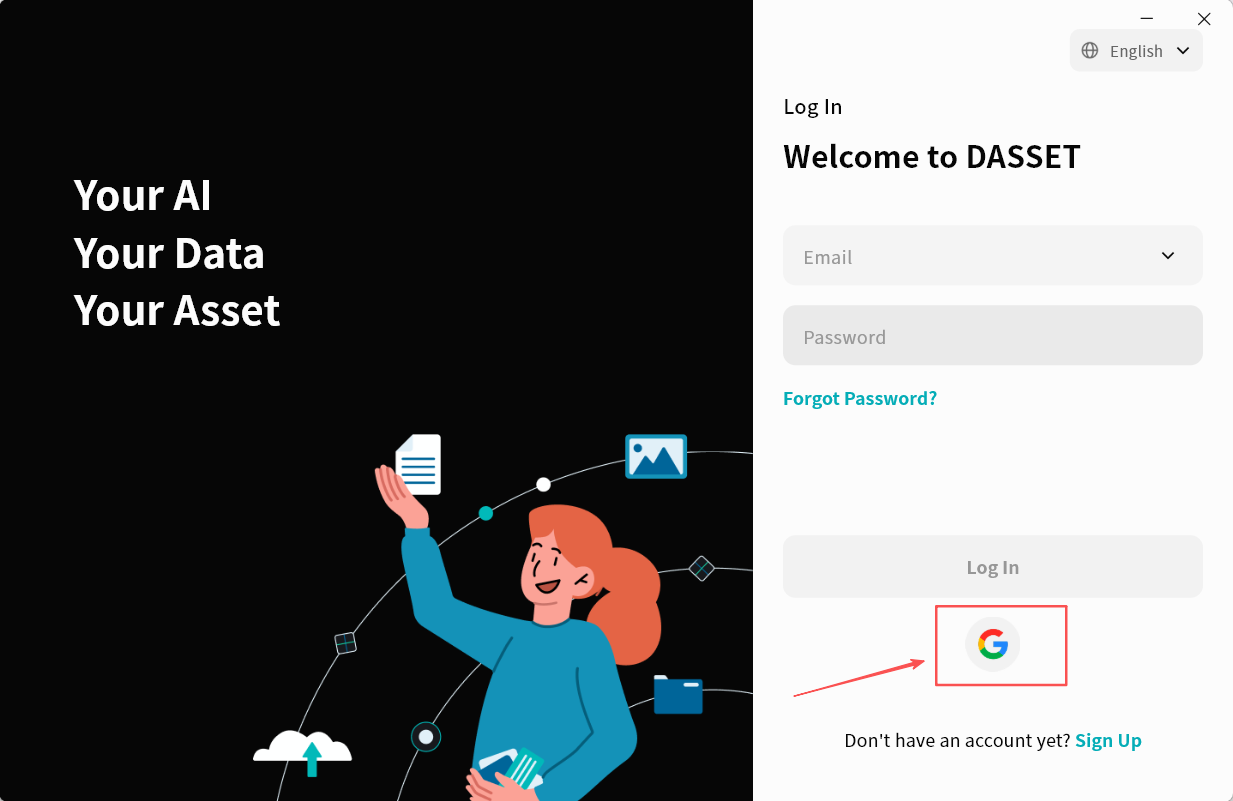
- DASSET will open a browser and redirect to the Google verification page. Enter your Google account and click Next.
- Enter your Google account password and click Next.
- Wait for verification. When the page shown below appears, it indicates that Google verification has been successfully completed.
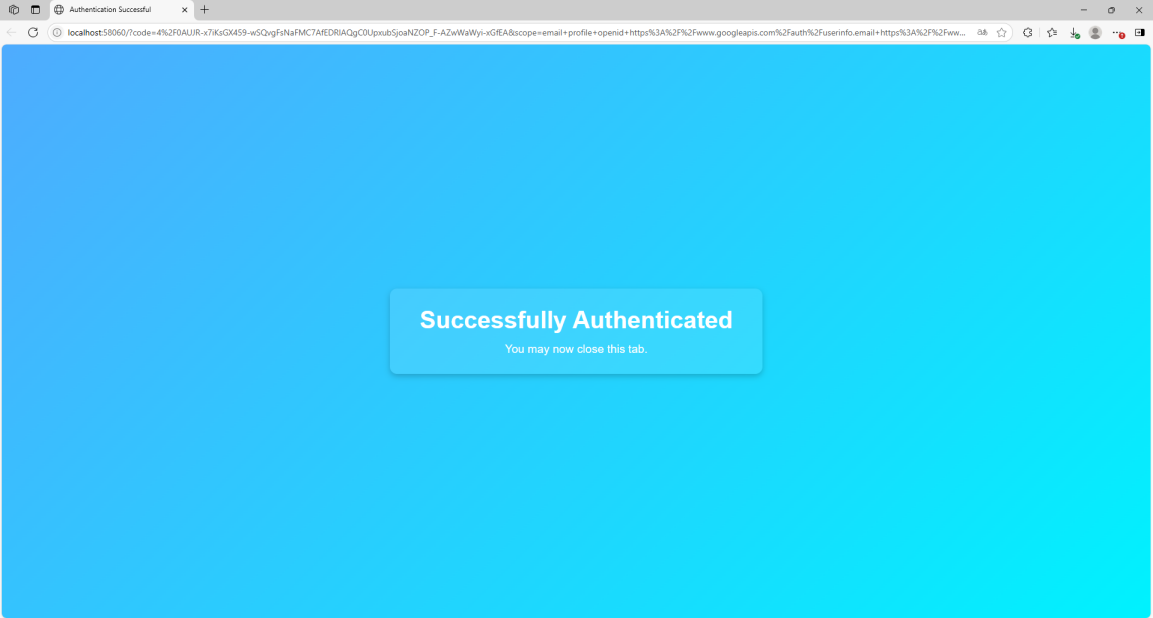
After verification, wait for DASSET to automatically complete the login process.