Device List Page
After completing the login process, you will enter the Device List Page. If you are accessing DASSET for the first time and have not yet added a new device, this page will be blank.
On this page, a list of all available DASSET devices associated with your account will be displayed. From here, you can:
- View connected devices and their status.
- Select a device to access its functions and manage files.
- Quickly switch between multiple devices for centralized control.
The Device List Page serves as the primary entry point for managing your DASSET hardware.
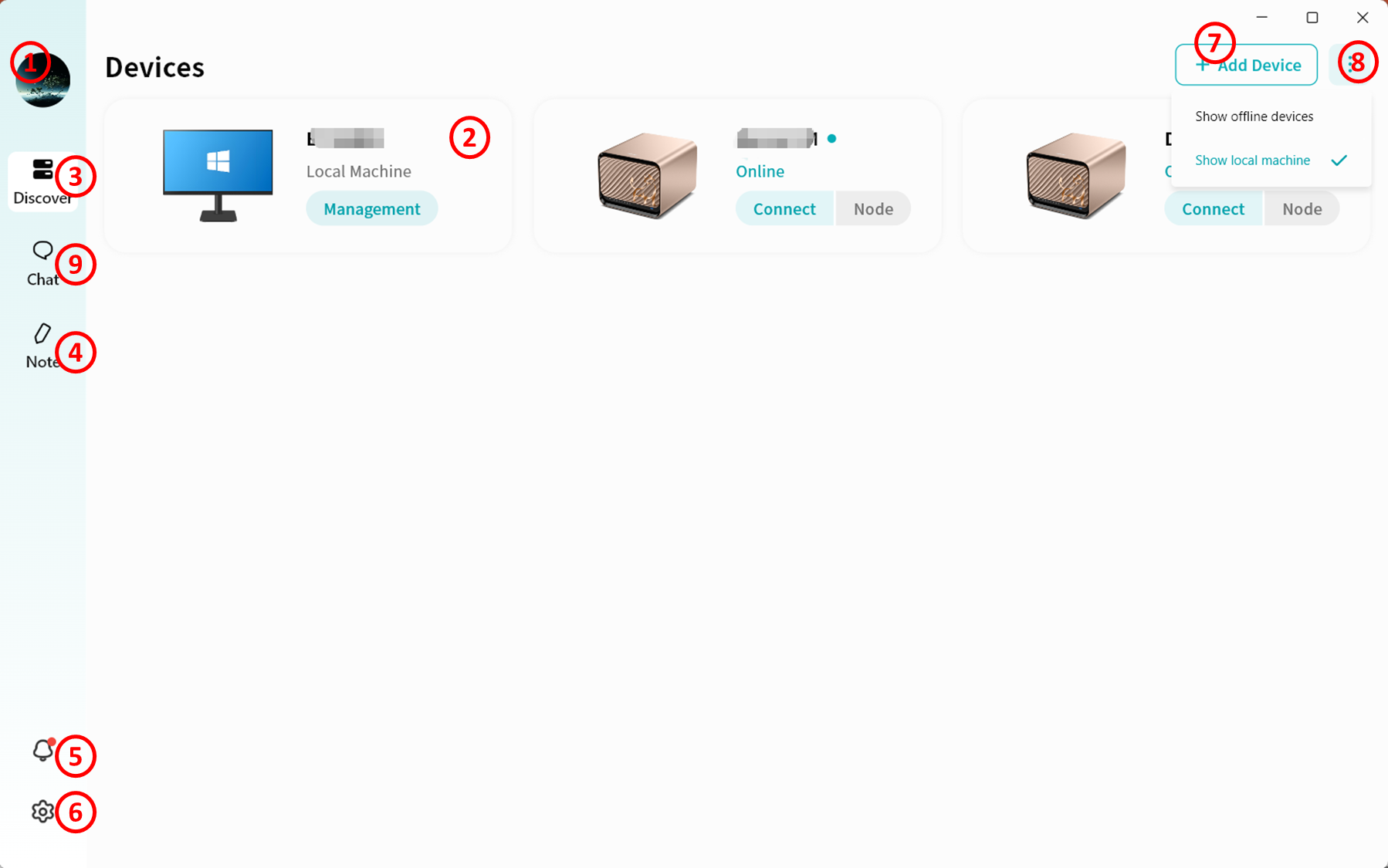
-
Account Avatar: Allows you to switch to another account or log out of the current account.
-
Device List: Displays all devices bound to your account, including both your own devices and those shared with you by others. The list clearly shows whether each device is online or offline.
- Online/Offline status
- Connect: Click to access the selected device.
- Node: Click to use this DASSET device as a relay node for accessing the Internet. The node option only appears if the corresponding feature is enabled on the device.
-
Device List Shortcut Button: Click this icon from anywhere in DASSET to return to the device list page.
-
Notes: Use DASSET's Notes feature to create, edit, and delete notes, while keeping them synchronized between your computer and DASSET devices.
-
Notifications: View device binding notifications here, including binding, unbinding, and binding requests.
-
Settings: Configure DASSET desktop client settings.
-
Add Device: Enter a share code to bind another user's DASSET device.
-
Show All/Online Devices:
-
Chat: Enter the chat function to communicate in real time with other users on the same DASSET device. All chat records are stored locally on that DASSET device.
DASSET Device Home Page
After clicking the Connect button for a device, you will enter the DASSET Device Home Page.
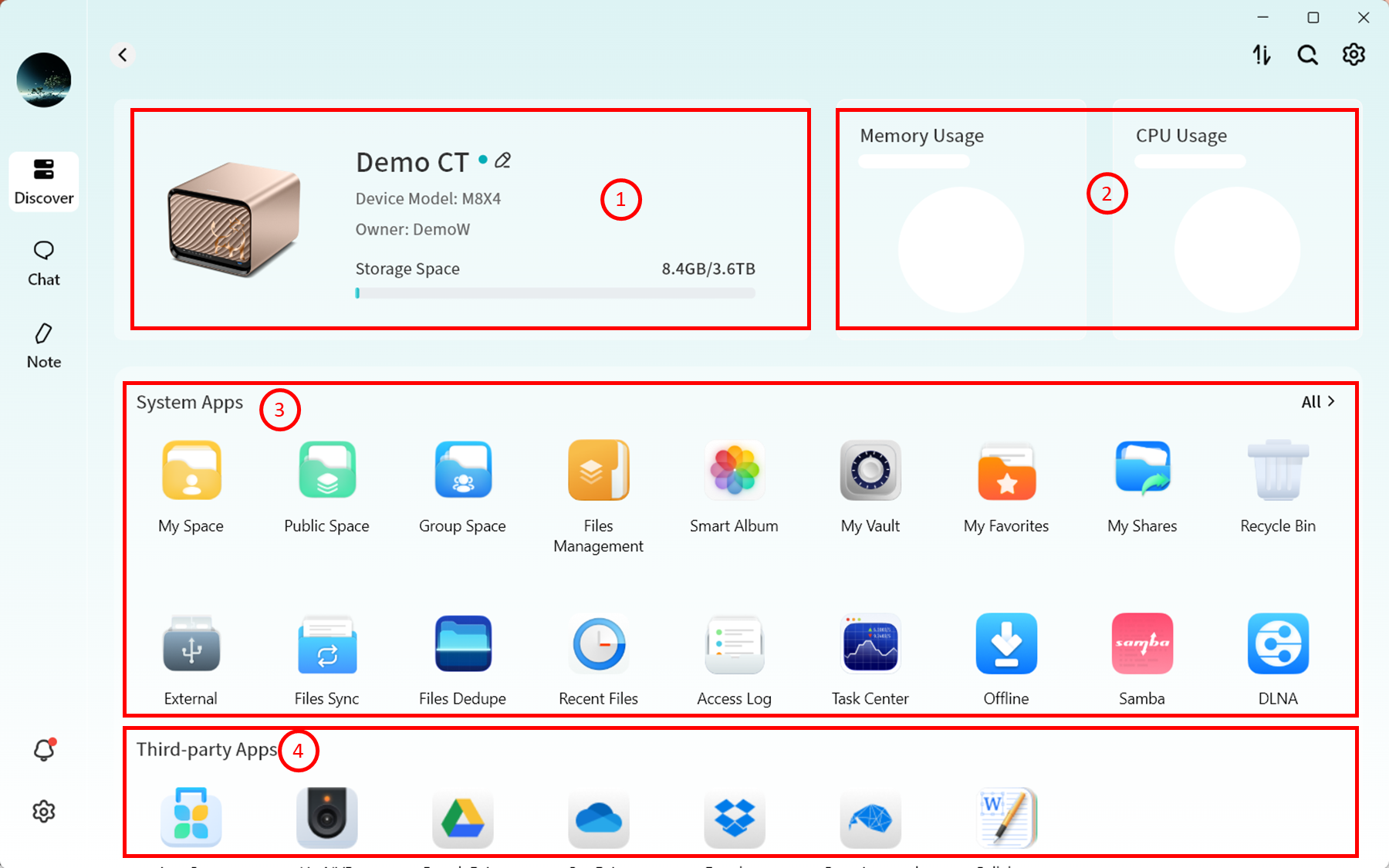
- Device Status will display:
- Device name (click to edit remarks)
- Device model
- Device Owner account
- Storage usage
- Hardware Performance Monitoring
- CPU usage
- Memory usage
- System Applications
- Displays built-in DASSET system application icons. Click an icon to open the corresponding application page.
- Third-party Applications
- Displays third-party applications available for installation on DASSET. Click an icon to install and use as needed.