Device Management
All management of DASSET devices is centralized on the Device Management page, which mainly includes the following functions:
- Device Info: Displays device software and hardware information, with quick access to operations such as shutdown.
- Storage Management: Shows storage usage details.
- Disk Management: Manages inserted hard drives and supports operations such as formatting.
- Node Configuration: Configures node information, allowing you to use this device as a relay node to access the Internet or resources within the device's local network.
- Member Management: Manages all members on the device and invites others to join the device.
- Network Management: Configures device network settings.
Device Info
The Device Info page primarily displays the device's basic details and provides quick access to functions such as shutdown:
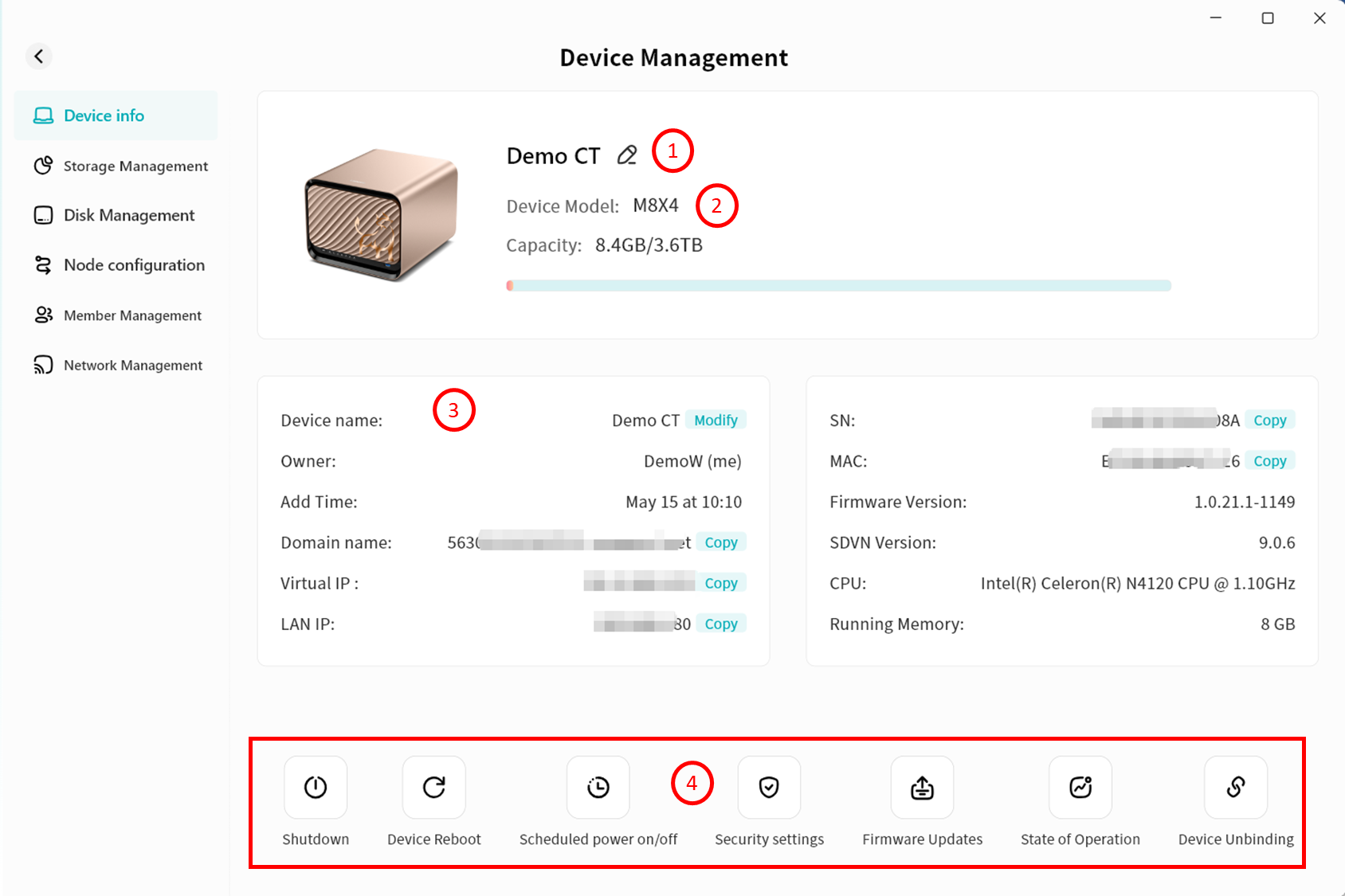
- Edit Device Remarks: After modification, the updated device name will appear on the device list and home page.
- Remarks help you distinguish between multiple devices more clearly.
- Remarks are visible only to you.
- Device Model and Capacity Information: Displays the device model and an overview of storage usage.
- Device Basic Information: Centralized display of all device-related details, including:
- Device Name: Editable only by the device Owner.
- Owner: Displays the account nickname of the current device Owner.
- Added Time: Shows the date the device was bound.
- Domain Name: Displays the device's virtual domain URL within the DASSET virtual network.
- When logging in to DASSET, you can connect to the device using the domain name or virtual IP.
info
The virtual domain is static and will not change once assigned.
- Security: Only users bound to the device can connect via the virtual domain. Other DASSET accounts cannot.
- Virtual Network IP: The IP address assigned to the device within the DASSET virtual network.
- This IP is dynamic.
- Security: Only users bound to the device can connect via the virtual IP. Other DASSET accounts cannot.
- LAN IP: The device's IP address within the local network.
- Device Model: Factory model defined by the manufacturer.
- SN: The device's unique serial number.
- MAC: The MAC address of the device's network interface card.
- Firmware Version: Current firmware version number.
- SDVN Version: Current SDVN version number.
- CPU: Device CPU model.
- RAM: Device memory size.
- Quick Functions: Includes shortcuts for shutdown, unbinding, and other operations.
Shutdown
This function is available only to Owner and Administrator accounts. Click the Shutdown button at the bottom of the Device Information page to remotely power off the DASSET device.
Note: If your DASSET device does not support remote startup, there are two ways to restart it after shutdown:
- Disconnect and reconnect the power supply (requires device support for power-on after power recovery).
- Manually press the device's power button to restart.

Device Reboot
This function is available only to Owner and Administrator accounts. Click the Device Reboot button at the bottom of the Device Information page to remotely restart the DASSET device.

Scheduled Power On/Off
This function is available only to Owner and Administrator accounts. Regular users can only view the scheduled rules. Click the Scheduled Power On/Off button at the bottom of the Device Information page to set your DASSET device to enter sleep mode at specified times.
Steps to configure:

- Go to Device Management Device Information Scheduled Power On/Off, then click Enable Scheduled Power On/Off.
- Set the specific rules:
- System Time
- Time of power off/on: Set the scheduled shutdown and startup times. You can either input the exact time or adjust in hourly increments using the up/down arrows.
- Repeat: Set the repeat schedule for the rule to take effect. Options include Everyday, Weekdays, Weekends, or Custom days of the week.
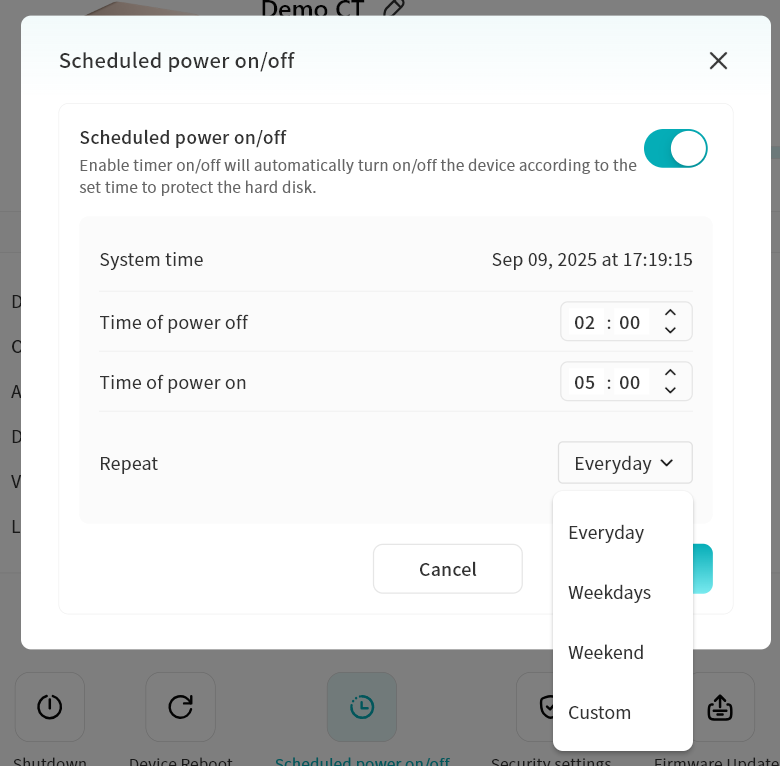
- If you no longer wish to use Scheduled Power On/Off, simply disable the option.
Security Settings
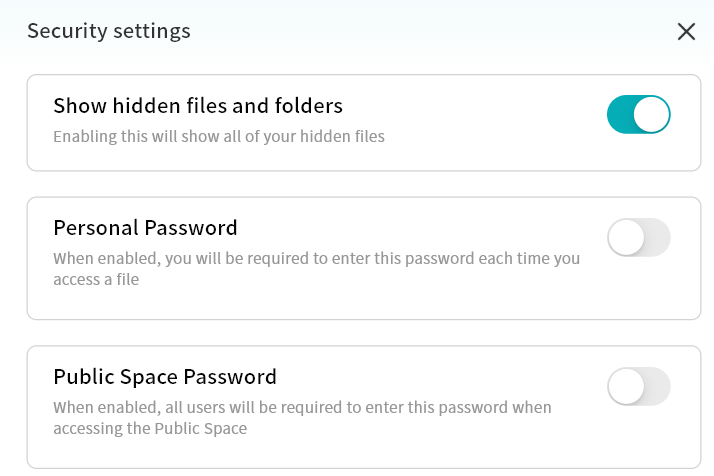
Click the Security Settings button at the bottom of the Device Information page to enter the Security Settings page.

- Show Hidden Files and Folders: When enabled, all hidden files and folders will be visible in the File Management page.
- Personal Password: When enabled, a password must be entered to access the device.
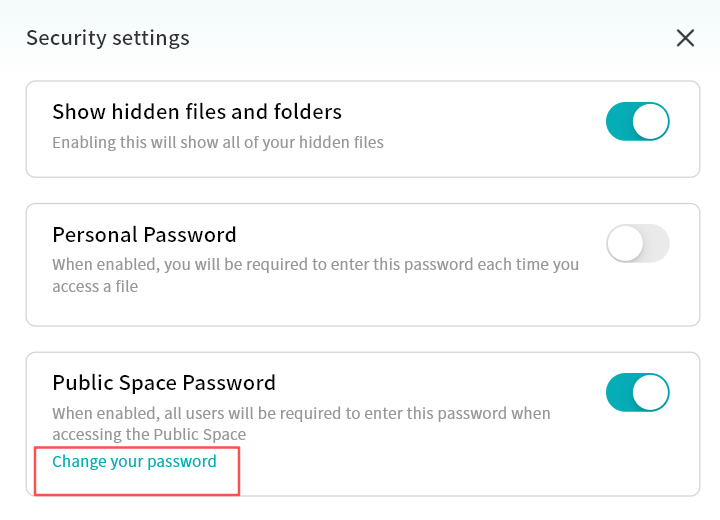
- Public Space Password: When enabled, a password must be entered to access data in the Public Space.
Show Hidden Files and Folders
If you have hidden certain files and wish to access them again, you can enable Show Hidden Files and Folders to display hidden files/folders in the File Management page.
Personal Password
To set a Personal Password:
- On the Device Information page, click Security Settings and enable Personal Password.
- In the pop-up input box, enter a password to complete the setup.
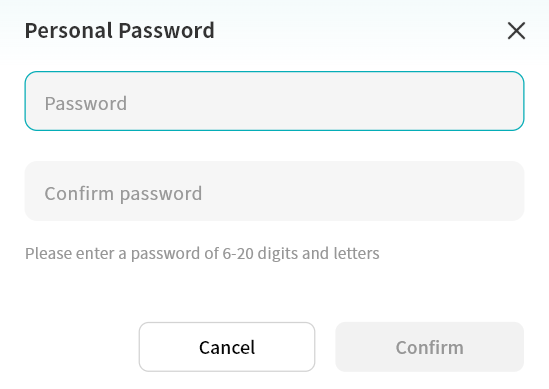
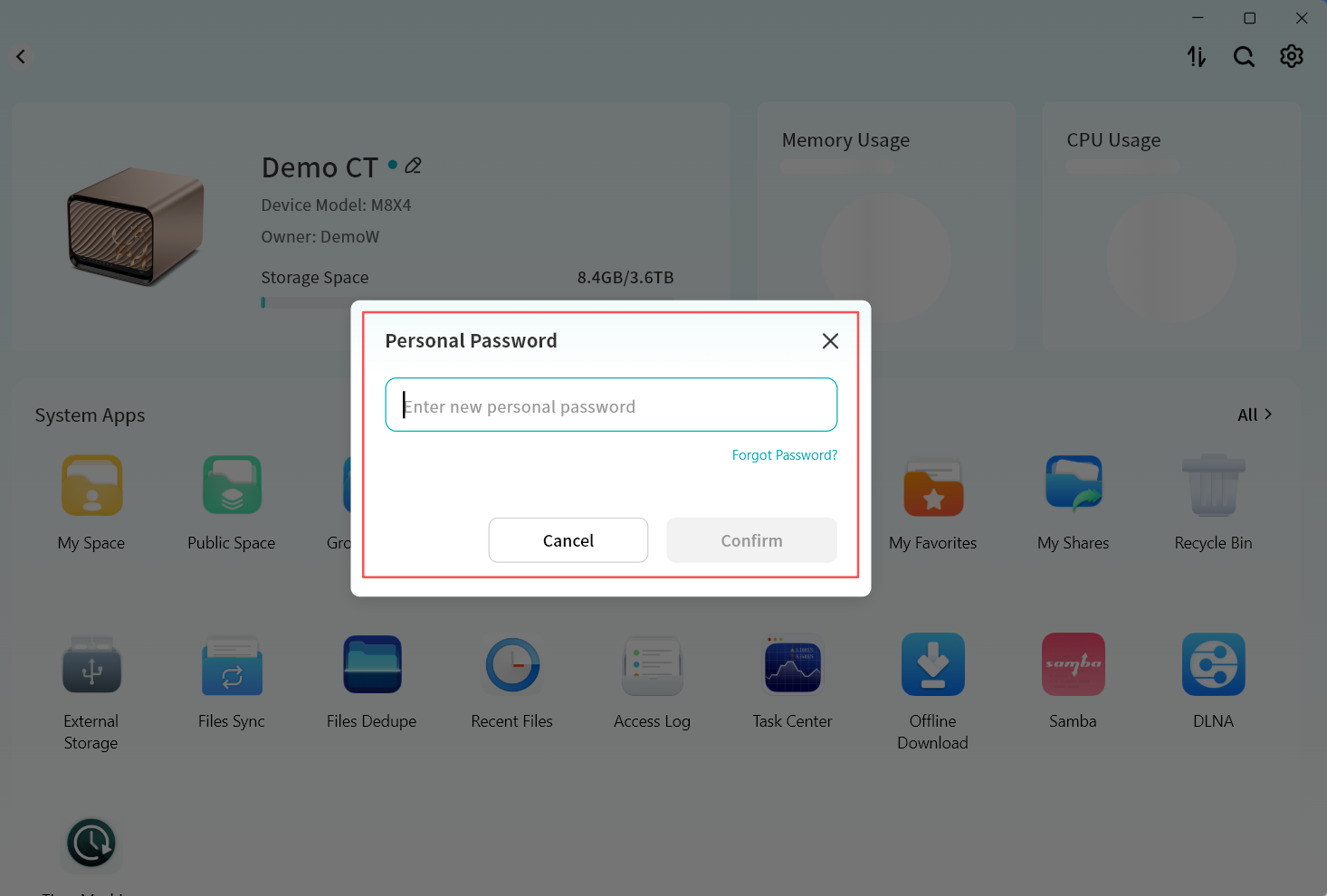
After setting a personal password, you will be prompted to enter it when accessing the device home page. Only after entering the correct password can you access the device.
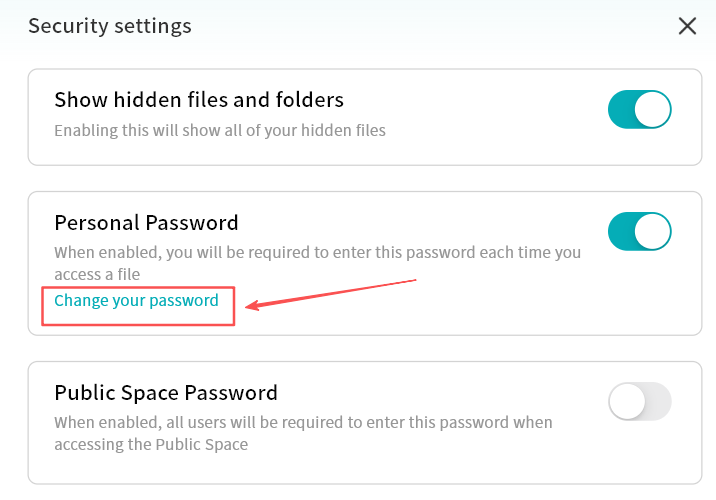
To change your Personal Password:
- Go to Device Information Security Settings - Personal Password and click Change Password.
- In the pop-up window, enter the current personal password to verify your identity.
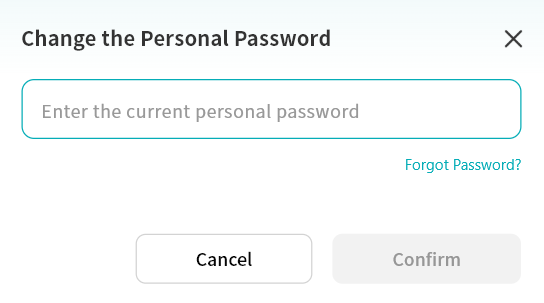
- Enter the new password to complete the change.
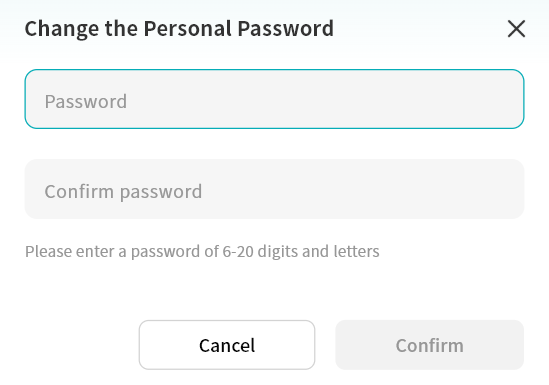
To recover a forgotten Personal Password:
- In the personal password input or change password window, click Forgot Password.
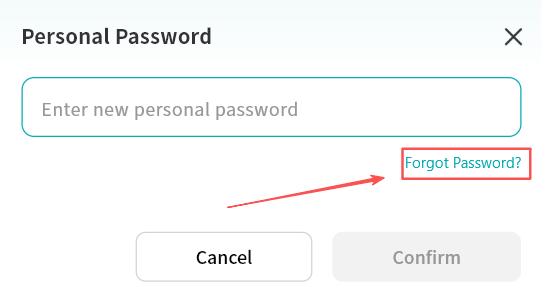
- Enter the email address or mobile phone number bound to your DASSET account.
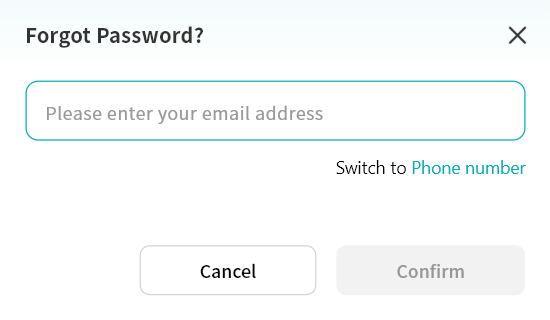
- Enter the correct verification code.
- After verification, set a new personal password in the new password window.
Public Space Password
Setting a Public Space Password is available only to Owner and Administrator accounts.
To set a Public Space Password:
- On the Device Information page, click Security Settings and enable Public Space Password.
- In the pop-up input box, enter a password to complete the setup.
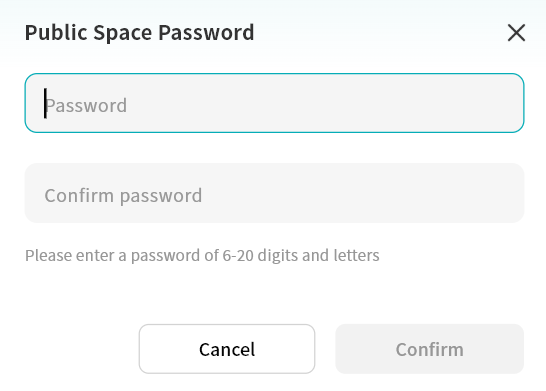
When attempting to enter a password-protected Public Space, you will be prompted to input the correct password before access is granted.
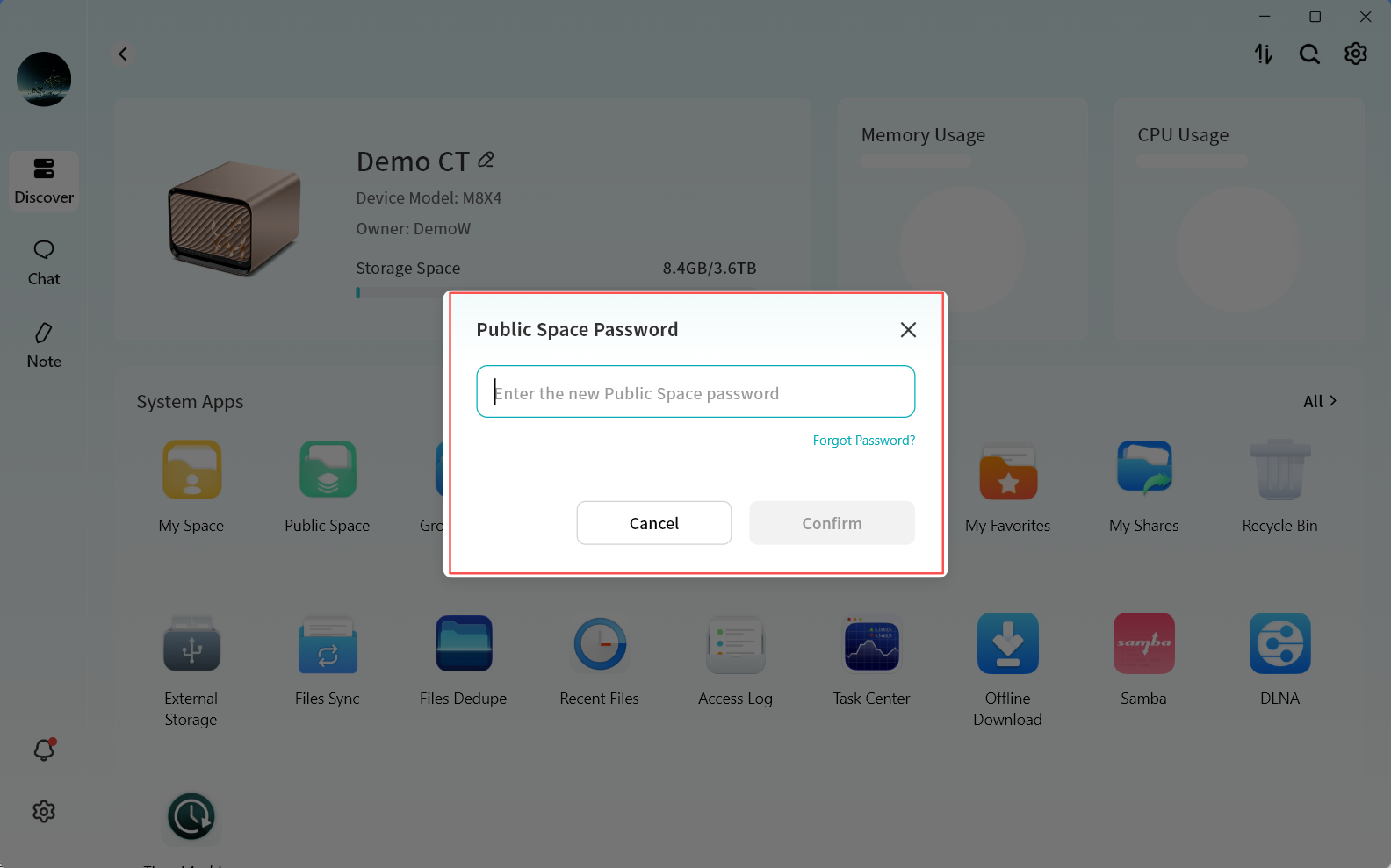
To change the Public Space Password:
- To change the Public Space password, go to Device Information Security Settings Public Space Password and click Change Password.
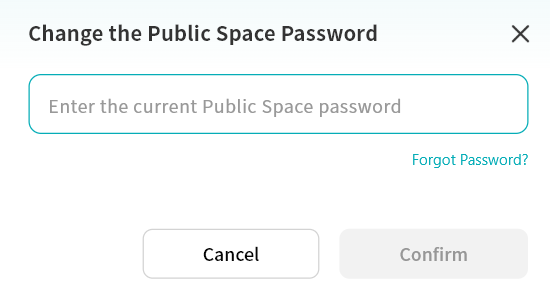
- In the pop-up window, enter the current Public Space password to verify your identity.
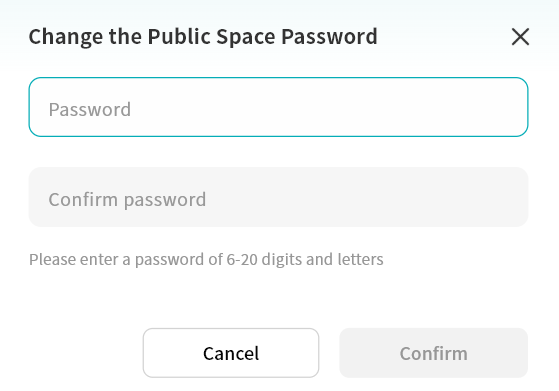
- Enter the new password to complete the change.
Forgot Public Space Password -- Recovery
This recovery function is available only to Owner and Administrator accounts.
- In the Public Space password input or change password window, click Forgot Password.
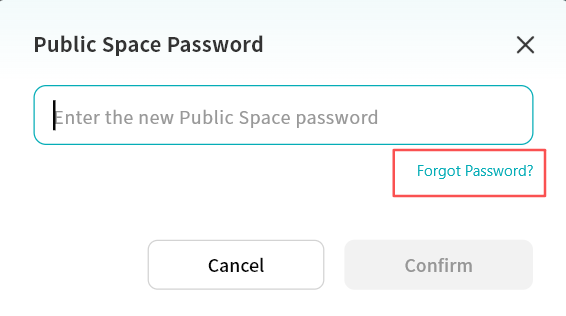
- Enter the email address or mobile phone number bound to your DASSET account.
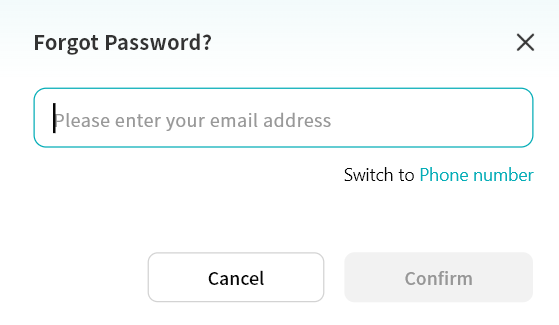
- Enter the correct verification code.
- After verification, set a new Public Space password in the new password window.
Firmware Updates
Periodic firmware updates are pushed to DASSET devices to enable new features and functionality as well as providing bugfixes and security updates. This function is available only to Owner and Administrator accounts.
Firmware updates are provided in two ways:
- Automatic check with client update notifications
- Manual check for updates
Automatic Firmware Update Notification
When a new firmware version is detected for the DASSET device, the DASSET client will automatically display a Firmware Update prompt upon entering the device home page.
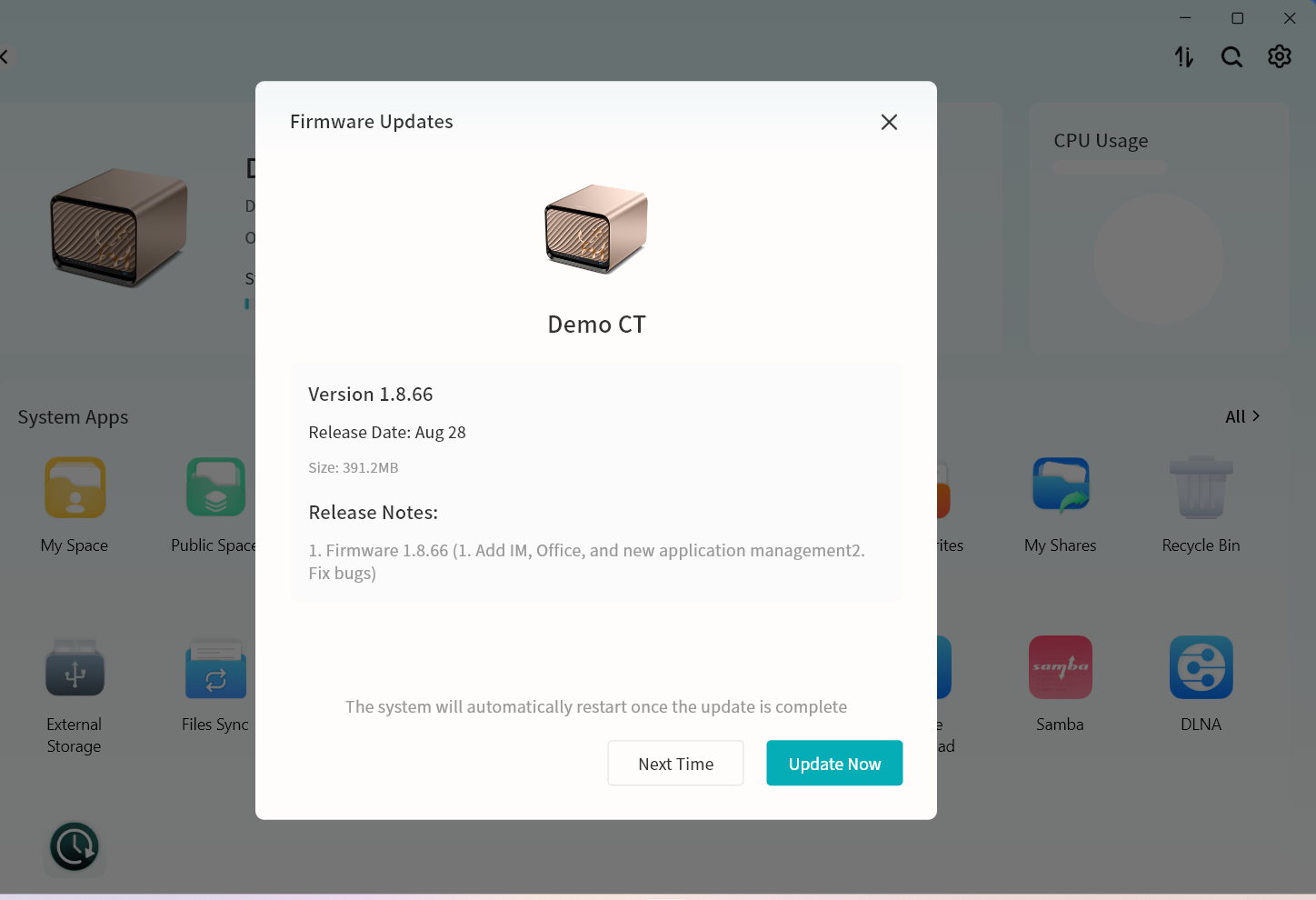
The system checks for updates every 8 hours. If a new version is found, you will be notified at login.
- Click Update Now to begin the upgrade.
- If you prefer not to upgrade immediately, click Next Time to postpone the update.
Manual Check for Firmware Updates
Click the Firmware Updates button at the bottom of the Device Information page to manually check for available firmware updates.

- If a firmware upgrade is detected, a small red dot will appear on the Firmware Update option, indicating a pending update compatible with your device.

Firmware upgrade steps:
-
Click Device Information Firmware Update.
-
Check for updates:
- If an update is available, the upgrade page will display the firmware version, release date, and detailed update information.
- If no update is available, a message will confirm that the device is up to date.
-
Click Update Now. The system will automatically download and install the firmware. Please wait patiently.
dangerDo not power off or restart the device during the upgrade process to avoid firmware failure or device malfunction.
-
After the upgrade is complete, the device will restart automatically. You will receive a device offline notification, and once the restart finishes, the device will appear online again in your device list.
State of Operation
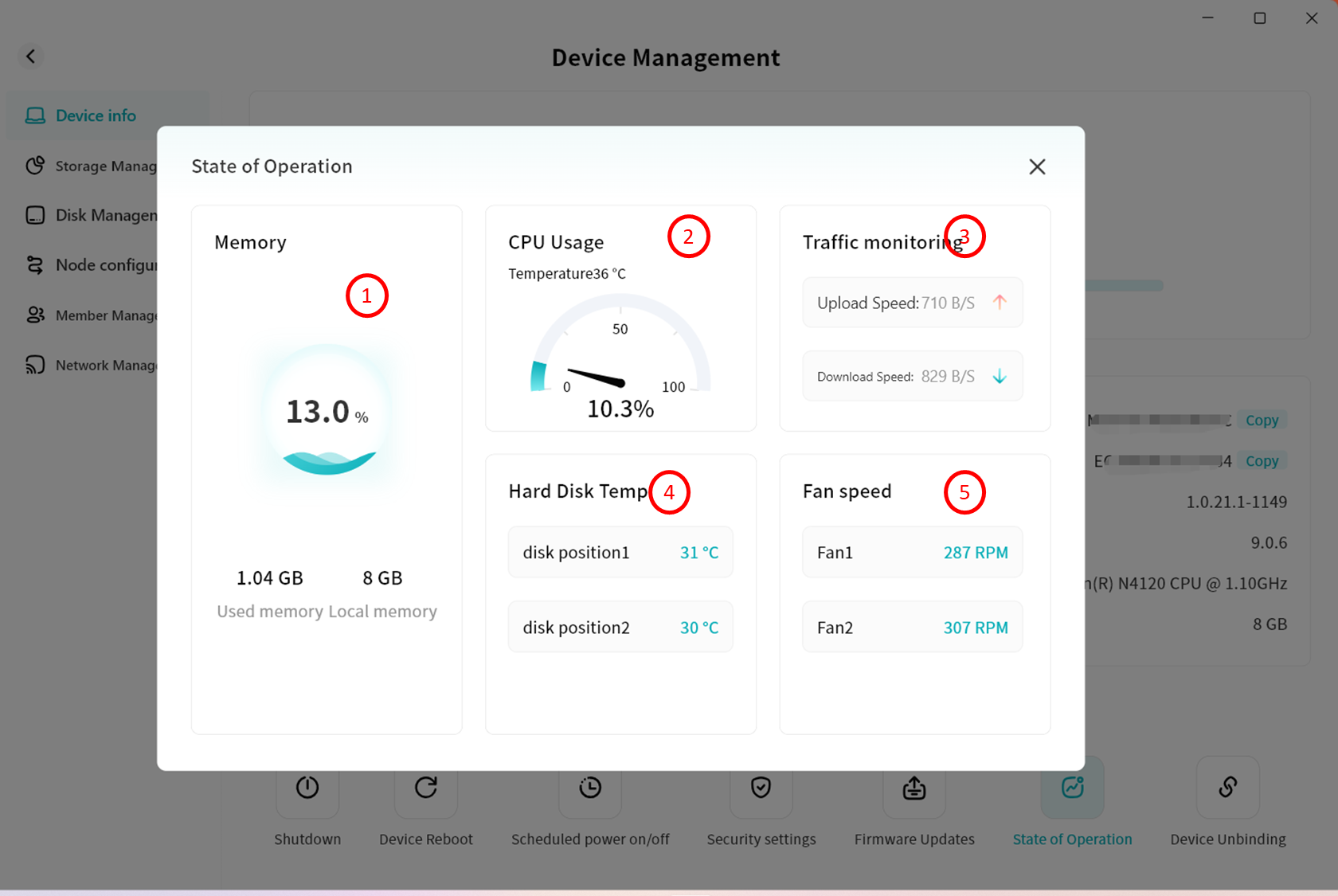
This function is available only to Owner and Administrator accounts. Click the Running Status button at the bottom of the Device Information page to view the current operating status of the device.
On the Running Status page, you can monitor the following information:
- Memory usage
- CPU usage
- Device traffic, including upload and download speed
- Hard disk temperature, showing the operating temperature of inserted disks
- Fan speed, showing the rotation speed of the device's built-in cooling fan