AI Notes
Overview
AI Notes is a note-taking application on DASSET that offers the ability to create text, voice and media notes. Notes are stored on the DASSET device and can be accessed from any device running the DASSET application.
Click the Note icon on the left navbar to enter the application.
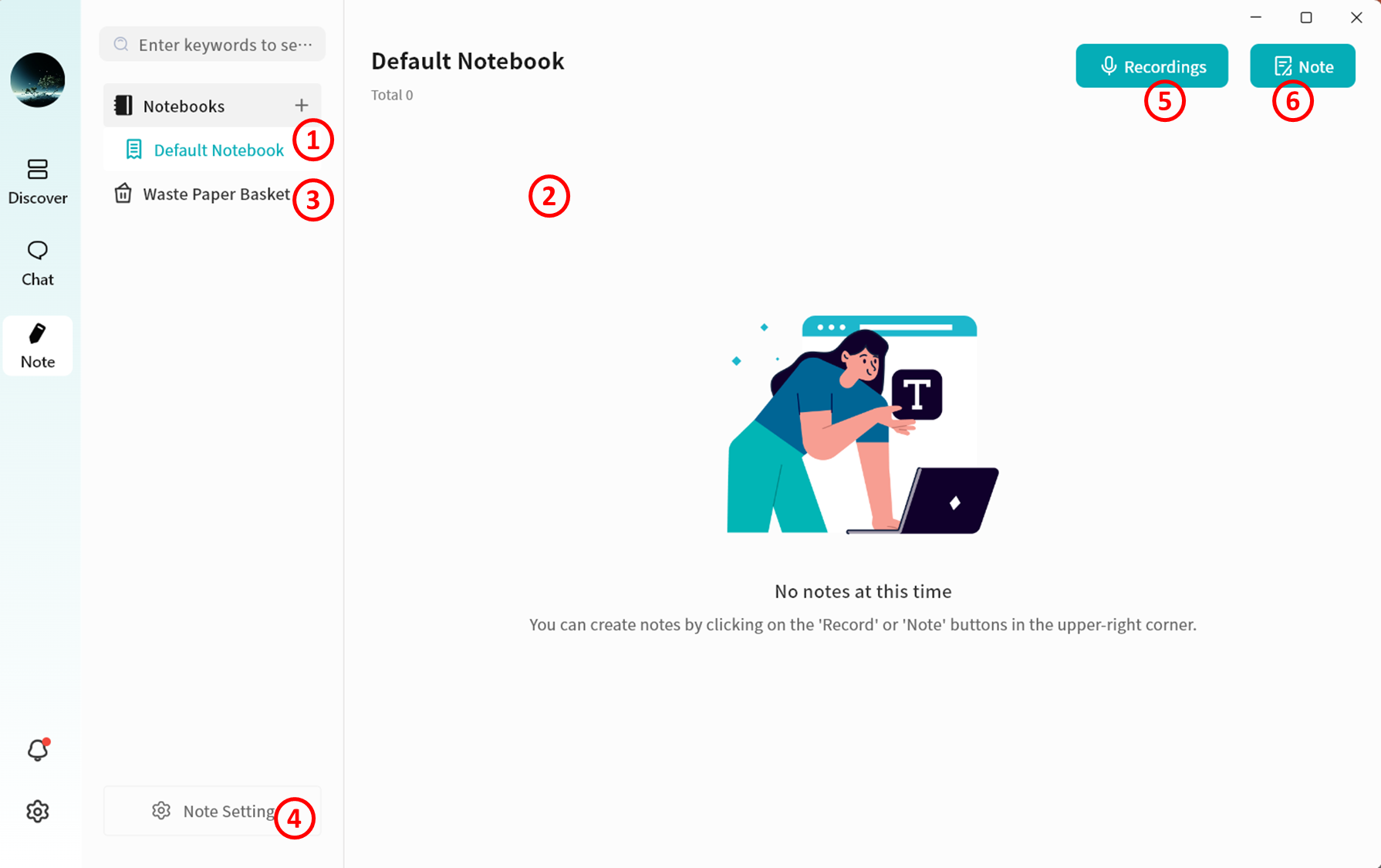
- Notebooks: Create, rename, and delete notebooks.
- Note Display: Shows all notes stored in the selected notebook.
- Waste Paper Basket: Deleted notes and notebooks are temporarily stored here.
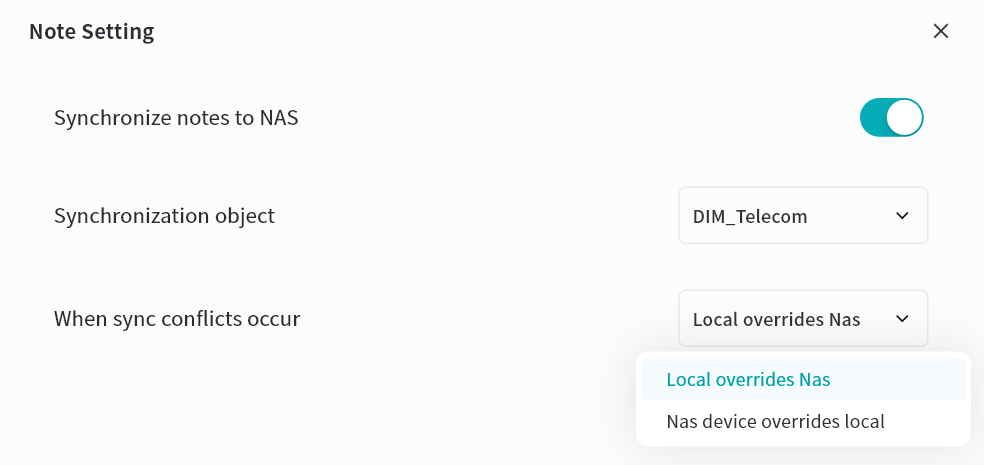
- Note Settings: By default, notes are saved on your local computer. You can choose to sync them to your DASSET device.
- Recording: Uses the computer's microphone to record audio. After recording, a new note with the audio file will be created in the selected notebook.
- New Note: Creates a new note in the selected notebook.
Markdown syntax content can be copied directly into a note while retaining its original format.
Notebook Management
Multiple notebooks are supported to help organize your knowledge.
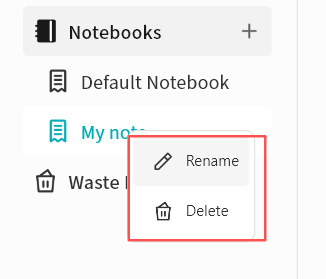
- Create Notebook: Click the plus sign (+) to create a new notebook.
- Manage Notebook: Right-click a selected notebook to rename or delete it.
Deleting a notebook will also delete all notes inside it. Restoring a deleted note from the Trash will also restore its associated notebook.
Note Management
When you select a notebook, all notes stored inside it are displayed in the notes window.
Note Status
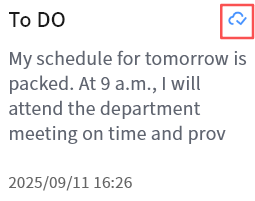
If note synchronization is enabled, each note will show its current sync status in the top-right corner:
 Waiting to sync
 Sync complete
 Sync in progress
Audio Notes
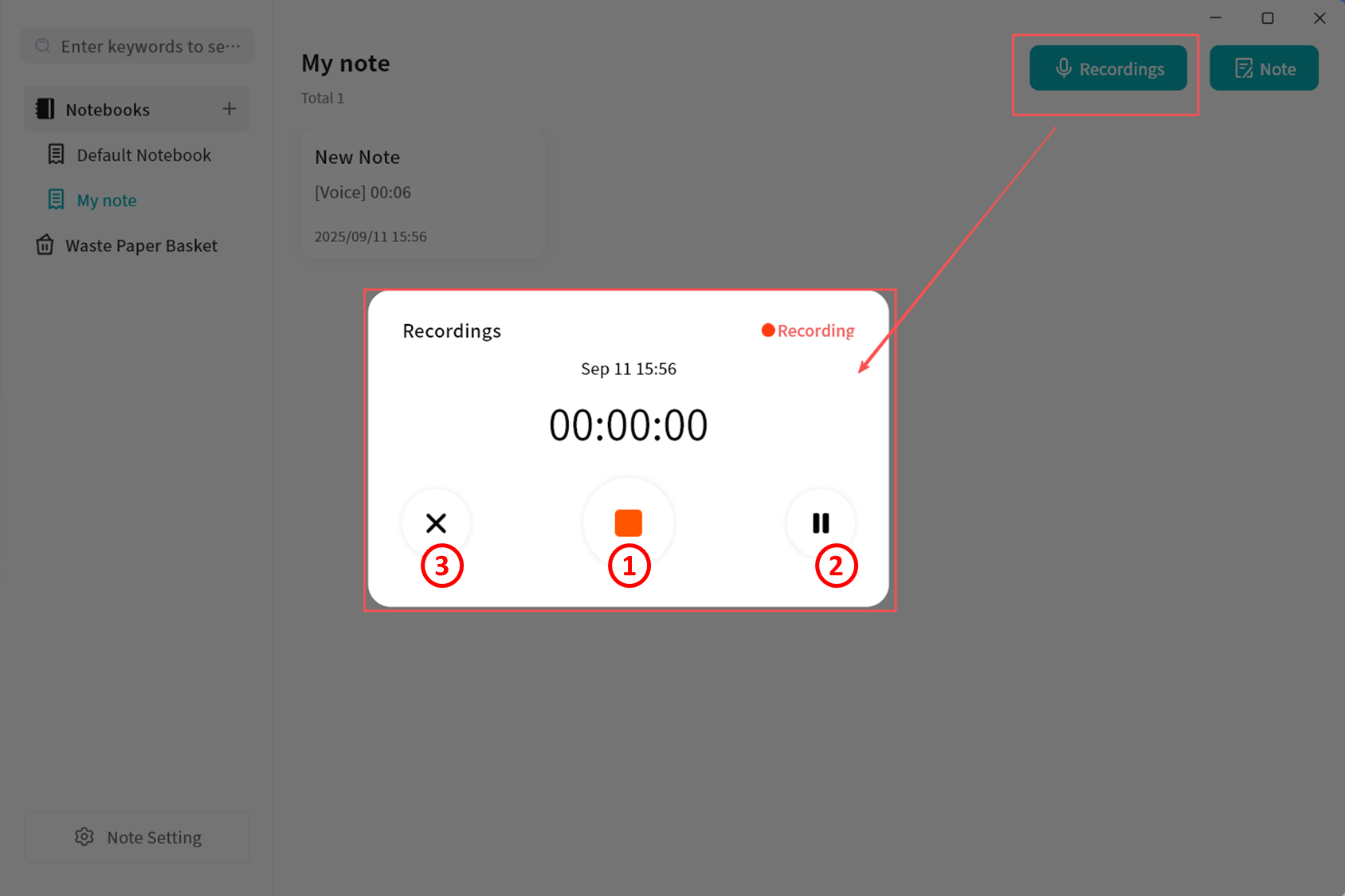
Click Record to start recording. Once recording is finished, a new note containing the audio file will be created automatically.
- Stop Recording: Ends the recording and saves the audio file in the new note.
- Start/Pause Recording: Allows you to pause and resume recording.
- Exit: Cancels the current recording.
Note Editing
Notes support rich text editing as well as basic formatting:
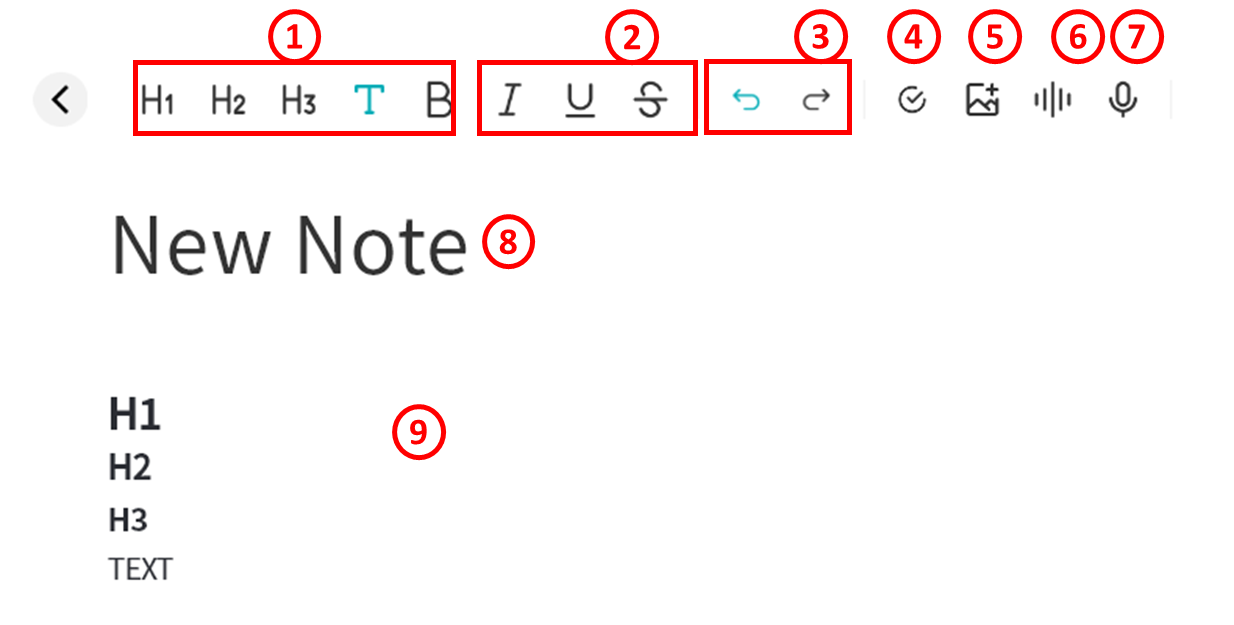
- Set document structure, including Heading 1/2/3 and body text.
- Format text with bold, italic, underline, and strikethrough.
- Undo/Redo: Cancel the current edit, or restore what was just undone (only available if no further actions have been taken after the undo)
- Create to-do items, which can be marked as Completed.
- Insert media files, including pc-images and videos. pc-images can be pasted directly from copied files or screenshots.
- Insert audio files.
- Start live audio recording.
- Edit note title.
- Edit note body.
Supported formats:
- Audio: mp3, wma, flac, wav, aac, ape, m4a, ogg
- Images: gif, jpg, png, jpeg
- Videos: avi, flv, mov, mkv, mp4, wmv
Right-Click Menu in Note Editor
While editing a note, you can right-click to perform various actions:
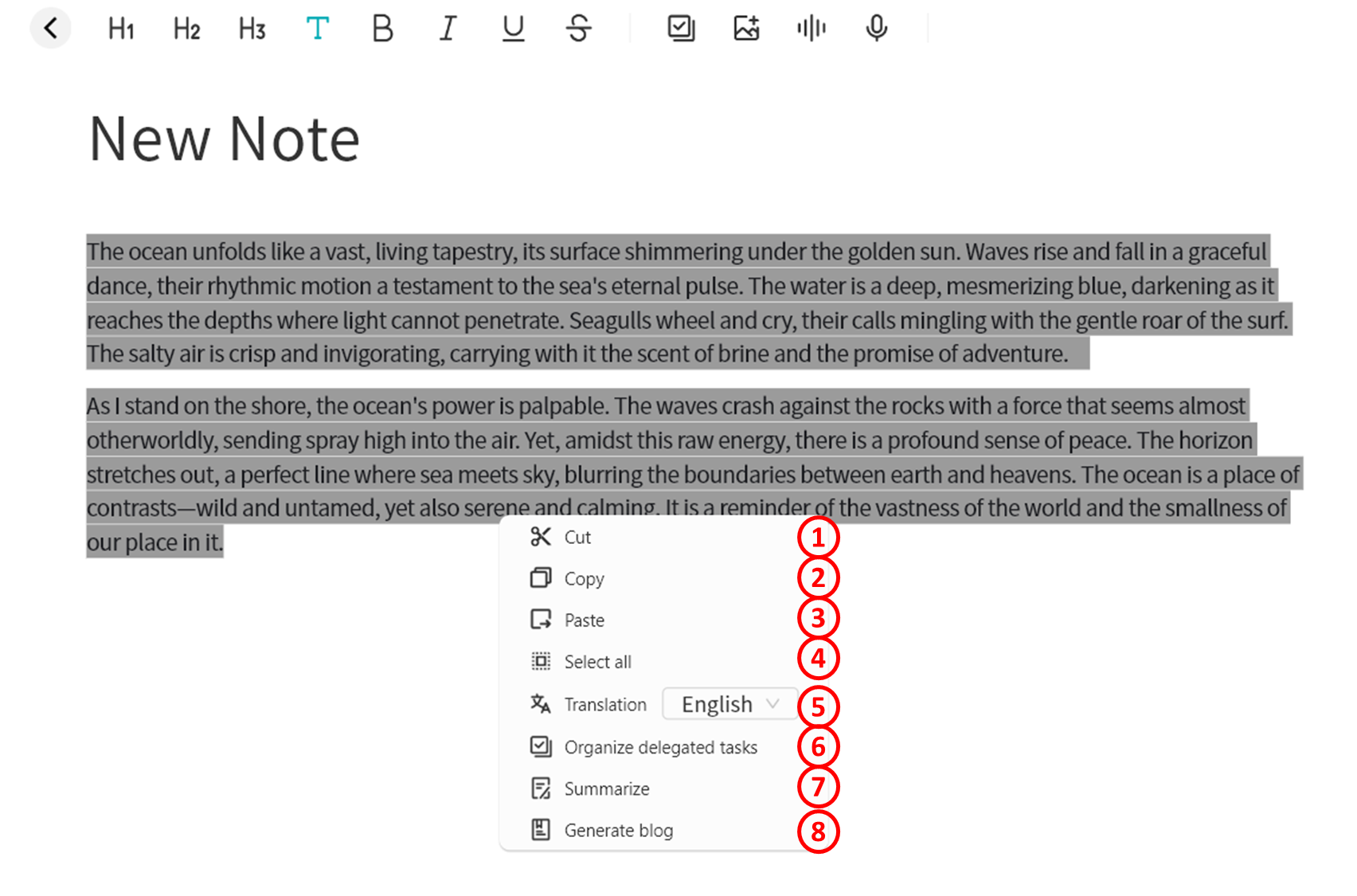
- Cut: Remove selected content.
- Copy: Copy selected content.
- Paste: Insert copied content.
- Select All: Select the entire content of the note.
- Translation: Use the AI Agent to translate selected content into Chinese, English, or Japanese.
- Organize Delegated Tasks: Use the AI Agent to convert selected content into a to-do list.
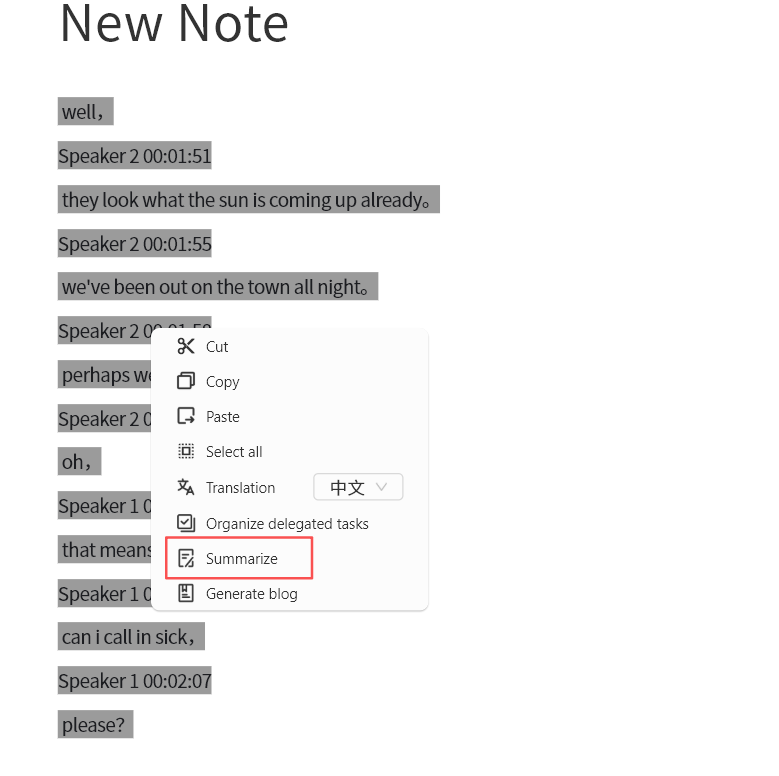
- Summarize: Use the AI Agent to generate a summary of selected content.
- Generate Blog: Use the AI Agent to create blog-ready text from selected content.
Note Management from the List Page
On the notes list page, you can right-click a note to perform the following actions:
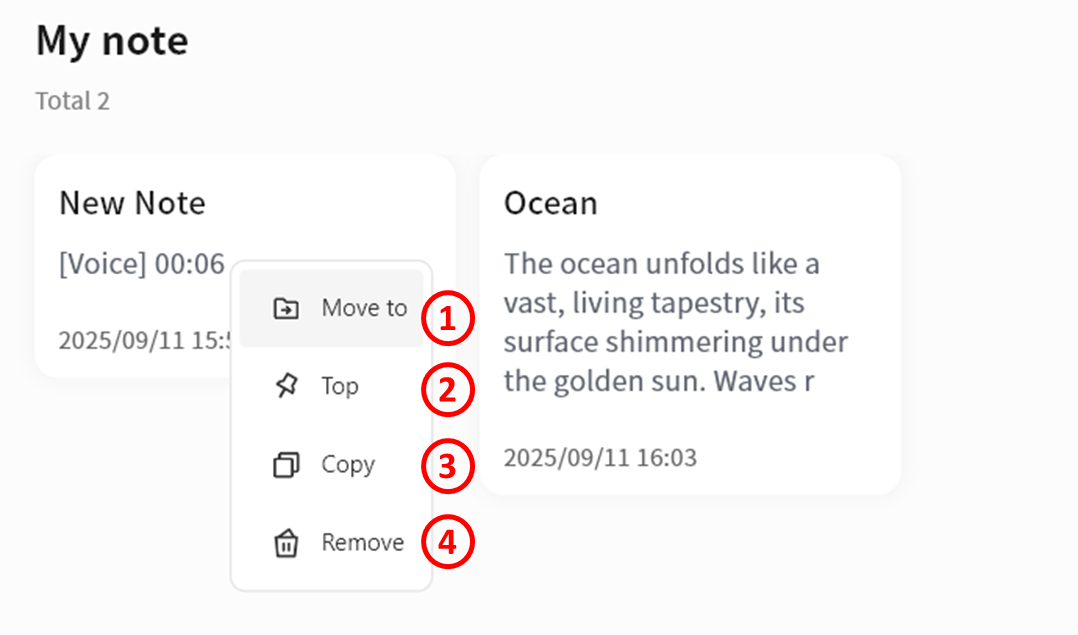
- Move To: Move the note to another notebook.
- Top: Pin the note at the top of the current notebook.
- Copy: Copy the note to another notebook.
- Delete: Remove the note.
Search
Enter keywords in the search bar to quickly locate the notes you need.
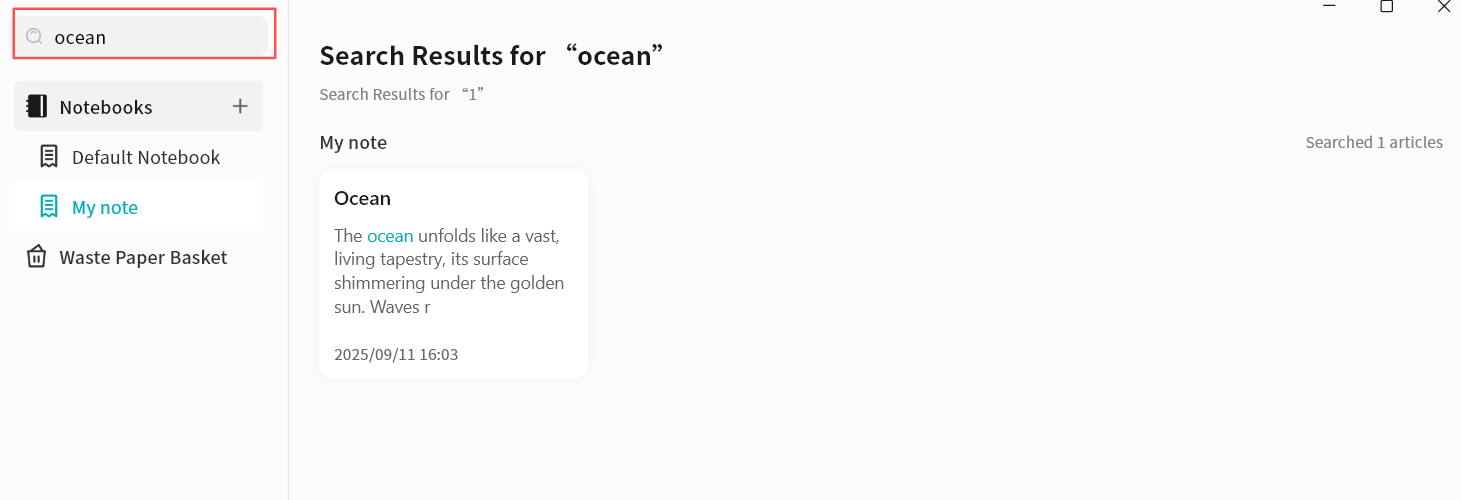
Notes AI Agent
The Notes feature includes multiple AI Agent capabilities that can be invoked at any time to improve efficiency.
Image Analysis
You can use the Image Understanding function to generate AI-based descriptions of pc-images in a note.
- Right-click on an image and select Image analysis.
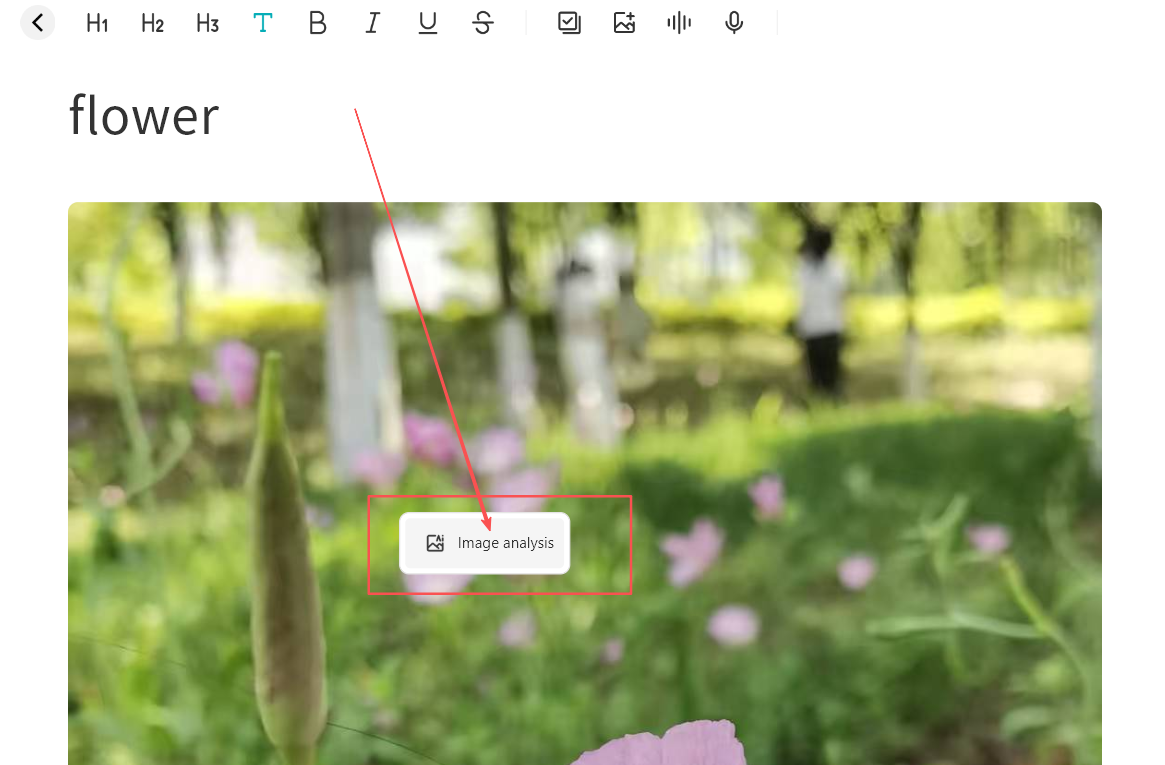
- The DASSET AI Agent will analyze the image automatically.
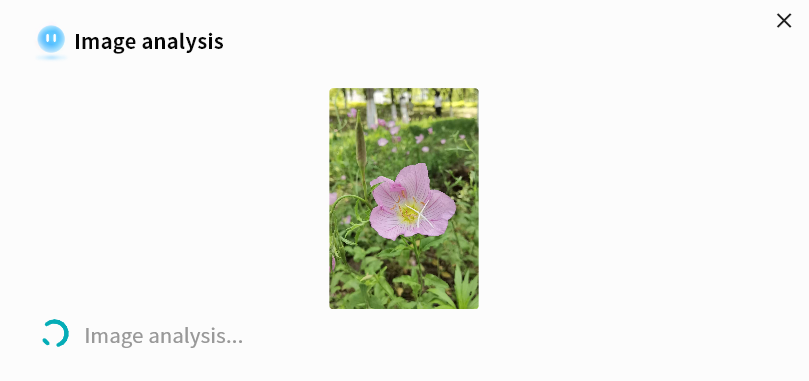
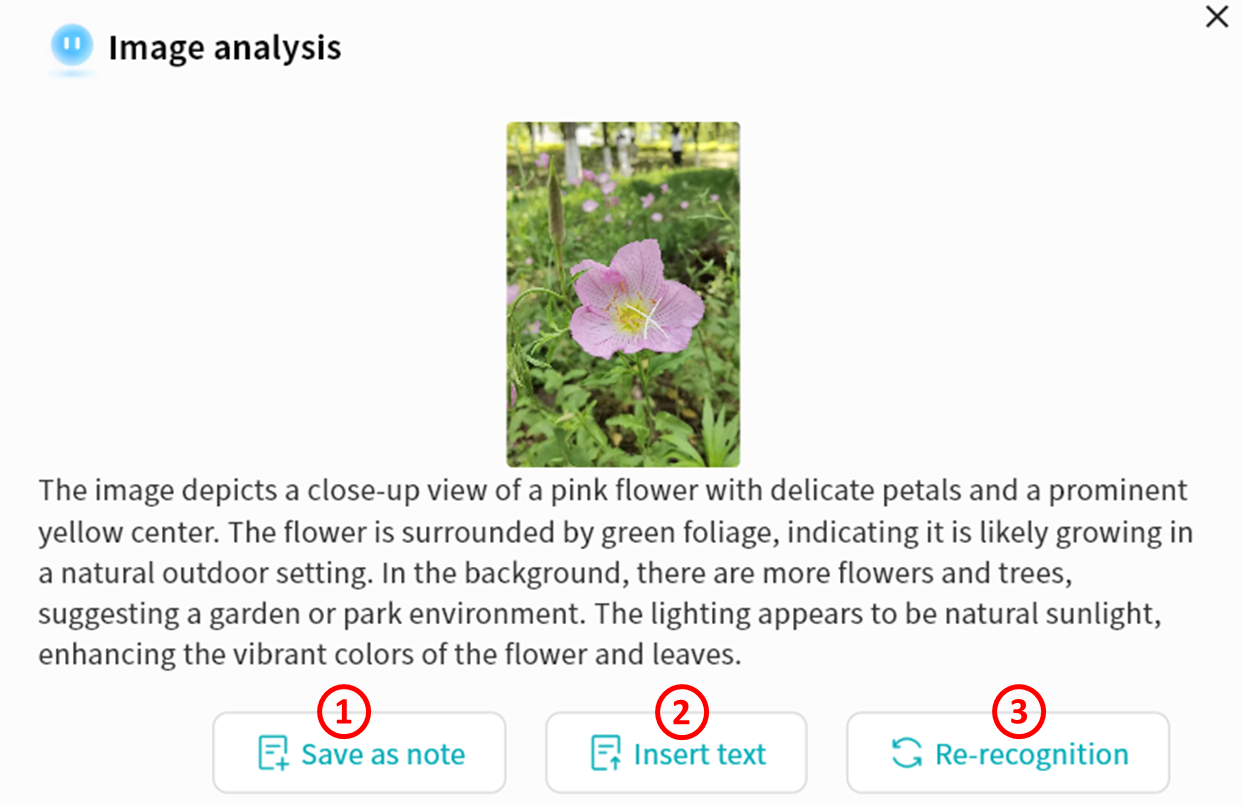
- Once complete, the AI Agent generates descriptive text. You may then:
- Save as Note: Store the generated description as a new note.
- Insert Text: Insert the generated description into the current note.
- Re-recognition: If the description is unsatisfactory, run the analysis again for a new result.
Text Translation
The Text Translation function allows AI to translate selected text into other languages. Currently supported: Chinese, English, and Japanese.
- Highlight text, then right-click Translation select target language.
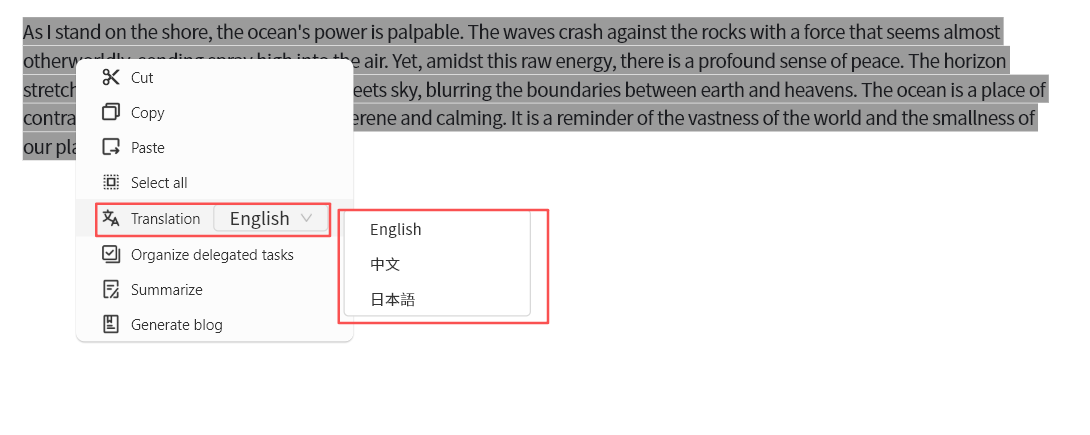
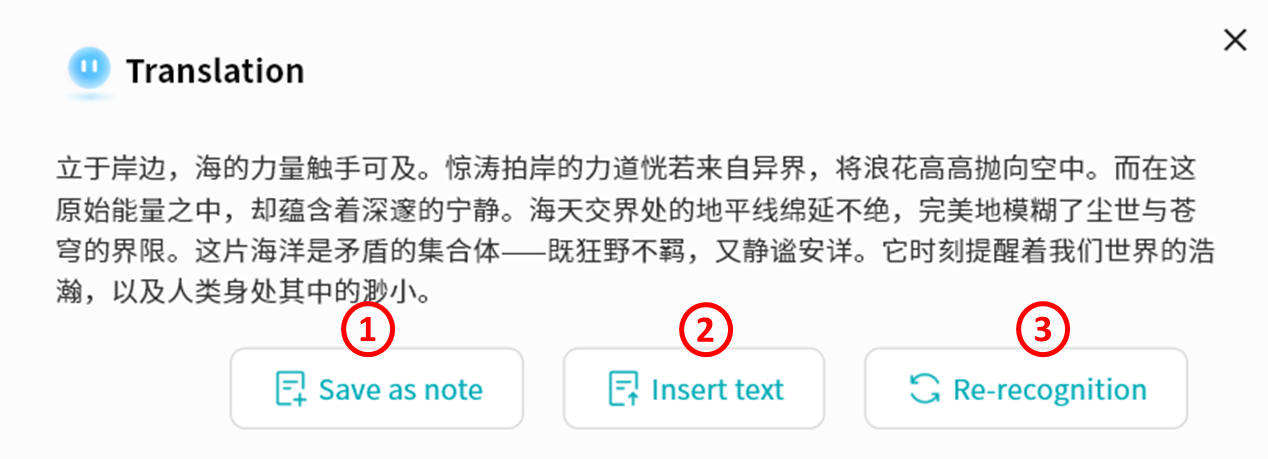
- The DASSET AI Agent will translate the text.
- After translation, you may:
- Save as Note.
- Insert Text into the current note.
- Re-run for a new translation.
Organize Delegated Tasks
AI can convert selected text into structured to-do items.
- Highlight text, then right-click Organize Delegated Tasks.
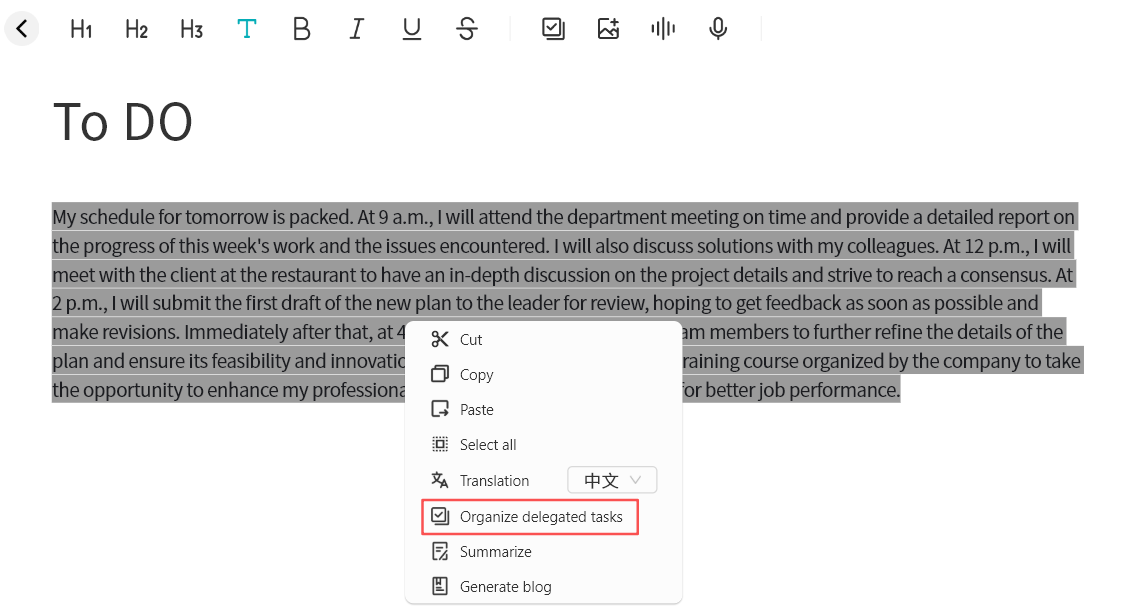
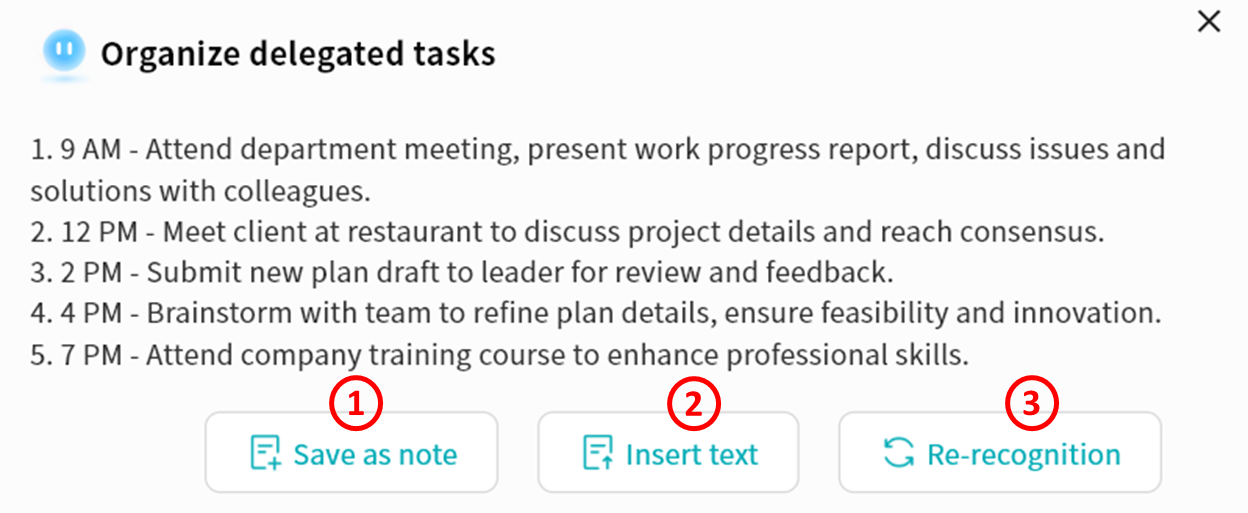
- The AI Agent processes the text and generates a list of tasks.
- Once generated, you may:
- Save as Note.
- Insert Text into the current note.
- Re-run for a new result.
Summarization
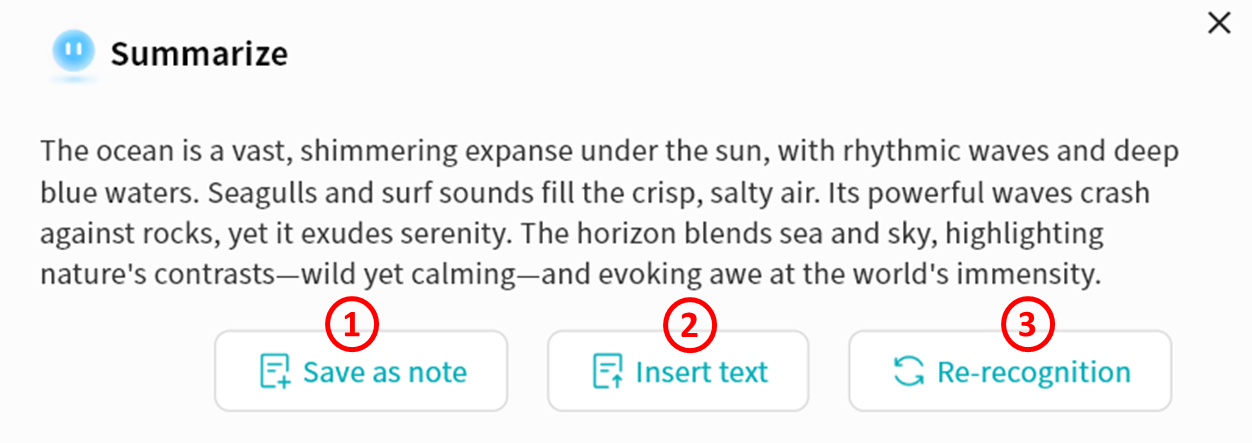
AI can summarize selected text into concise content.
- Highlight text, then right-click Summarize.
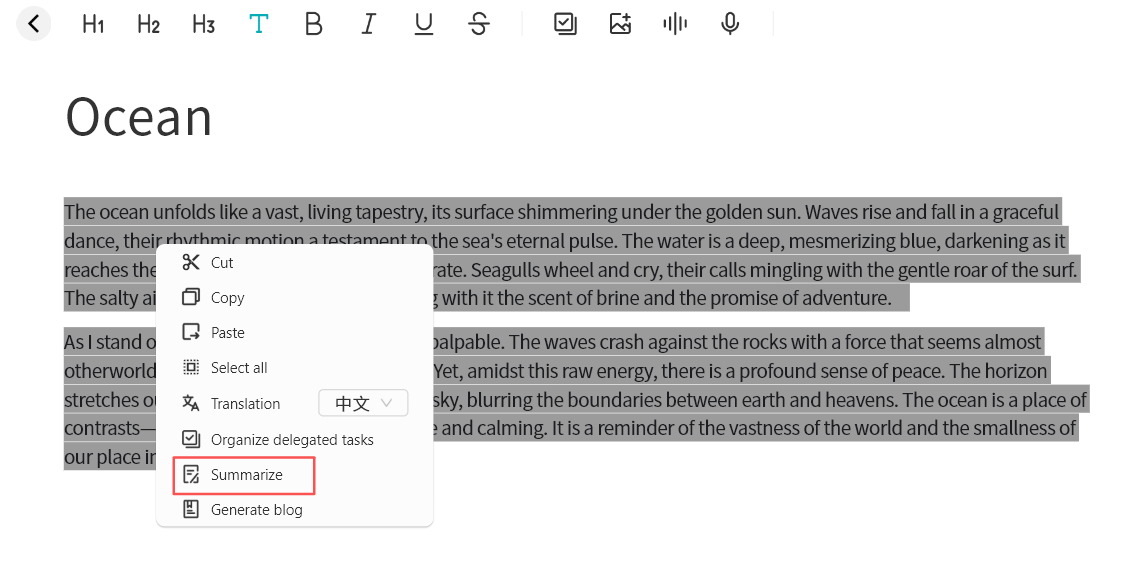
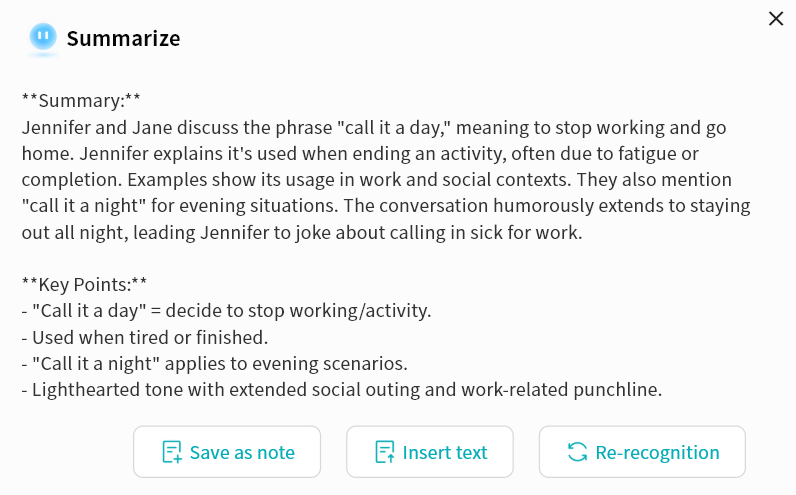
- The AI Agent processes the text and generates a summary.
- Once complete, you may:
- Save as Note.
- Insert Text into the current note.
- Re-run for a new result.
Blog Generation
AI can transform selected text into short blog-ready content for social media.
- Highlight text, then right-click Generate Blog.
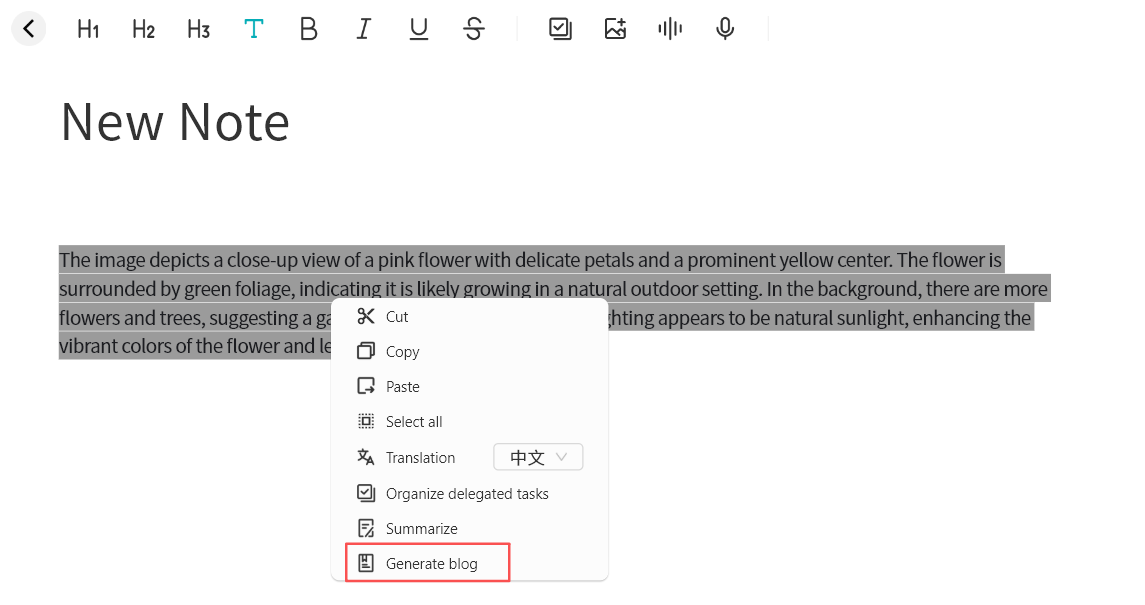
- The AI Agent processes the text and creates a draft blog.
- Once complete, you may:
- Save as Note.
- Insert Text into the current note.
- Re-run for a new result.

Speech Recognition
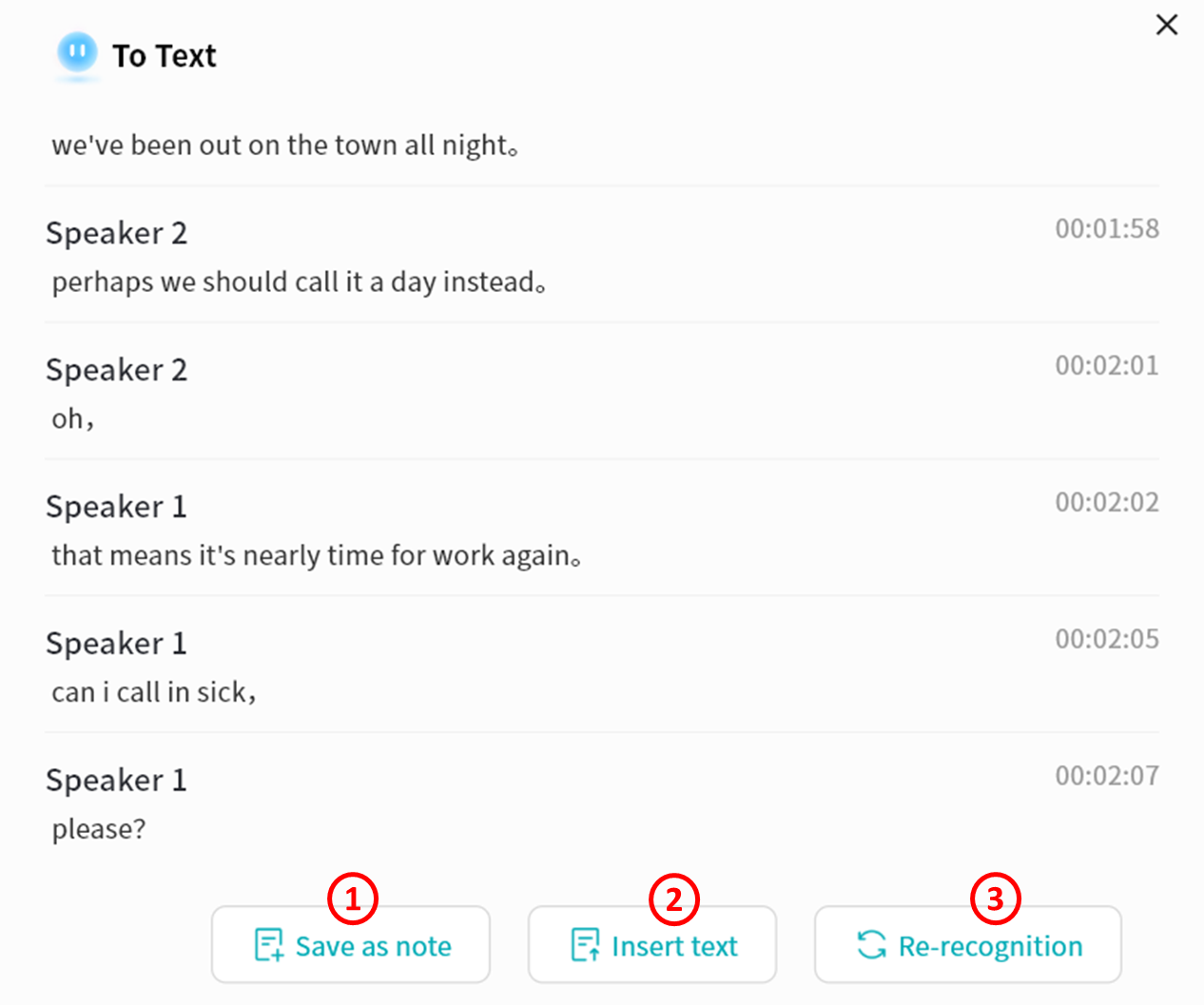
You can convert audio files inserted into notes into text using Speech Recognition.
This function supports speaker identification based on different voice tones. Accuracy may vary depending on audio quality.
- Click To Text on the audio file.
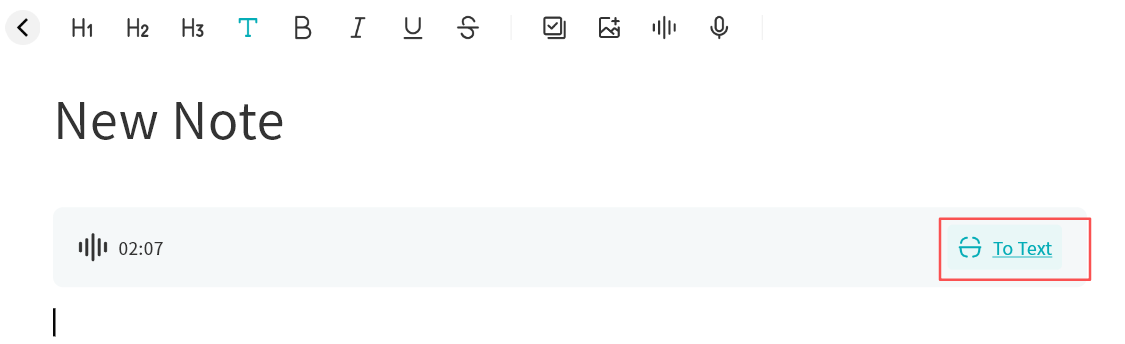
- The AI Agent will identify speakers and transcribe the audio.
- Once complete, you may:
- Save as Note.
- Insert Text into the current note.
- Re-run for a new transcription.
EXAMPLE USE CASE: Meeting Minutes
By combining multiple AI Agent functions, you can create structured meeting summaries. Example workflow:
- Insert the meeting recording file into a note.
- Select Speech Recognition to transcribe the audio.
- Insert the transcription into the note.
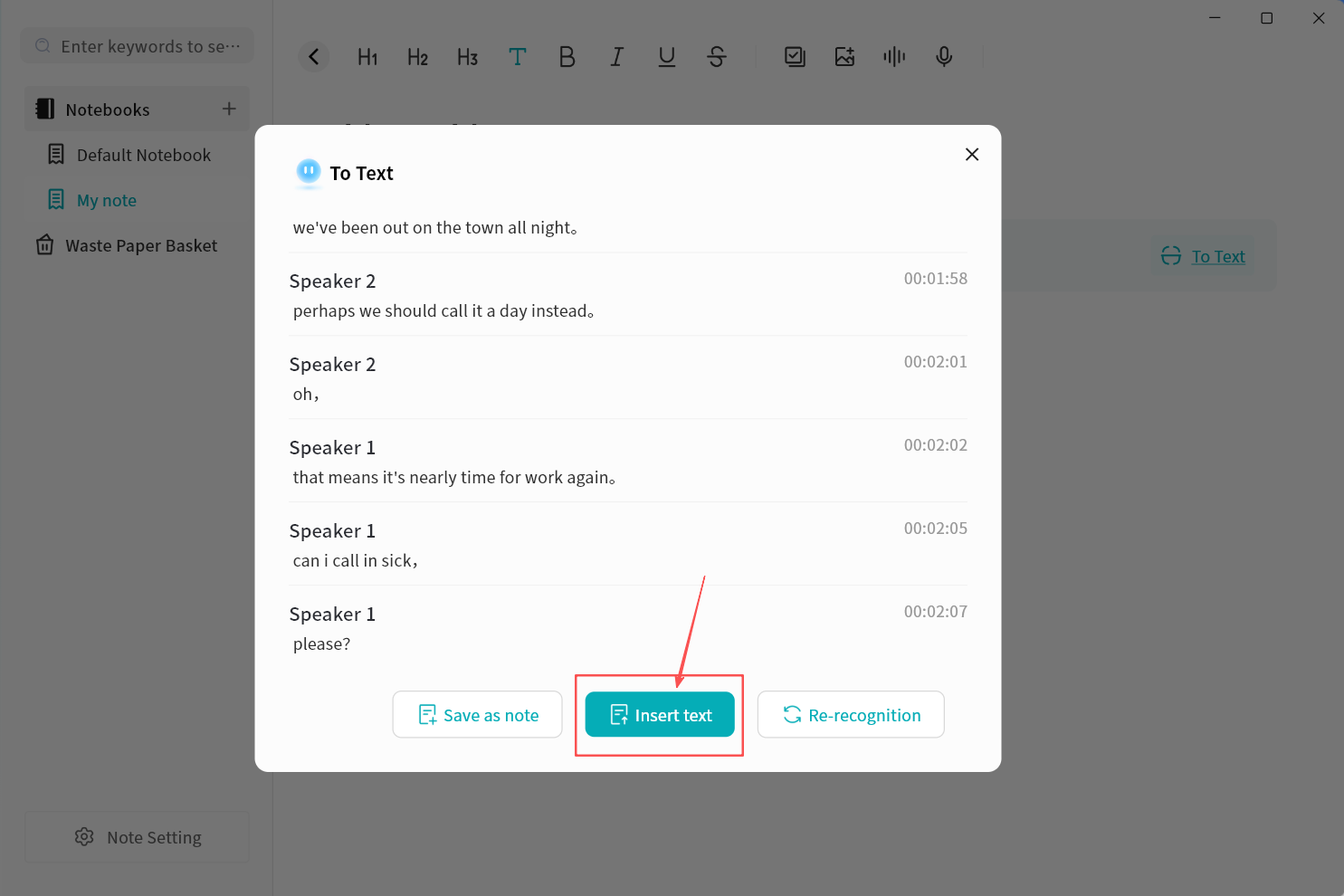
- Highlight the transcription text, then select Summarize.
- Save or re-run the AI Agent to produce the final meeting summary.
Waste Paper Basket
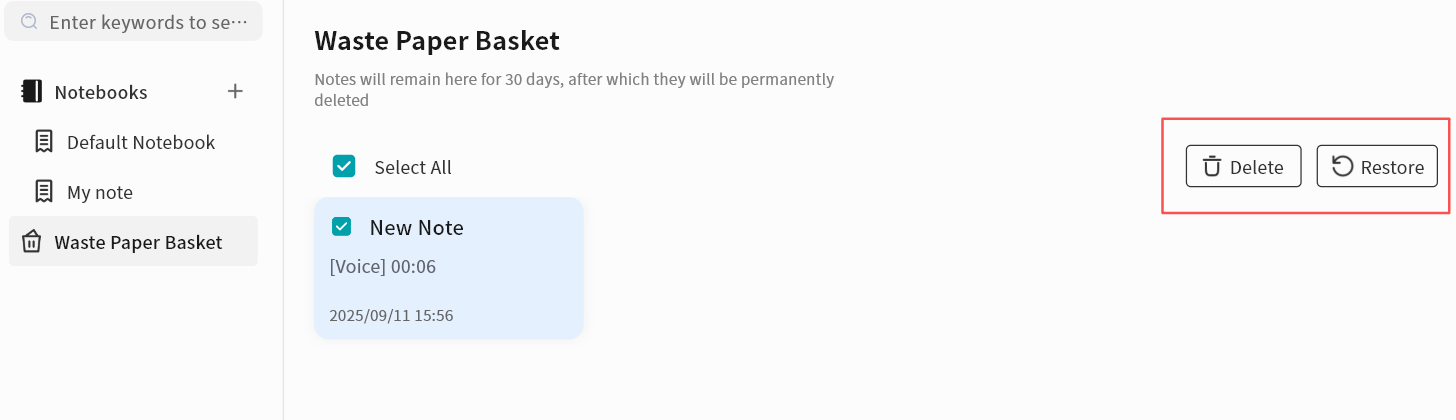
All deleted notes are stored in the Waste Paper Basket:
- Restore: Recover notes back to their original notebook.
- Delete: Permanently remove notes. Multiple notes can be selected for batch restore or batch deletion.
Notes Settings (Configure Synchronization)
When synchronization is enabled, all your notes will remain consistent across your computer and the DASSET device.
- Sync Target: Select the DASSET device where you want to synchronize your notes.
- Conflict Handling Policy: Define how to handle conflicts when note data differs between your computer and the DASSET device.
- Local overrides NAS: Notes on the computer will be uploaded and overwrite notes on the DASSET device. The local notes are treated as the only reliable source of data.
- NAS device overrides Local: Notes on the DASSET device will be downloaded and overwrite notes on the computer. The NAS-stored notes are treated as the only reliable source of data.
If you are the sole user of your DASSET account and you do not edit the same notes on multiple devices simultaneously, it is suggested to select Local Overwrites NAS.