Client Settings & Notifications
Settings
Use the Settings menu to configure DASSET Desktop Client.
Account
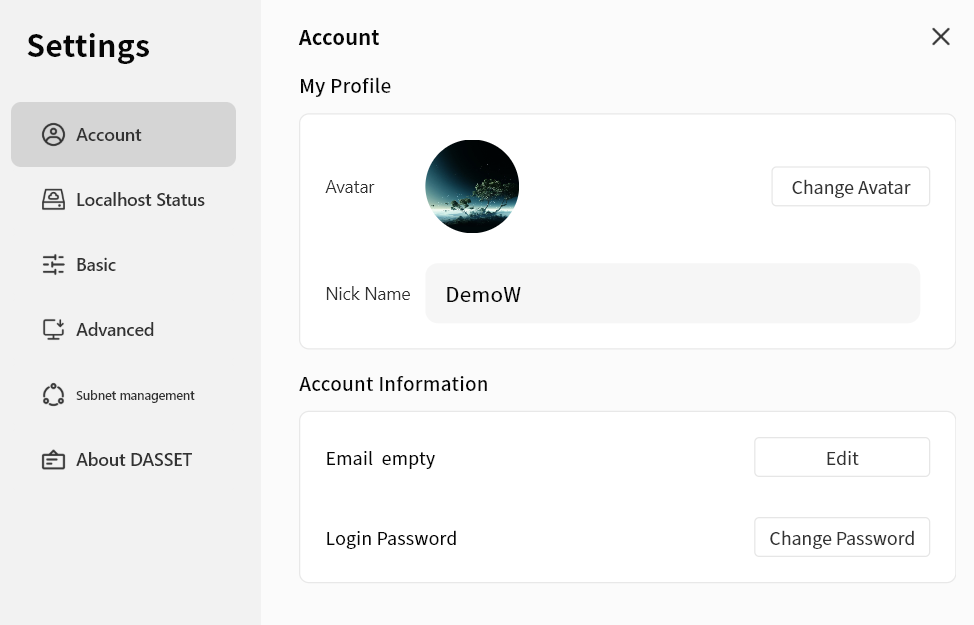
In the Account menu, you can:
-
Change Avatar: Select an image from your computer as your DASSET account avatar. This avatar will also be visible to your contacts.
-
Nickname: Set a display name that is easy for your friends to recognize.
-
Bind Email: Link an email address to your account or update the existing one.
-
Bind Phone: Link a phone number to your account or update the existing one.
-
Login Password: Change your login password.
Note: Whenever you add or update your email, phone number, or password, your account will be logged out automatically. Please log in again after the change.
Localhost Status
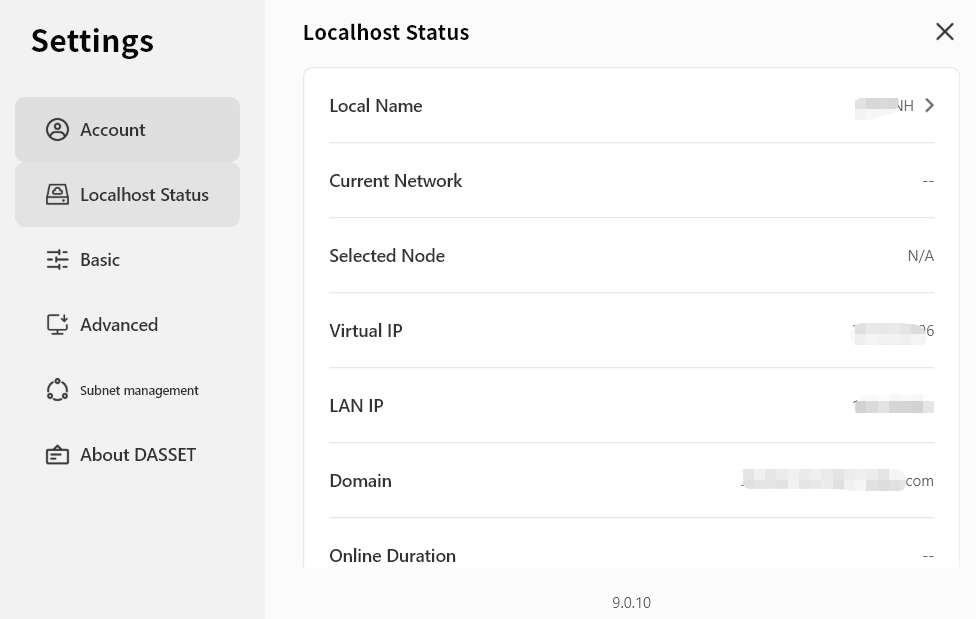
The Localhost Status page displays information about your current DASSET Desktop Client session:
-
Current Network: The name of the virtual network you are connected to.
-
Selected Node: The relay node currently used for internet access.
-
Virtual Network IP: The virtual IP address of your computer, used to communicate with DASSET devices in the SDVN virtual network.
-
LAN IP: The local IP address configured on your computer.
-
Domain Name: The unique virtual domain name of your computer in the virtual network.
-
Online Duration: How long the current session has been active.
-
Latency: The network latency of your virtual connection.
Basic Settings
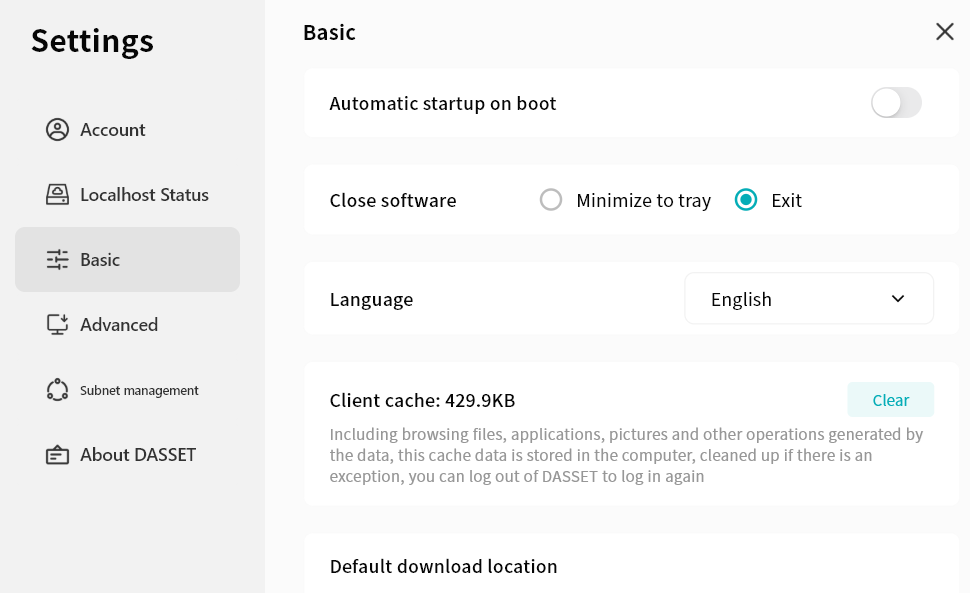
In the Basic Settings page, you can configure:
-
Auto-start: Allow DASSET client to launch automatically when your computer starts.
-
Exit Options: Define the behavior when closing the software.
-
Language: Select the display language of the client. If set to Follow System, the client interface will adapt to your operating system's language.
Note: Additional languages are continuously being added. You can also select the display language on the login screen. -
Clear Cache: Delete cached files of the client.
-
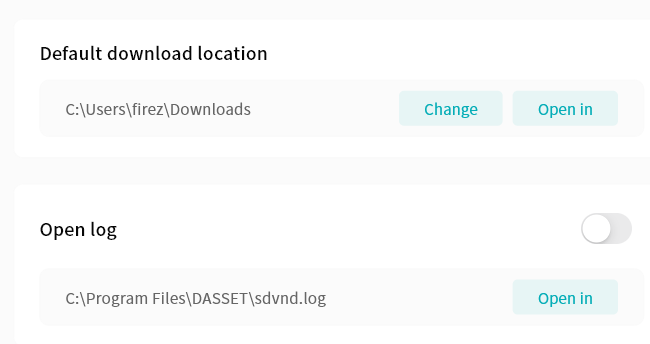
Default Download Location: Choose the directory where downloaded files from DASSET will be stored. You can change this at any time.
-
Open Client Logs: Access client log files. (The DASSET support team may request these logs when troubleshooting issues.)
Advanced Settings
In the Advanced Settings page, you can configure:
-
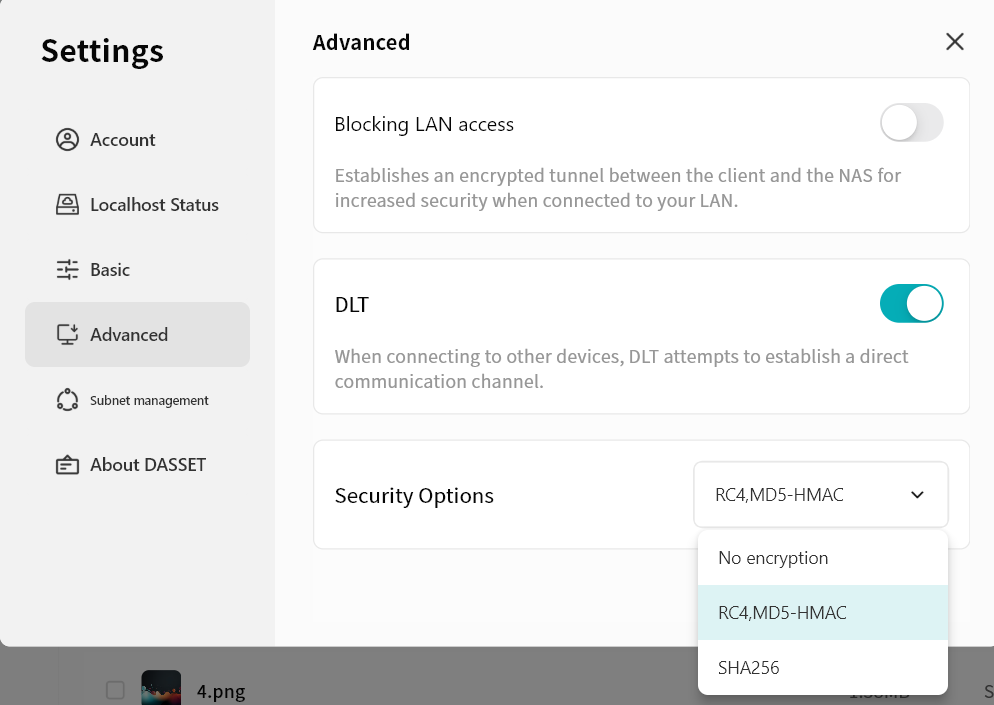
Block LAN Access:
-
When enabled, communication between the DASSET client and devices is routed through the SDVN virtual network. This is more secure but may be slower.
-
When disabled, if the client detects that the DASSET device is on the same LAN, communication will occur in plaintext over the LAN. This is faster but less secure.
-
-
DLT:
-
When enabled, the client will attempt to use direct connection channels whenever possible.
-
When disabled, communication defaults to relay transmission.
-
-
Security Options: Choose the encryption algorithm for communication between the client and device.
-
RC4: Faster but less secure.
-
SHA256: Slower but more secure.
-
No Encryption: Not recommended.
-
Subnet Management
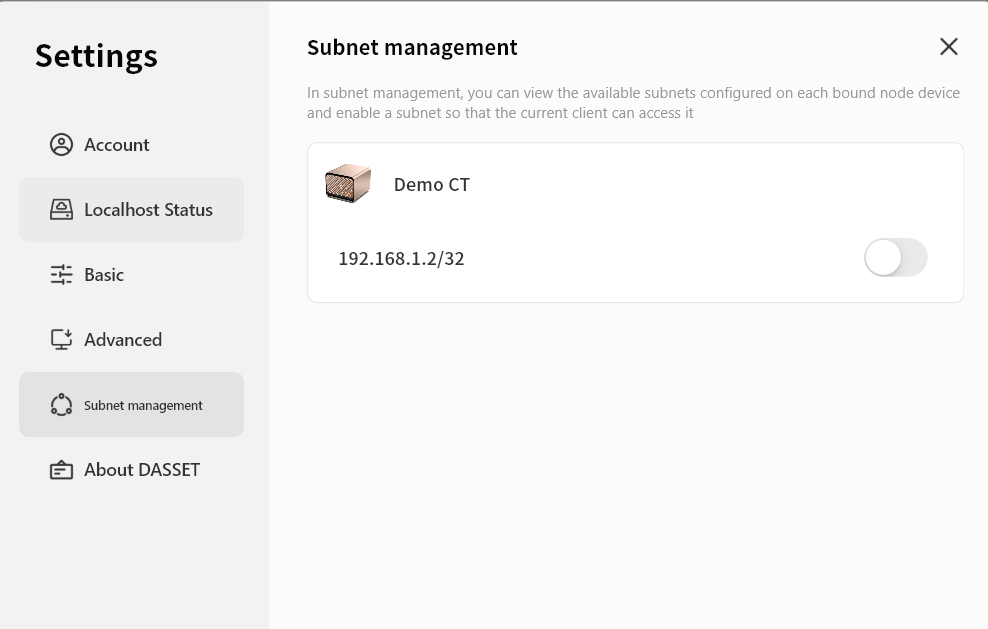
In Subnet Management, you can enable subnets shared by specific DASSET devices, allowing you to remotely connect to subnet addresses while logged into the DASSET client.
Do not enable duplicate IP addresses or addresses identical to your LAN IP. Doing so may cause conflicts and disrupt network connectivity.
About
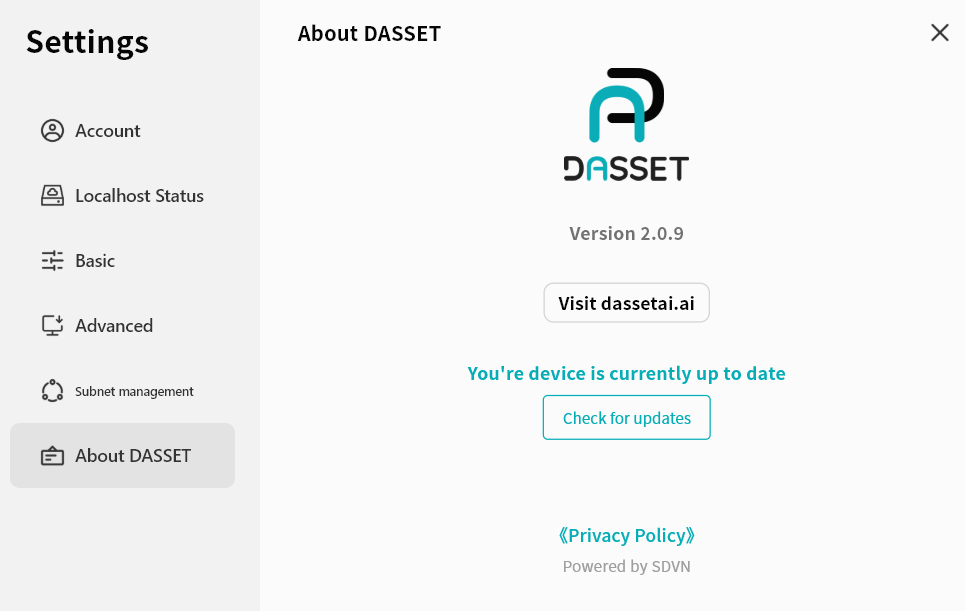
In the About page, you can view:
-
The client version number
-
Check for updates
-
Official website address
-
Privacy policy and other related information
Notifications
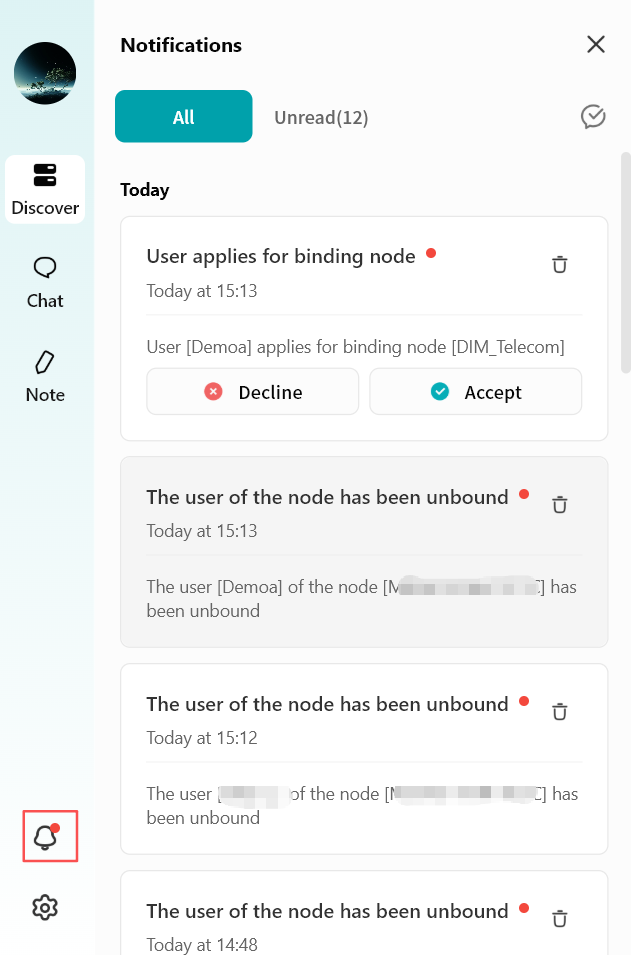
All operations related to DASSET device binding, as well as other system notifications to be added in the future, are displayed in the Notifications menu.
Most notifications do not require action. You can also click the checkmark in the upper-right corner to mark notifications as Read.
When receiving a binding request notification, please decide whether to allow or reject based on the situation.
Once you allow an account to bind to your DASSET device, that account will be able to read all data in your Public Space and access your subnet or devices if enabled. Please confirm carefully before clicking Accept.