File Operations
File Uploads
File uploads can be performed in two ways:
- Use the Uploads button in the menu bar to upload files or folders from your computer to the DASSET device.
- Drag and drop files or folders directly into the DASSET device. Drag-and-drop can be done either in a specific directory page or in the Task Center.
Method 1: Uploads Button
- Click Uploads and choose whether to upload files or folders.

- In the pop-up window, select the files or folders you want to upload to the DASSET device (multi-selection supported).
- After confirmation, DASSET will begin the upload process.
Method 2: Drag-and-Drop Upload
- Supports dragging and dropping single or multiple files.
- Supports dragging and dropping single or multiple folders.
- Supports mixed drag-and-drop of files and folders.
There are two ways to drag-and-drop files/folders:
- Drag files/folders directly into a specific DASSET device directory.
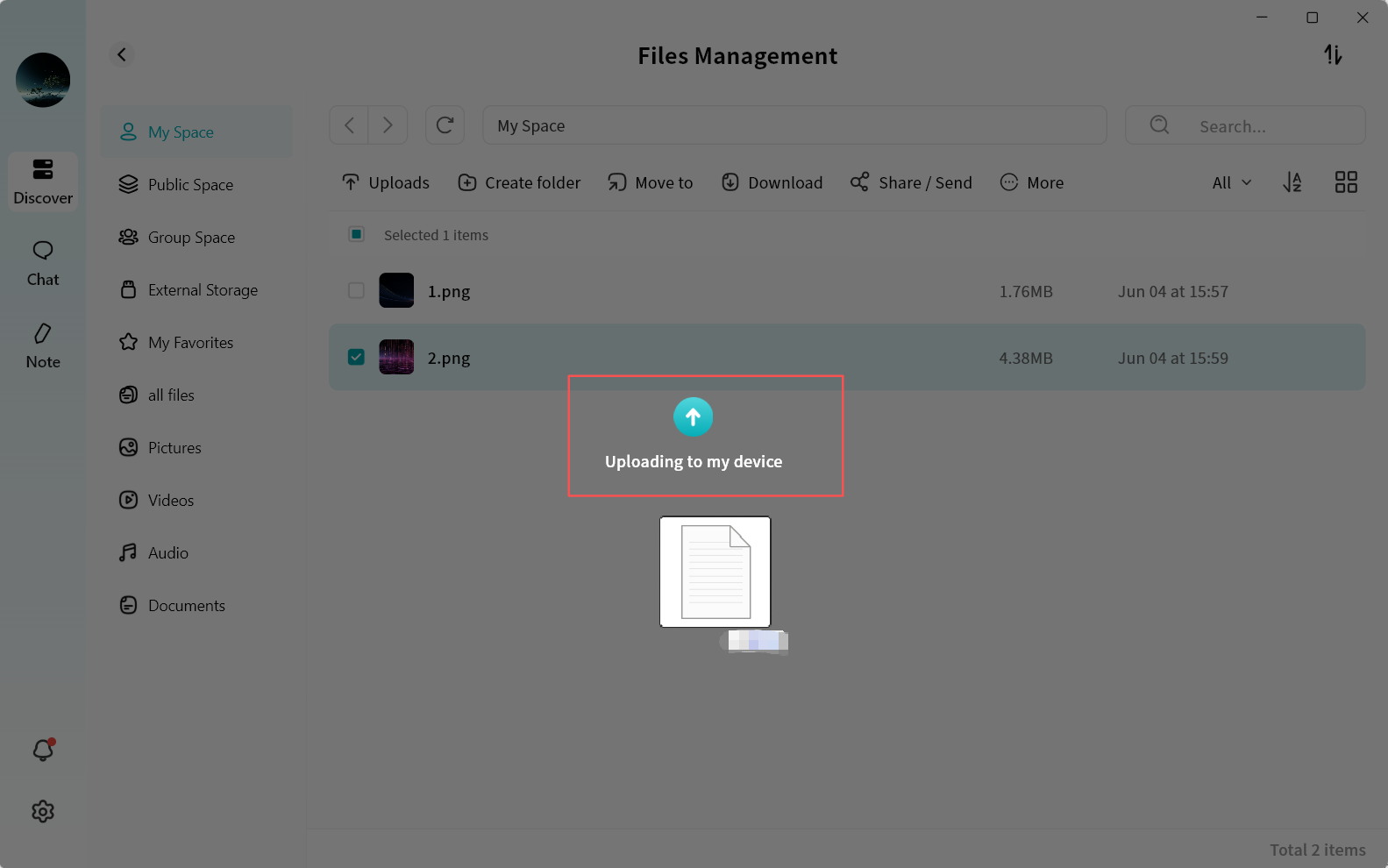
- On the Task Center page, drag files/folders into the DASSET client interface. You will be prompted to select the destination path on the DASSET device.
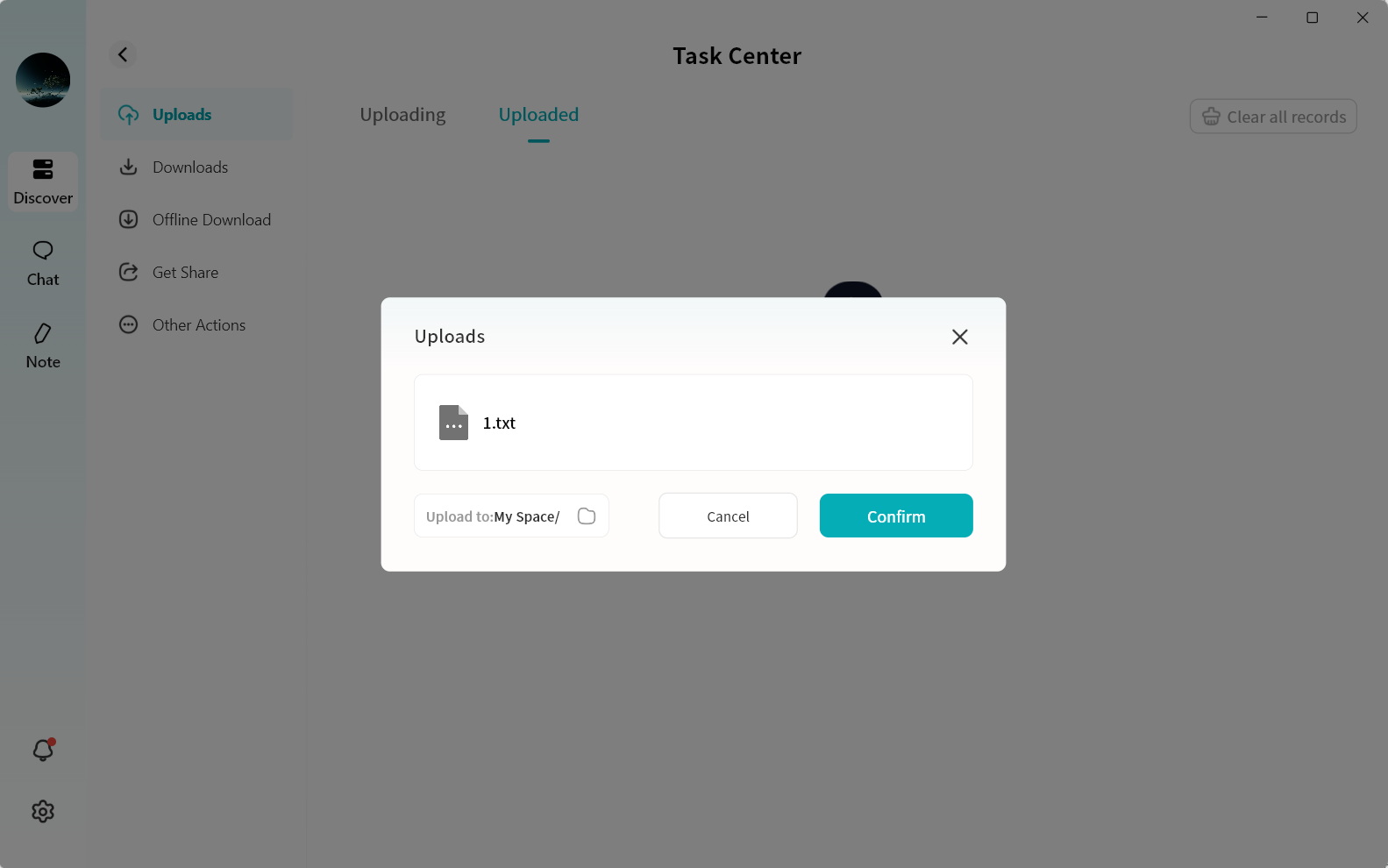
Upload Progress
You can view your upload progress and history under Task Center Upload.
File Downloads
File downloads can be performed in two ways:
- Use the Download button in the menu bar to download files from the DASSET device to your computer.
- Drag and drop files from the DASSET device to your computer.
Button Download
- Select the file(s) and click Download.
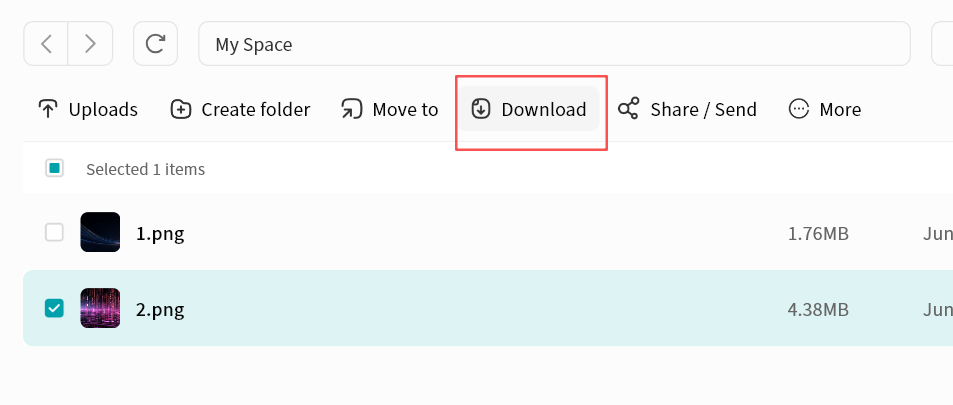
- DASSET will automatically begin downloading.
- Completed downloads will be saved in:
C:\users\[username]\DownloadsYou can also open the file location directly by clicking the completed task in Task Center.
Drag-and-Drop Download
You can select and hold files on the file page, then drag them into a folder on your computer. The DASSET client will automatically create a download task and transfer the files from the DASSET device to your computer.
- Supports dragging and dropping single or multiple files.
- Supports dragging and dropping single or multiple folders.
- Supports mixed drag-and-drop of files and folders.
Download Progress
You can view your download progress and history under Task Center Upload.
Media File Online Playback
DASSET supports online playback of pc-images, videos, and audio files. Simply double-click the file you want to view.
- Supported Video Formats:
- avi, flv, mpg, mov, mkv, mp4, m2ts, asf, wmv, vob, divx, 3gp, mpeg, mts, ts, f4v, hevc
- Supported Image Formats:
- bmp, gif, heic, jpg, png, jpeg, tif, tiff, dng
- Supported Audio Formats:
- mp3, wma, flac, wav, aac, ape, m4a, ogg
Video Playback
Double-click a video file to open the video player for online playback.
- Play/Pause
- Adjust volume
- Video duration and current playback time
- Progress bar (supports drag)
- Switch between full screen and windowed playback
- Share/Send: Share video via member share, QR code, or send to another device
- Download: Save the file to your computer
- Move To: Move the file to another directory on the DASSET device
- Copy: Copy the file to another directory on the DASSET device
- Delete: Remove the file
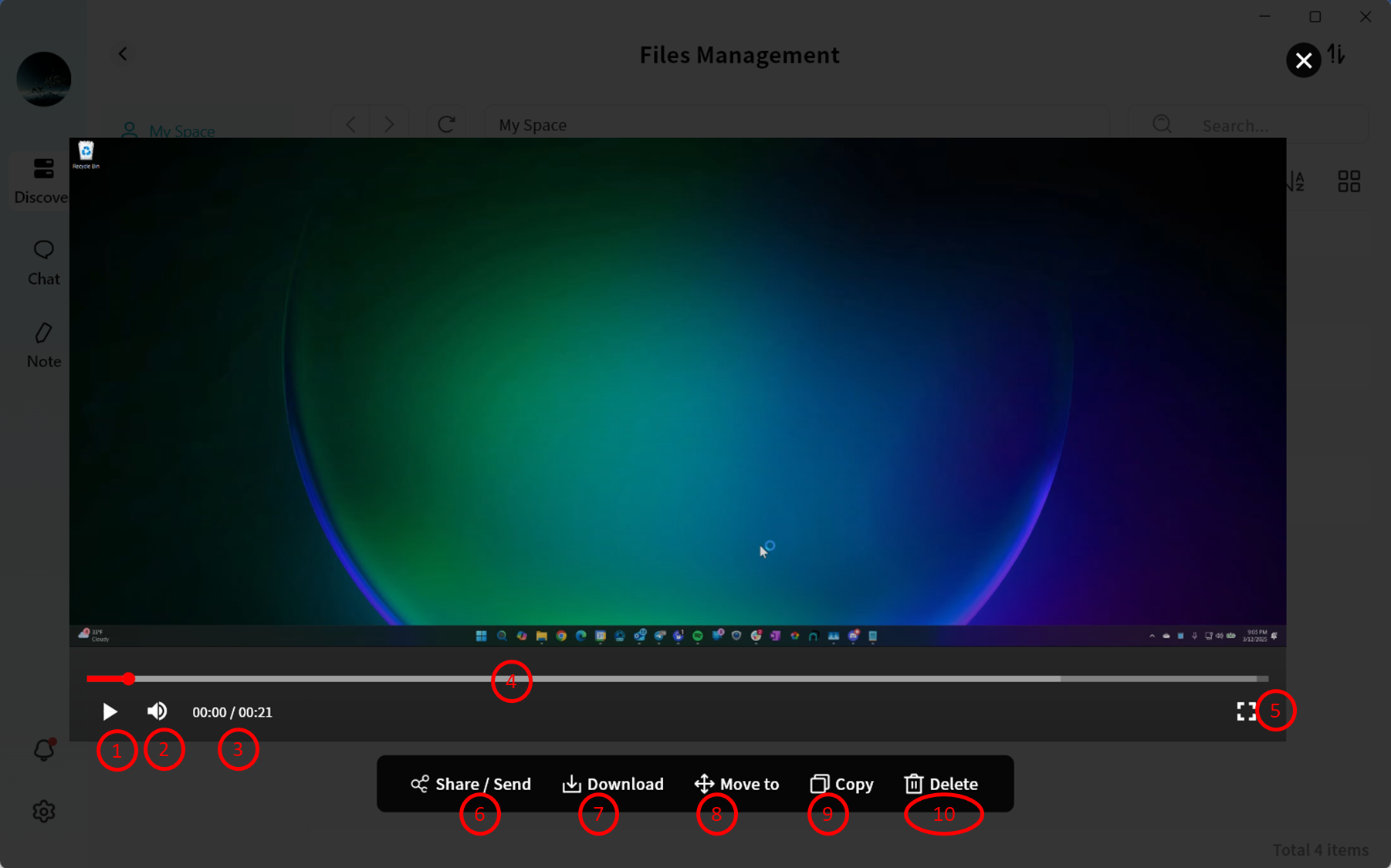
Image Viewing
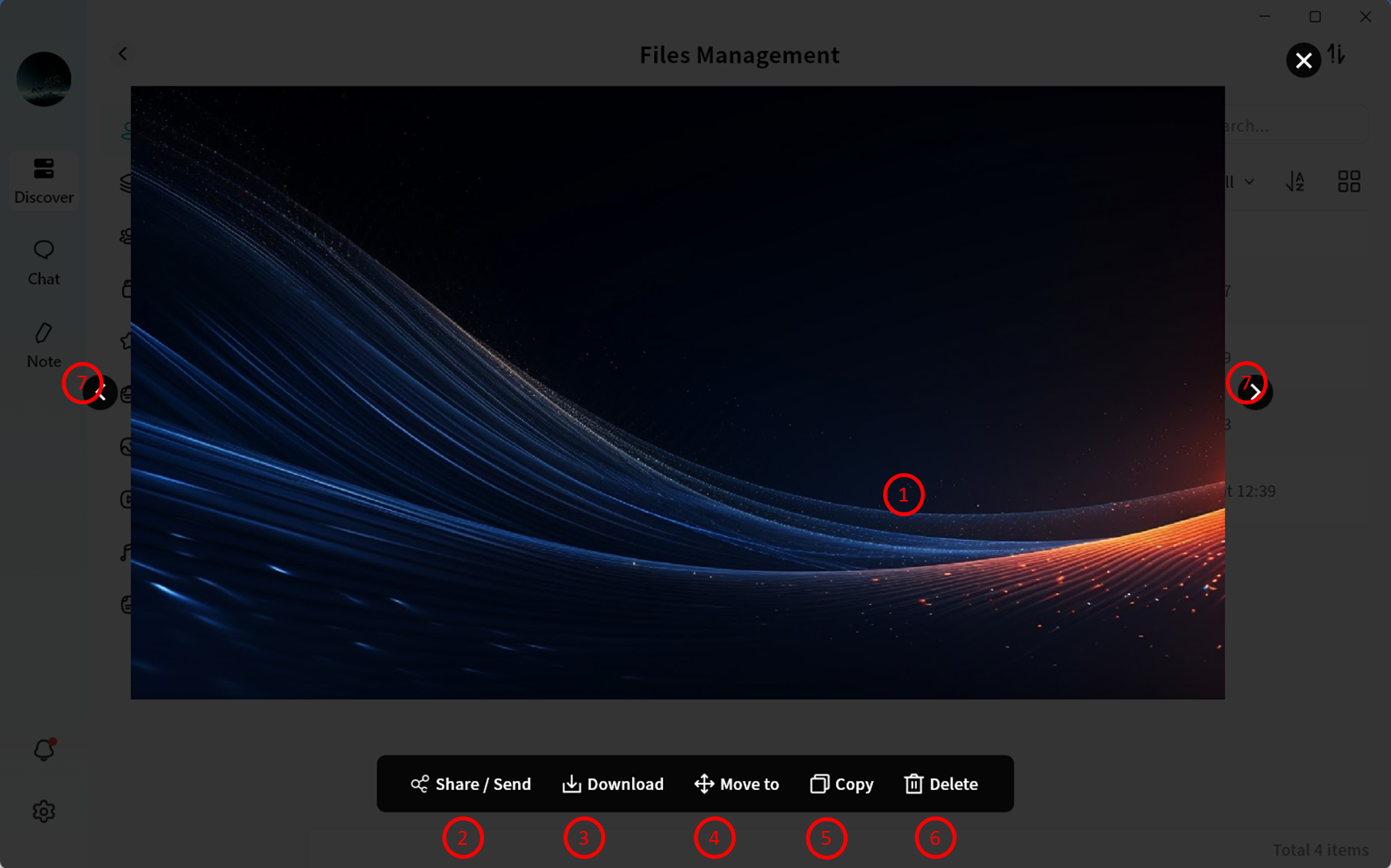
Double-click an image file to open the image viewer and display the original image.
- Image display area
- Share/Send: Share image via member share, QR code, or send to another device
- Download: Save the file to your computer
- Move To: Move the file to another directory on the DASSET device
- Copy: Copy the file to another directory on the DASSET device
- Delete: Remove the file
- Image navigation: Switch between other pc-images in the same directory
Audio Playback
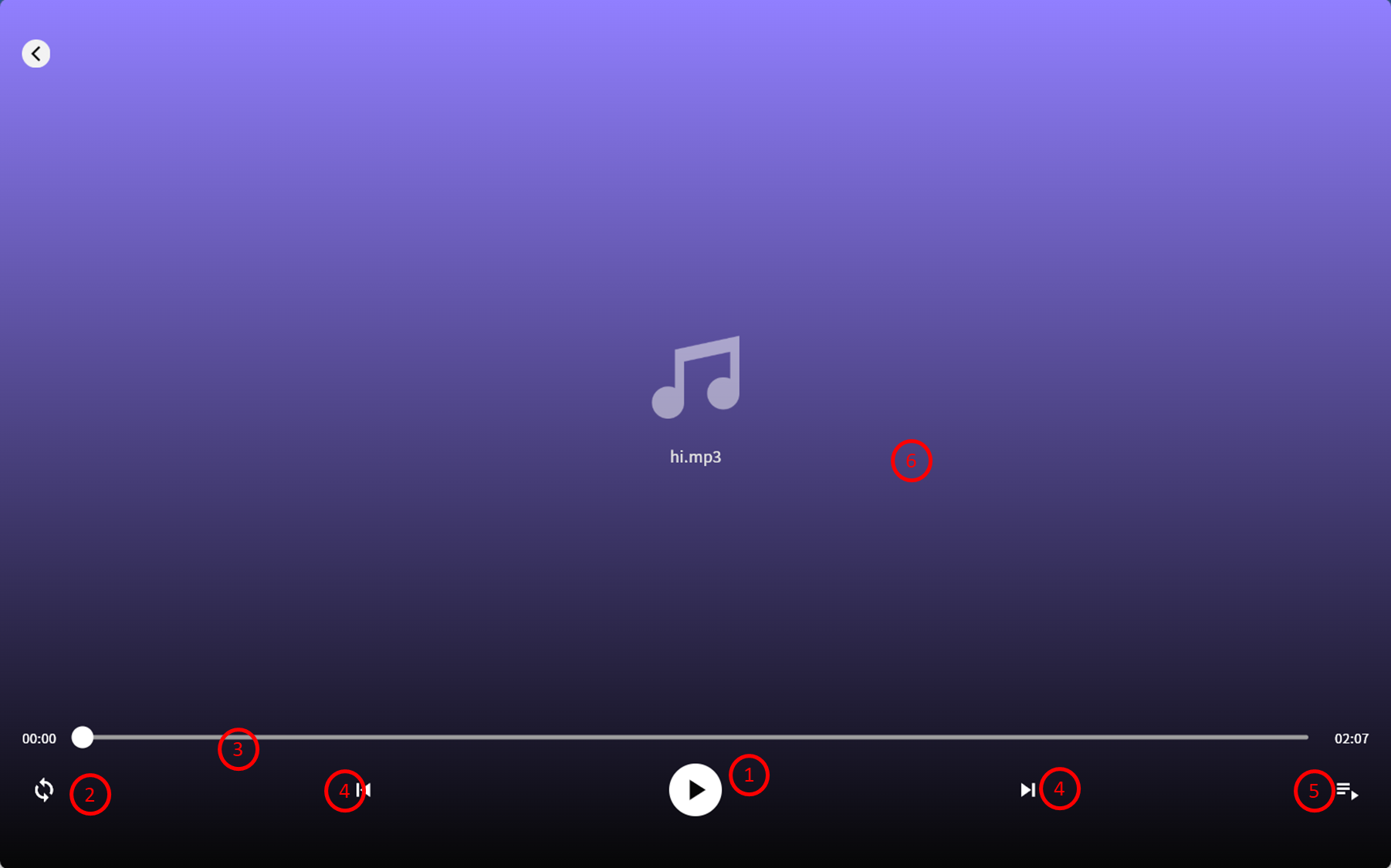
Double-click an audio file to open the audio player for online playback.
- Play/Pause
- Sequential/Shuffle play
- Progress bar (supports drag)
- Next/Previous track
- Playlist (all audio files in the same directory are automatically added)
- Audio file name
File Sharing / Sending
DASSET supports sharing files stored on a DASSET device in multiple ways, including sending them to other DASSET devices.
Member Sharing
Enables file sharing between members of the same DASSET device. Suitable for relatively private file sharing without using Group Space or Public Space. This feature is available to all users.
QR Code Sharing
Generates a share code for a file, which can be provided to other DASSET users to retrieve the file. Suitable when the sender and recipient are not on the same DASSET device and secure file sharing is required.
The recipient must be the Owner of a DASSET device to receive the file.
My Other Devices
Copies files from one DASSET device to another, suitable for users who own multiple devices and need cross-device file transfer.
The operator must be the Owner of the receiving DASSET device.
Sharing & Sending Files
Right-click the file you wish to share/send, then select Share/Send from the context menu.
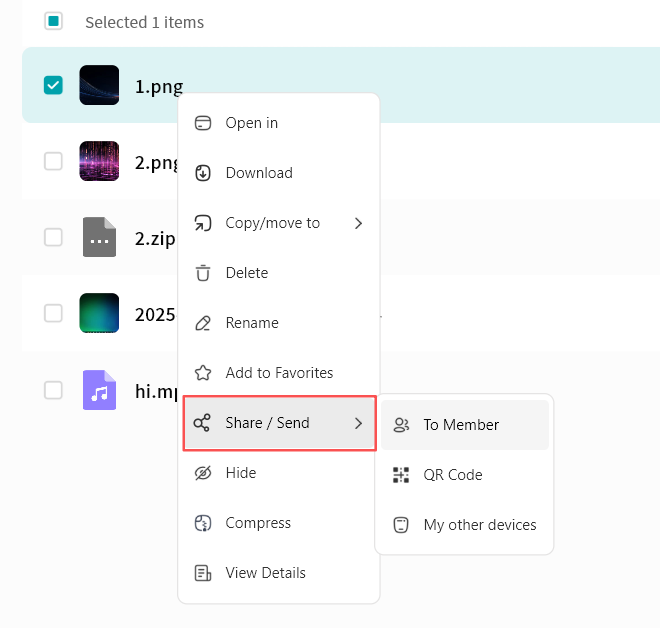
You can also select Share/Send from the top menu bar in the File Management interface.
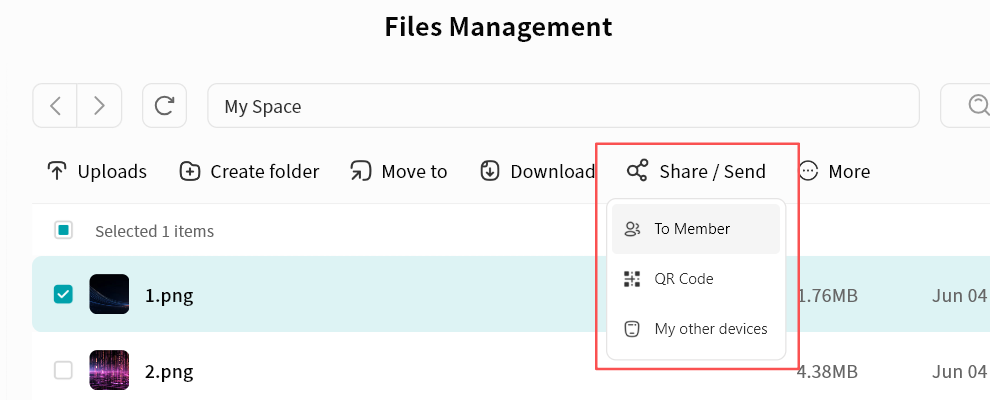
Member Sharing
Member sharing enables file sharing between members on the same DASSET device. This is useful for private file sharing without using the Group Space or Public Space. All users can use this feature.
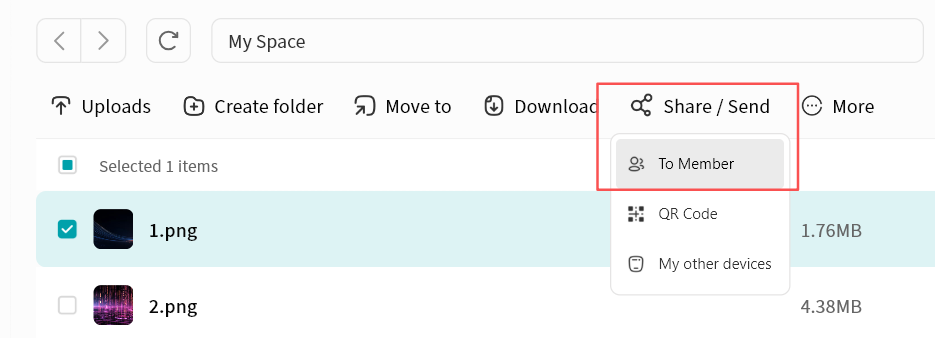
Send Files via Member Sharing
- Select the file, then right-click and choose Share/Send to Member
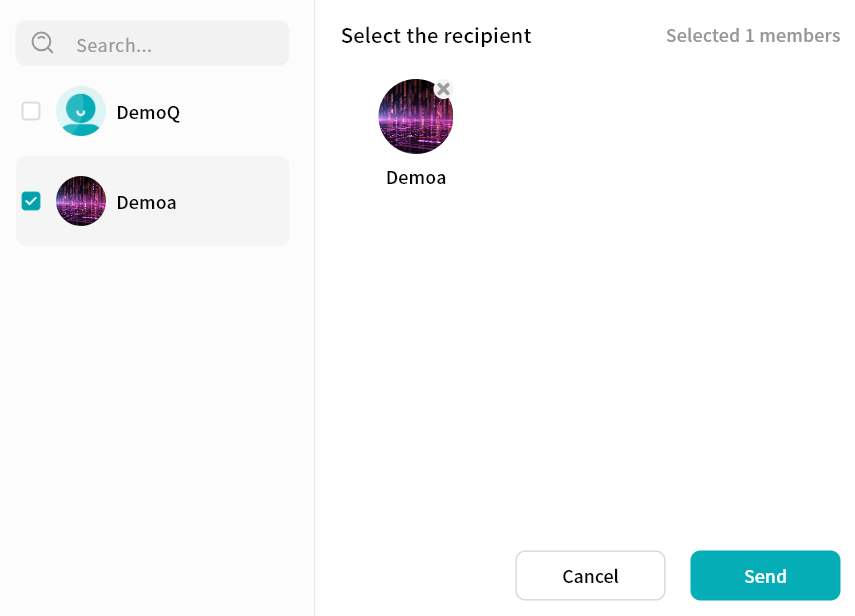
- In the pop-up window, select the member(s) to share with (multi-selection supported). Click Send to confirm.
Receive Files from Member Sharing
You can find sent sharing requests in Task Center - Received Shares on the DASSET device.
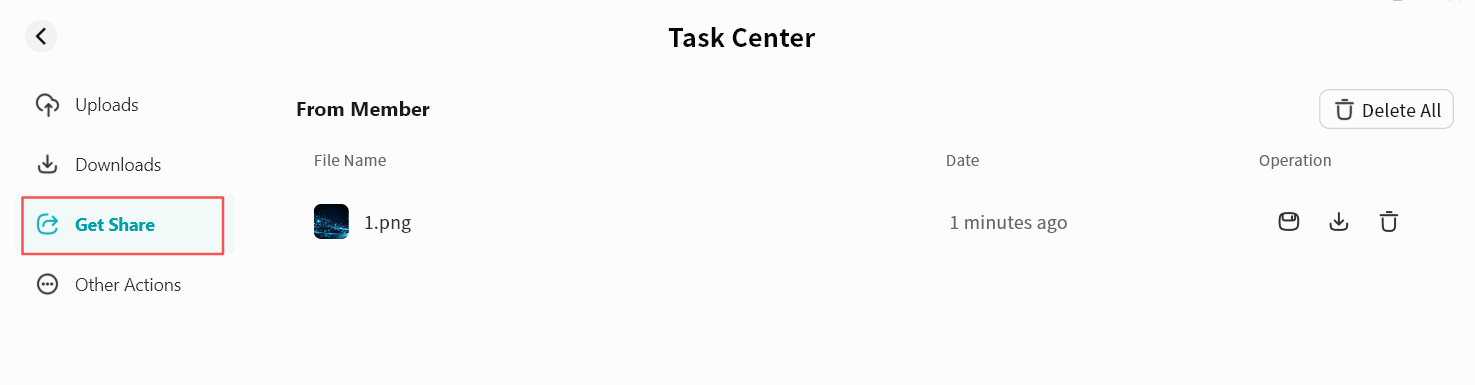
- Save the file to My Space or My Vault.
- Download the file to your local computer.
- Delete the file share entry.
- Delete all share entries.
QR Code Sharing
Generates a share code for a file, allowing other DASSET users to retrieve it. Useful when the sender and recipient are on different devices and secure file sharing is required.
The recipient must be the Owner of a DASSET device to receive the file.
Create QR Code Share
- Select the file, then right-click and choose Share/Send QR Code.
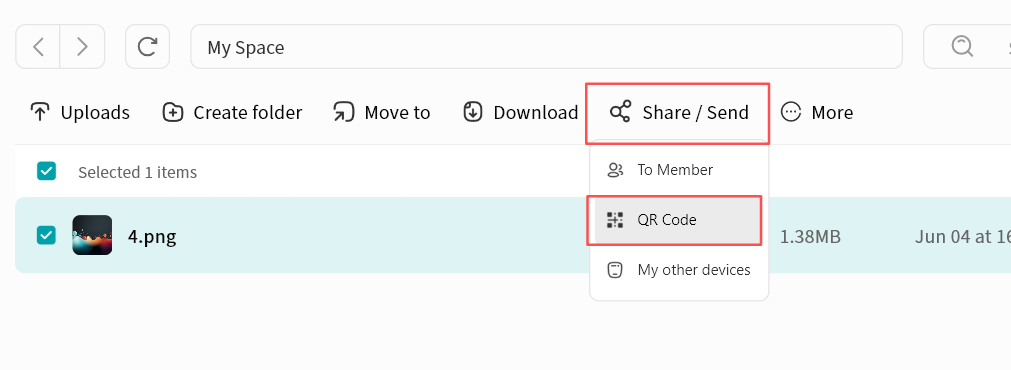
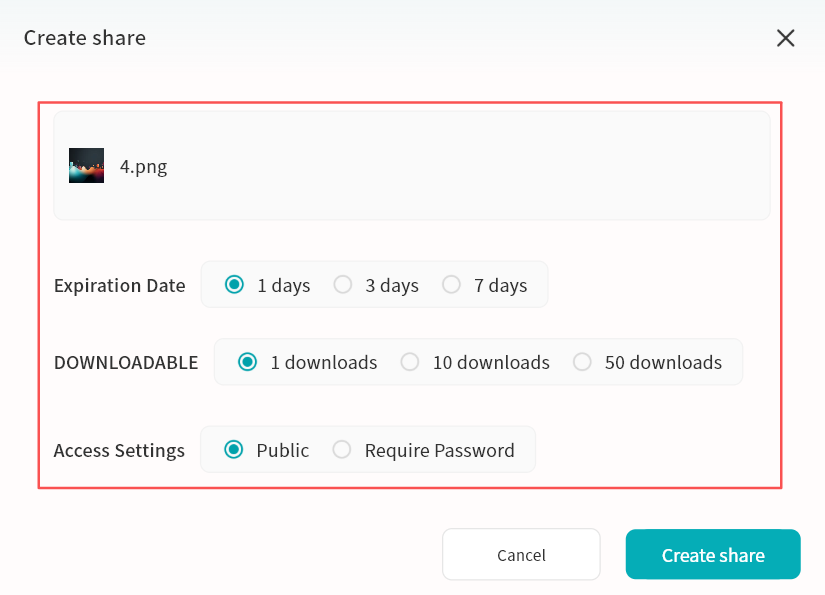
- Sharing via QR code allows you to set rules for accessing the downloaded file, giving you control over its access.
- Expiration Date: Defines validity. After expiry, the share becomes invalid.
- Downloadable: Maximum number of times the file can be downloaded. After the limit, the share becomes invalid.
- Permission Settings:
- Public: Anyone with the QR code can access the file. Suitable for low-security scenarios.
- Require Password: A password must be entered to access the file. Suitable for high-security scenarios.
-
After setting the rules, click Create Share. A QR code share will be generated.
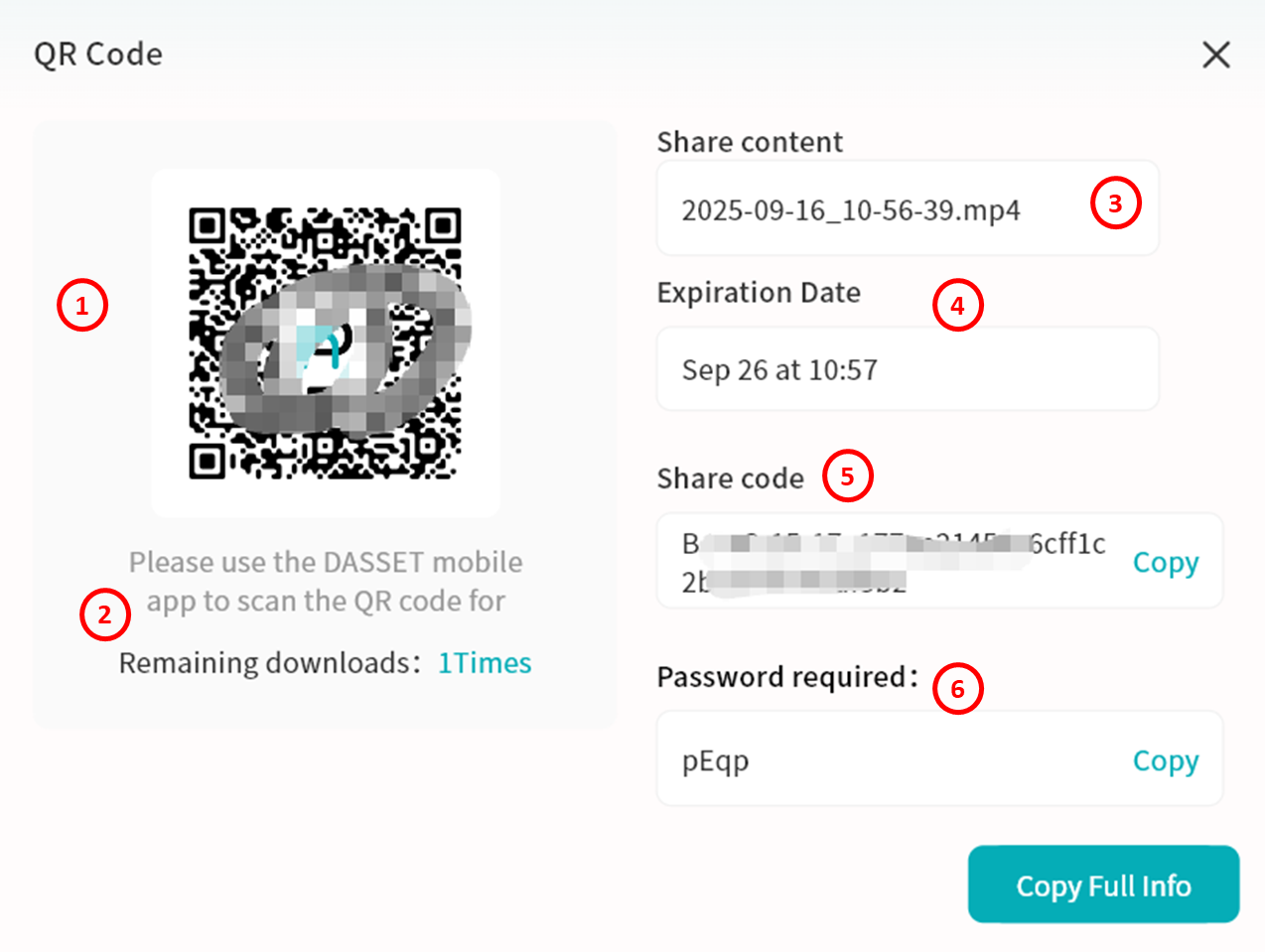
- Click Copy Full Info to share all details.
- Send only the QR code image. Displayed information includes:
- QR code (scannable in the DASSET app to retrieve the file)
- Remaining download count
- Share content
- Expiration date
- Share code (can also be entered in the DASSET app to retrieve the file)
- Password required (only shown if a password was set)
Retrieve Files via QR Code Share
- Go to Task Center - Received Shares - QR Code Share on your DASSET device.
- Click Add Share.
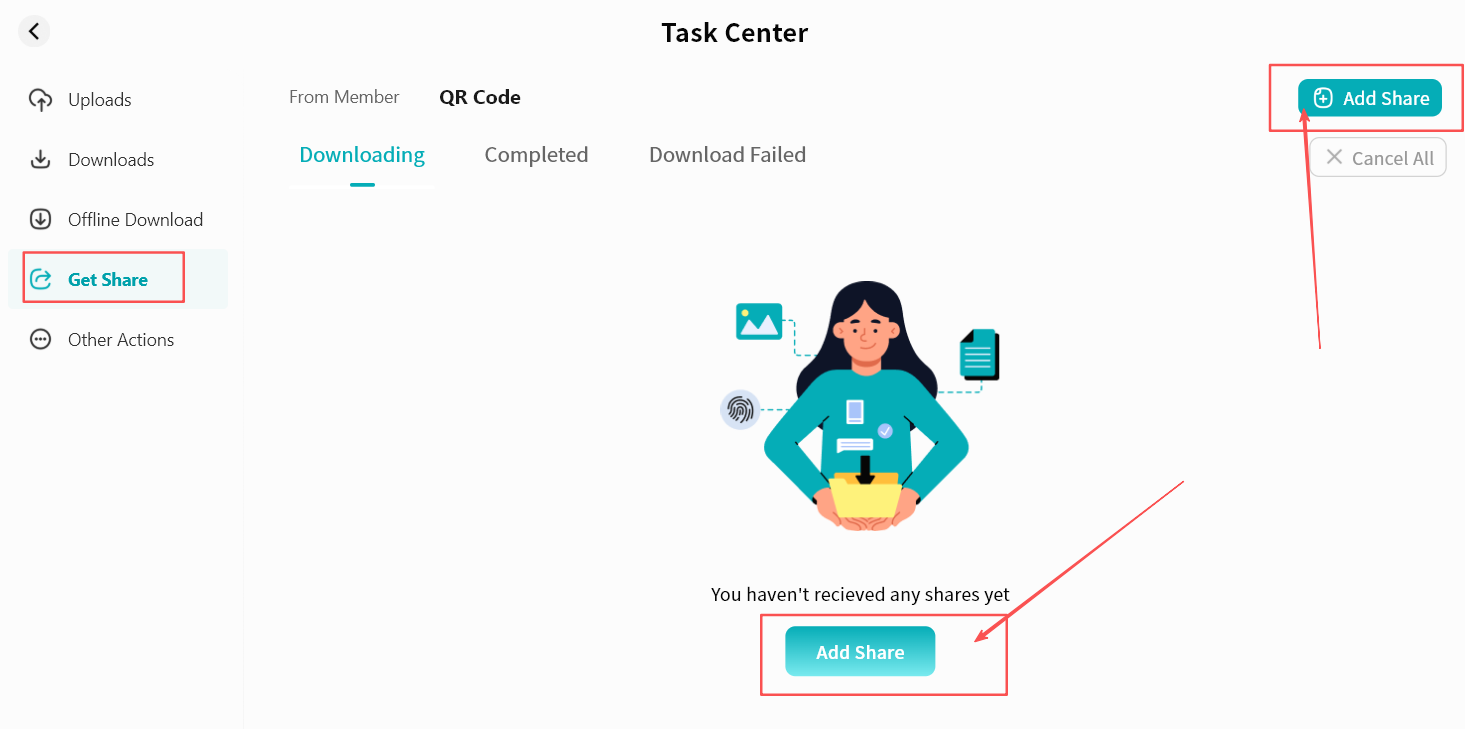
- In the pop-up window, enter the share code string and click Add.
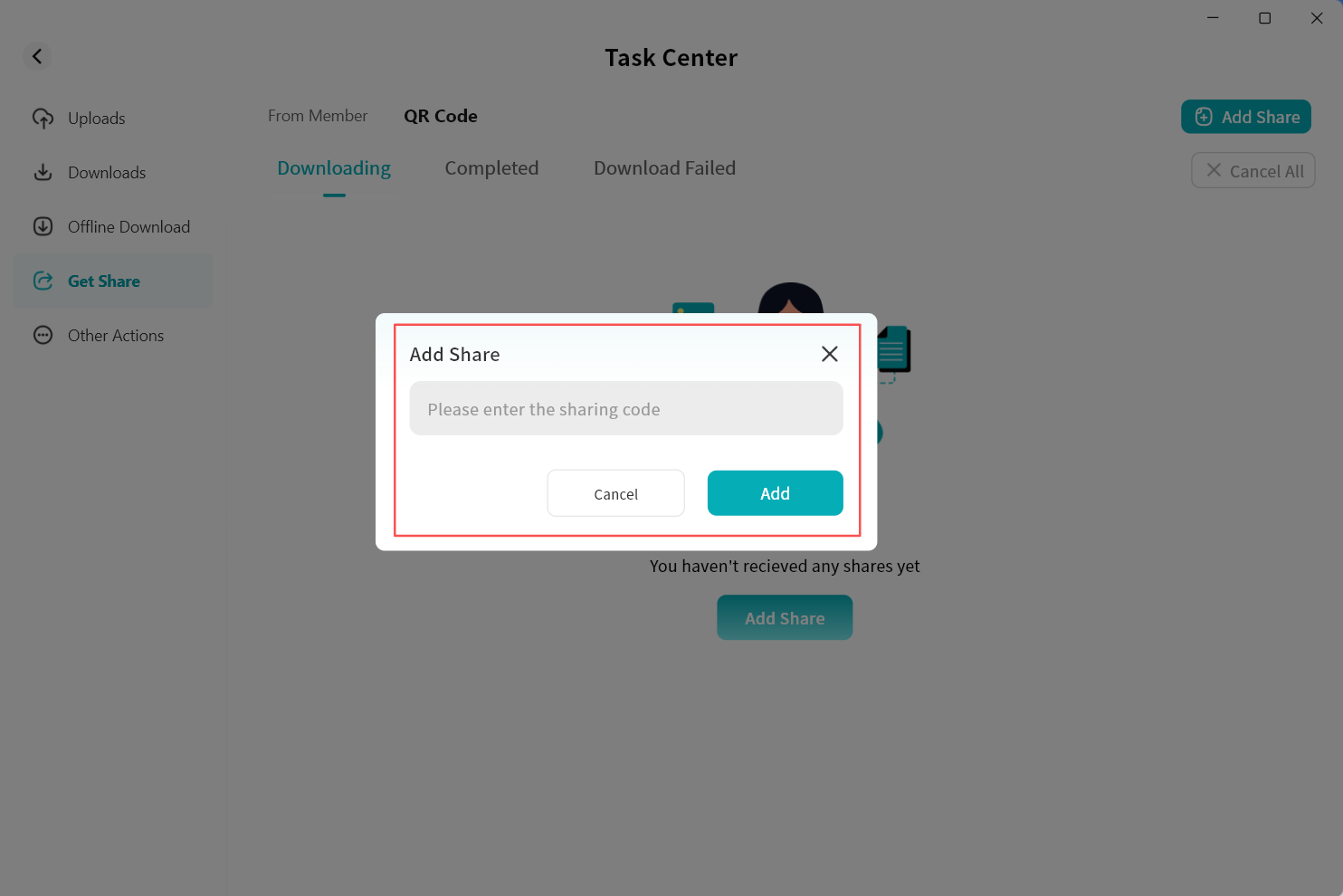
- If password-protected, enter the password.
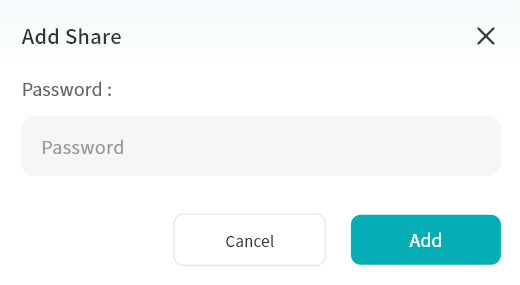
- After entering the correct code (and password, if required), the file information will appear. Select the file and click Save.
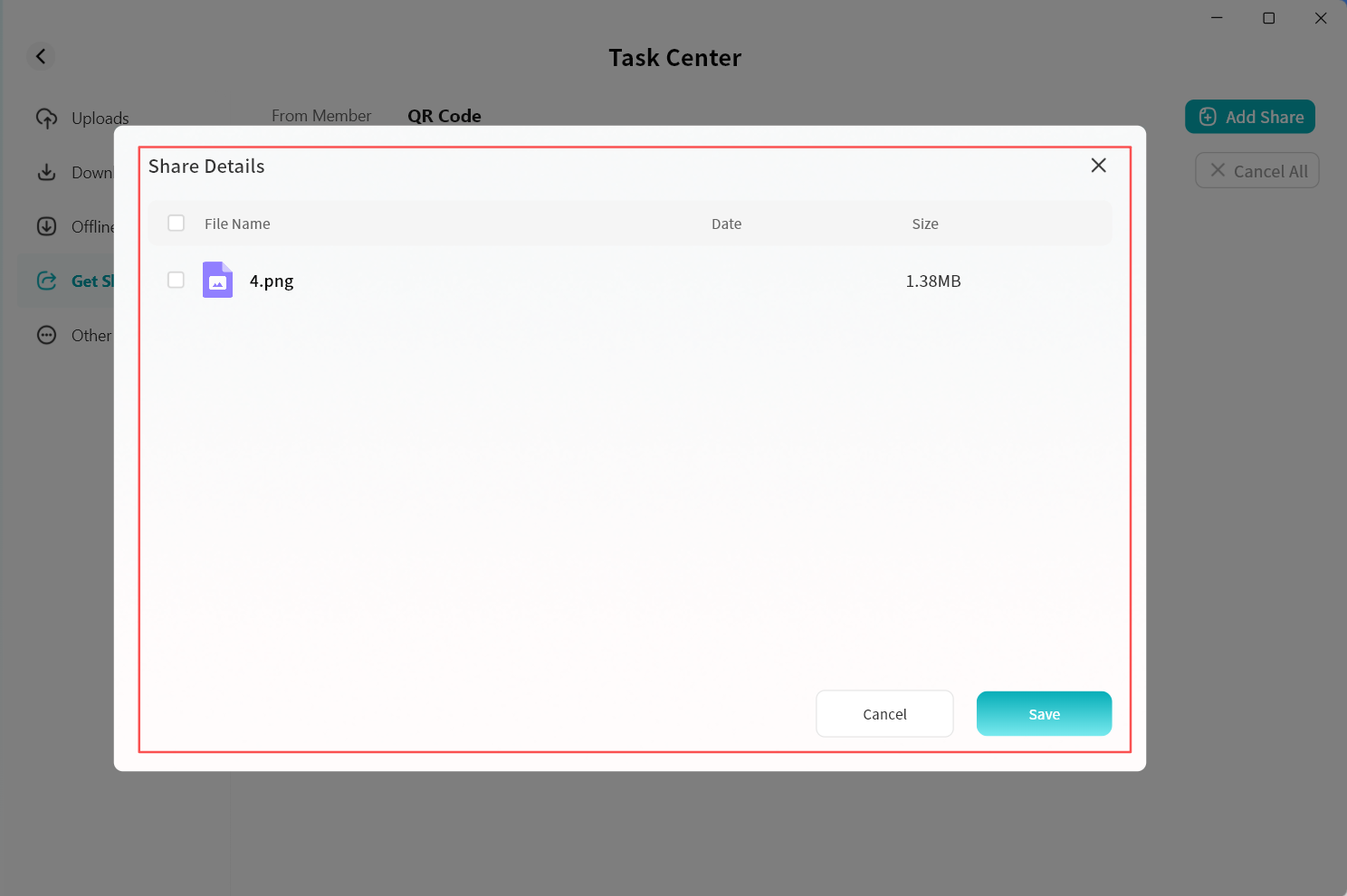
- Choose a directory and click Confirm. The file will be saved to your DASSET device.
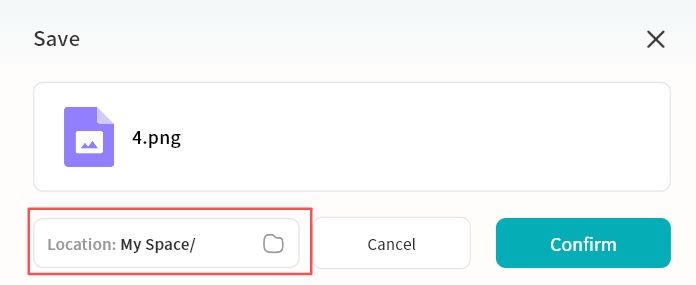
- You can monitor progress in the Task Center. Once completed, the file will be available in the selected directory.
Send to My Other Devices
Copies files from one DASSET device to another. Useful for users with multiple DASSET devices who need cross-device file transfers.
The operator must be the Owner of the receiving device.
Steps:
- Select the file, then click Share/Send My Other Devices.
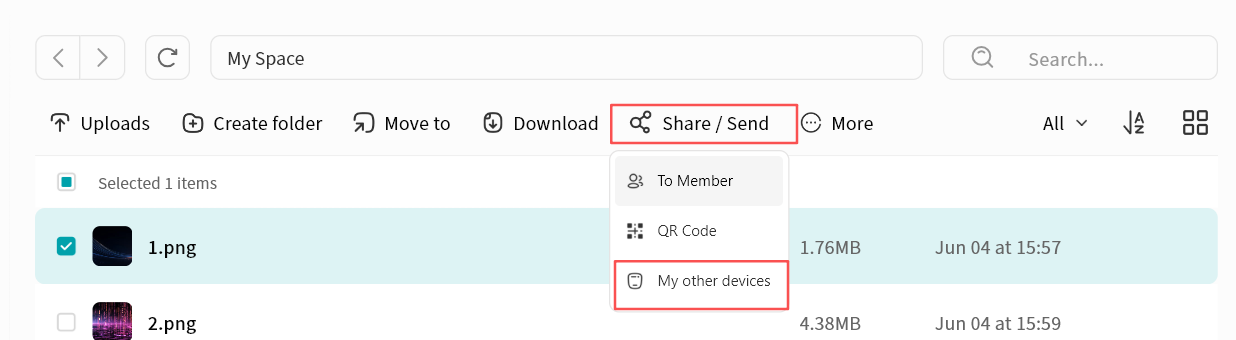
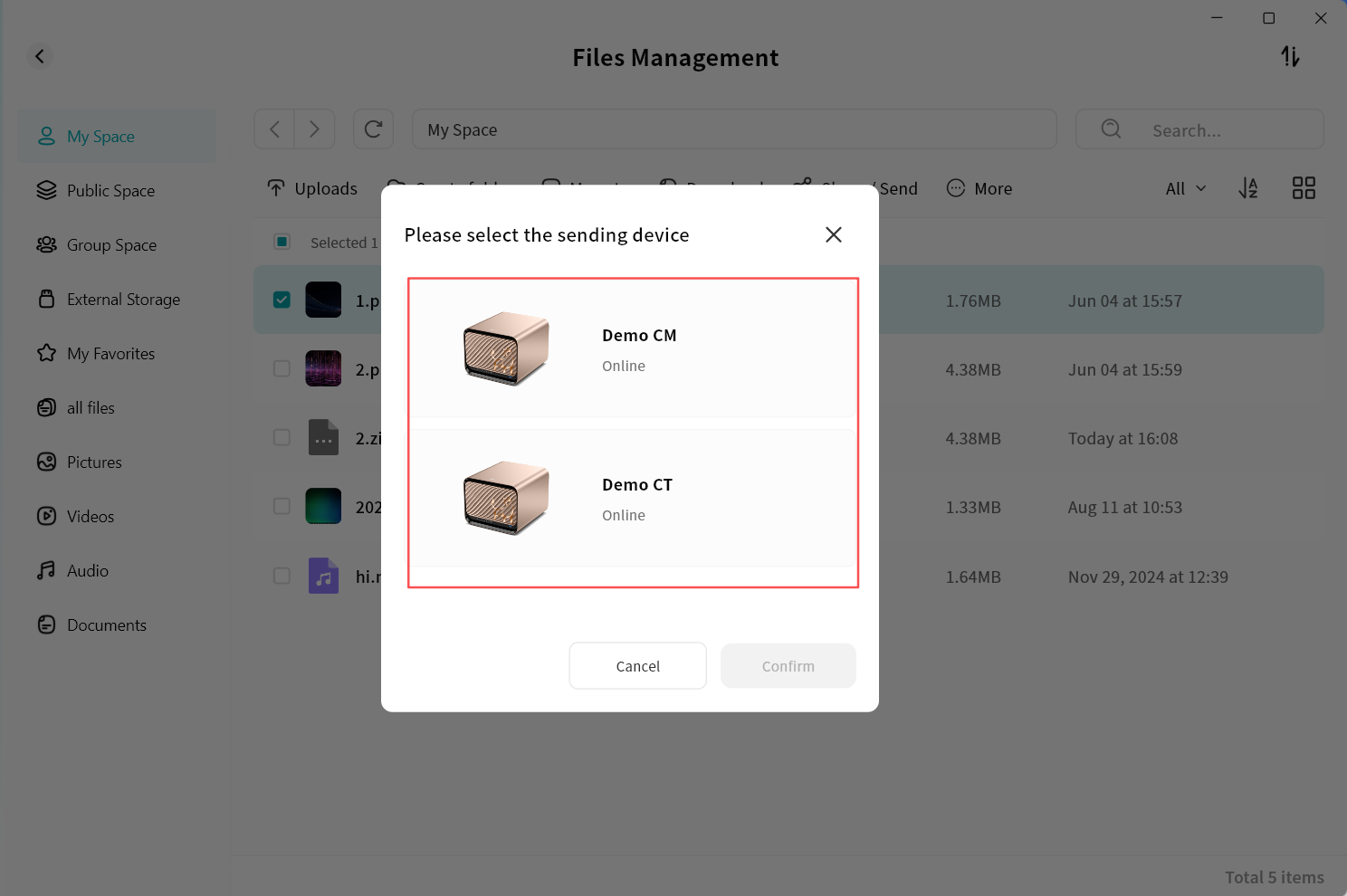
- In the pop-up window, select the target DASSET device and click Confirm.
Note: Only devices where you are the Owner will be displayed.
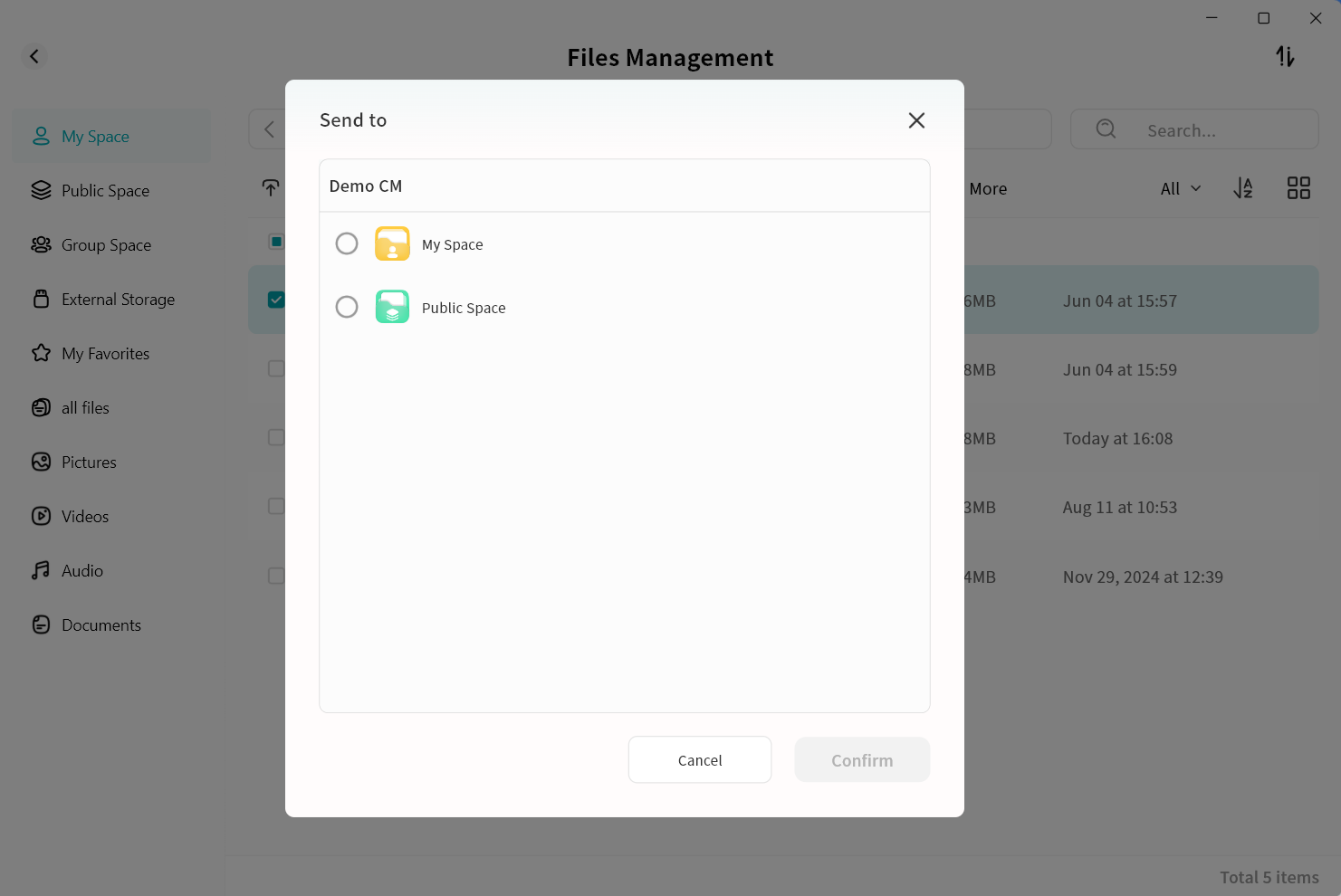
- Choose the save path for the file and click Confirm. The file will be transferred from the source to the target device.
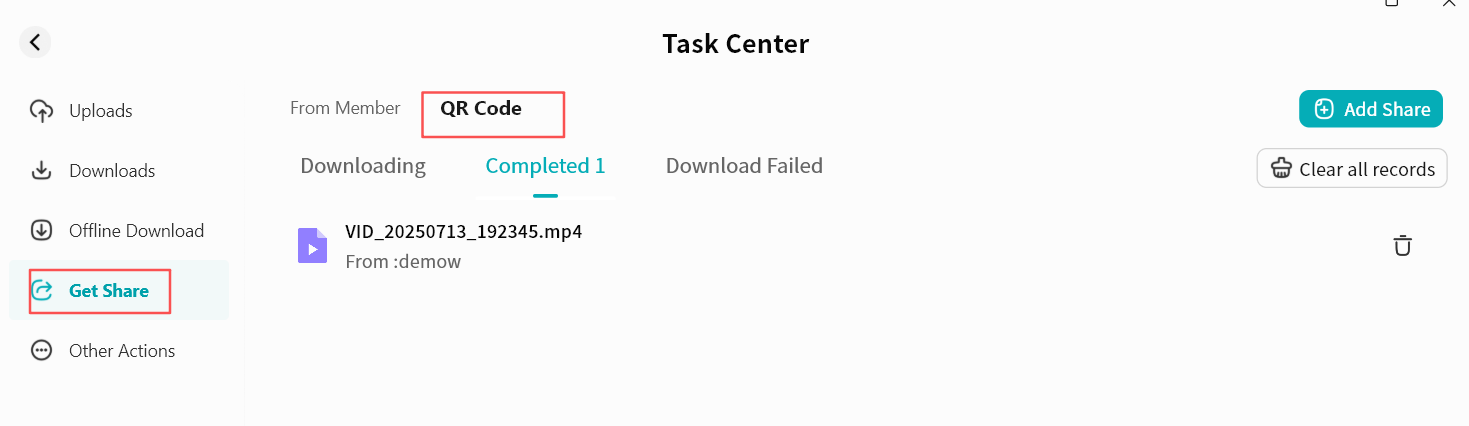
- On the target device, go to Task Center Received Shares QR Code Share to view the transfer progress.
Other File Operations
Copy/Move To
You can copy or move files to other directories at any time from the File Management page.
File Copy
Copying a file creates a duplicate in the target directory, while the original file remains in its original location.
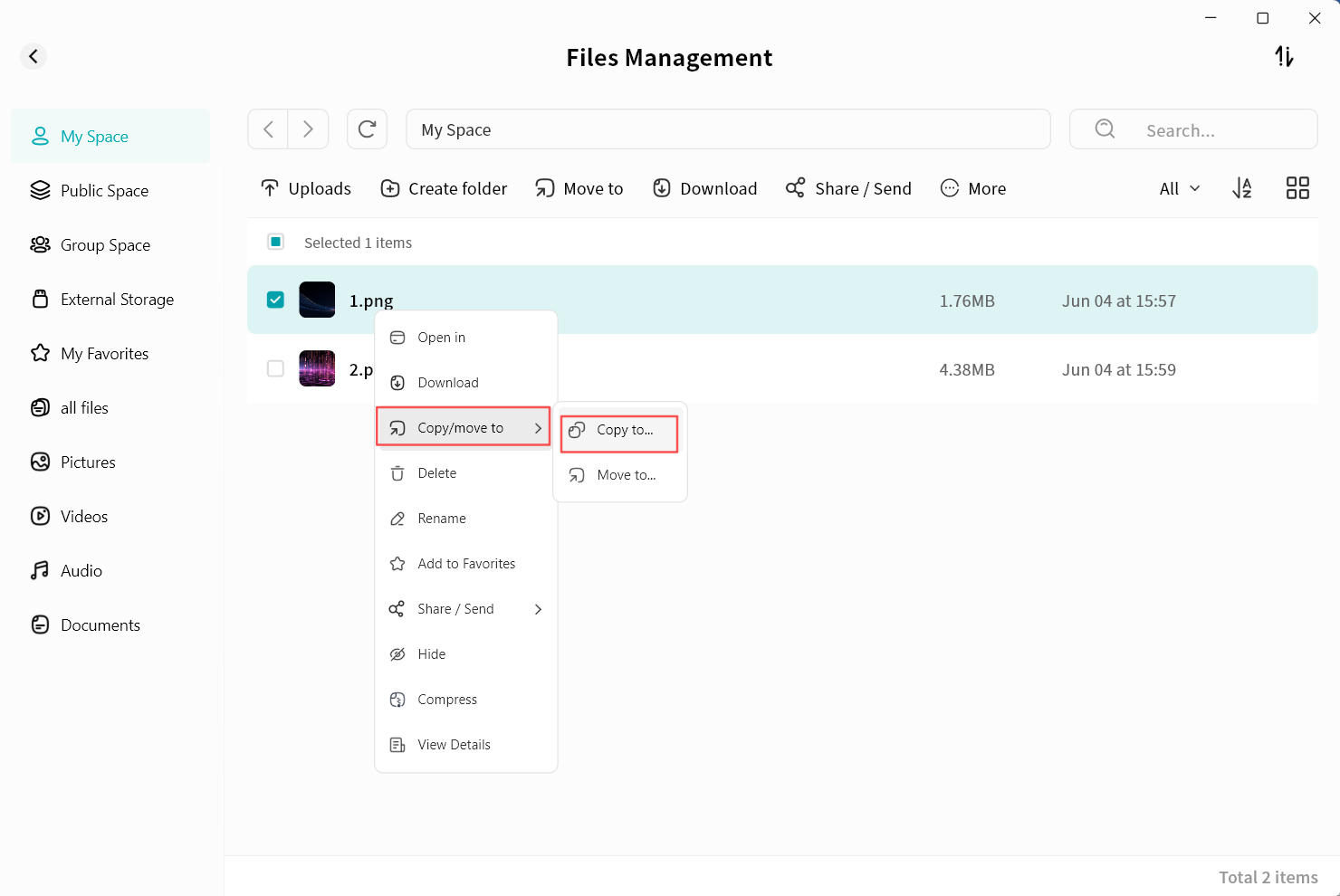
- Select the file and click Copy/Move To - Copy To.
- In the pop-up window, select the target path. DASSET will list all available spaces.
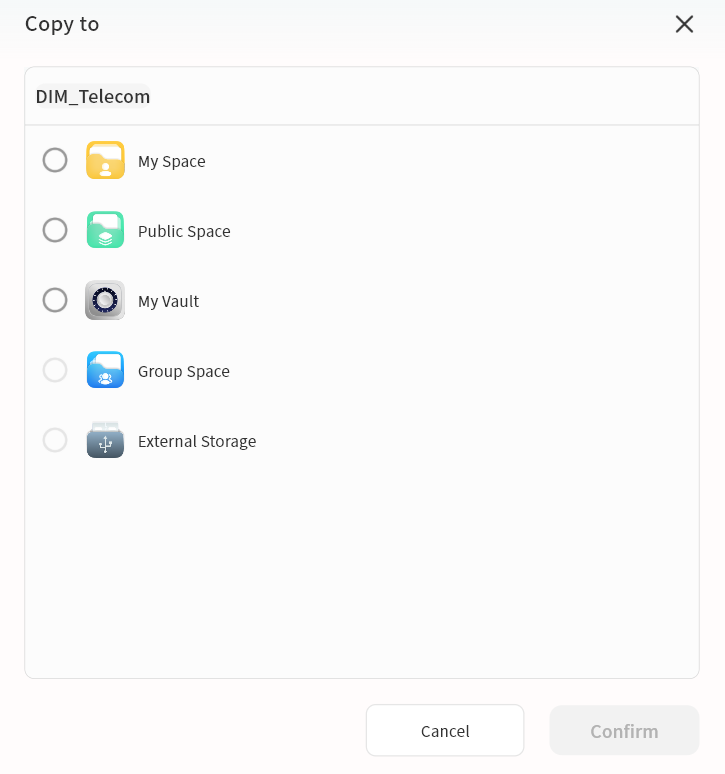
- Click Confirm to execute the copy operation.
File Move
Moving a file transfers it from one directory to another. After migration, the file will only exist in the new directory.
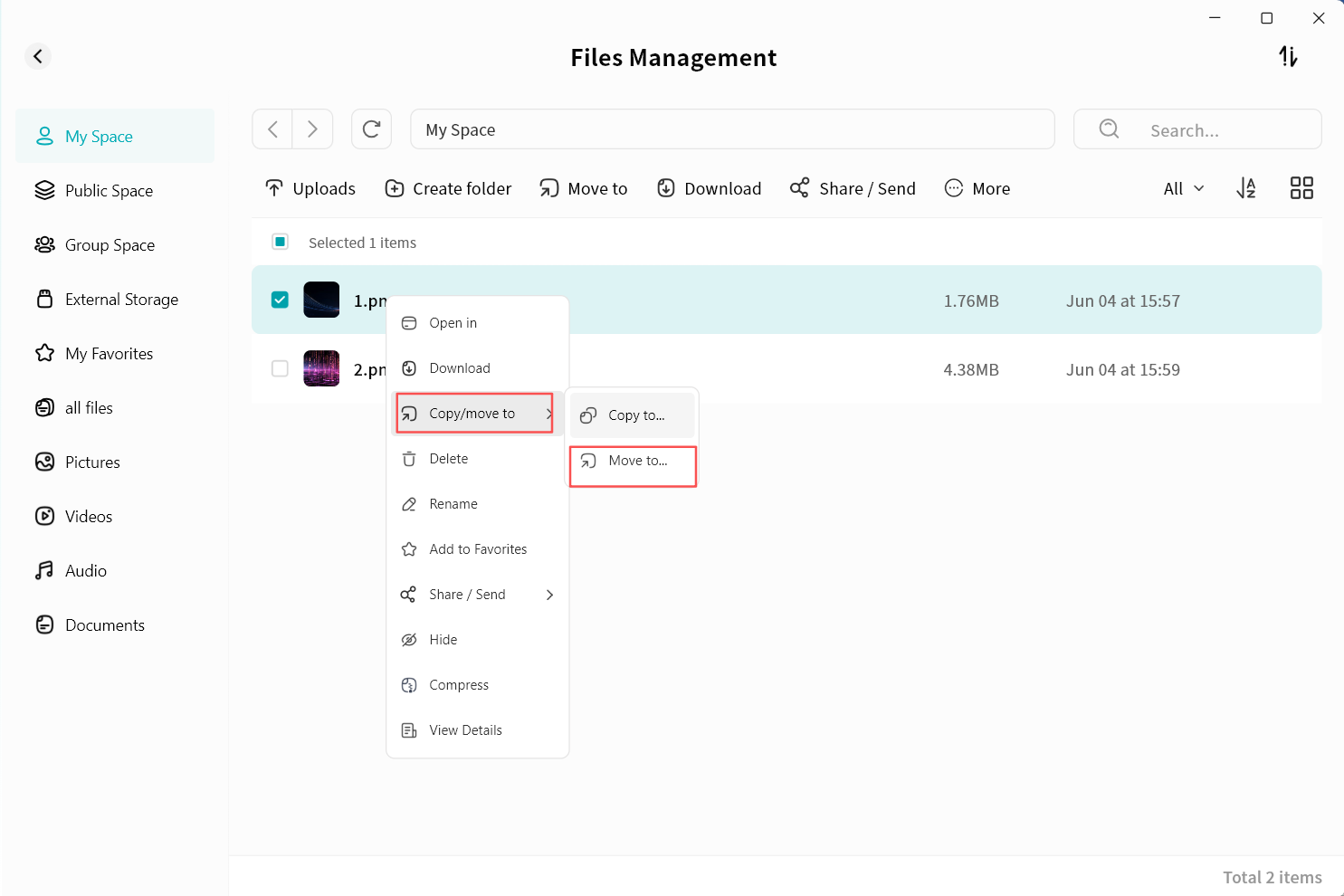
- Select the file and click Copy/Move To - Move To.
- In the pop-up window, select the target path. DASSET will list all available spaces.
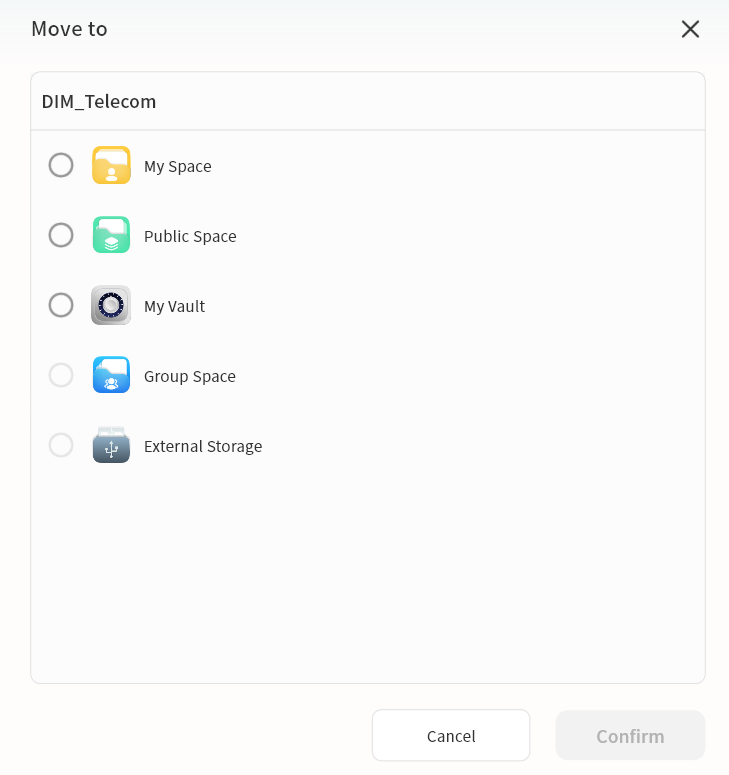
- Click Confirm to execute the move operation.
Progress View
You can view copy and move tasks under Task Center Upload - Other Operations.
Create Folder
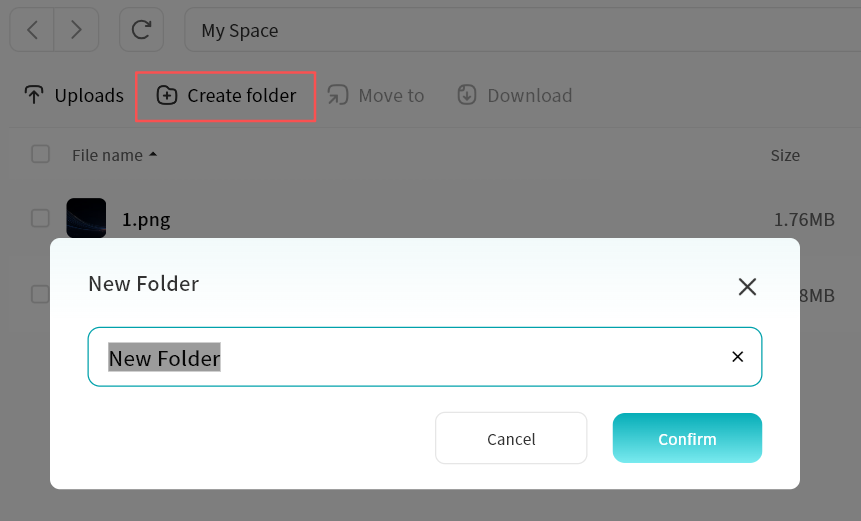
Click the Create Folder button to create a new folder in the current directory. When creating a folder, you can assign it a name.
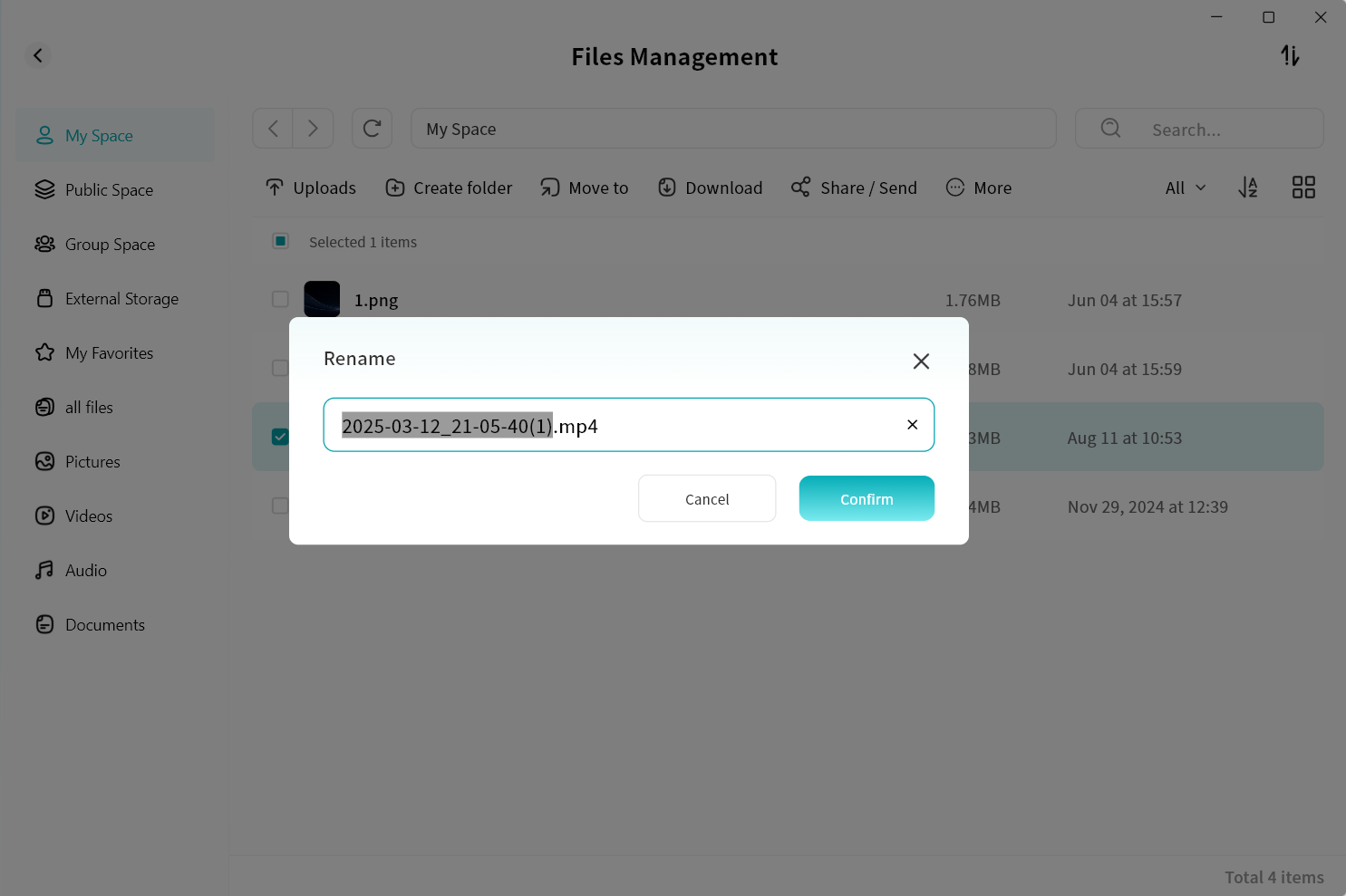
Rename
You can rename files stored on the DASSET device. Enter the new file name, click Confirm, and the change will be applied.
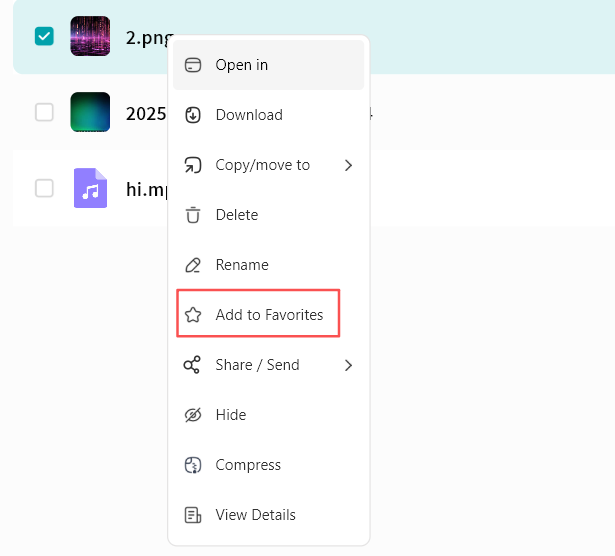
Favorites
You can add files to Favorites either by right-clicking a file and selecting Add to Favorites or by clicking the Add to Favorites button in the top menu bar. Afterward, you can quickly access these files from the Favorites section.
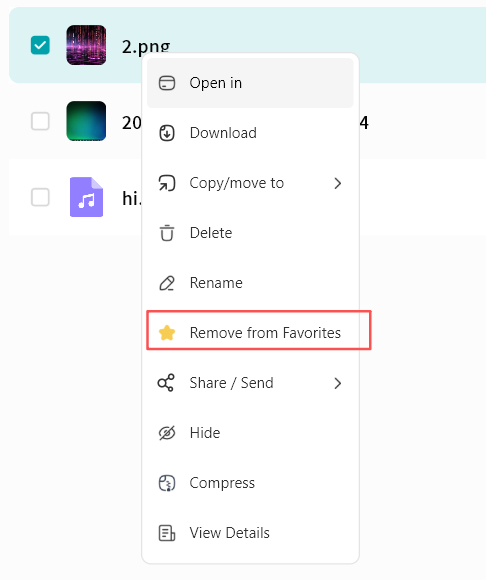
To remove a file from Favorites, perform the Remove from Favorites operation.
Delete
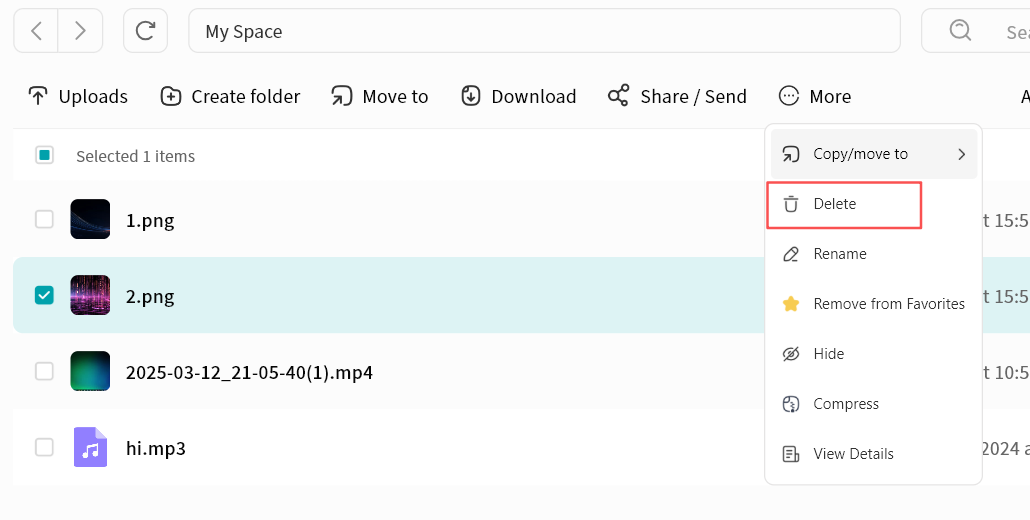
For unnecessary files, you can perform a delete operation. The Delete option is available in both the right-click menu and the top menu bar. Deletion supports both single and multiple files.
- Click the Delete button.
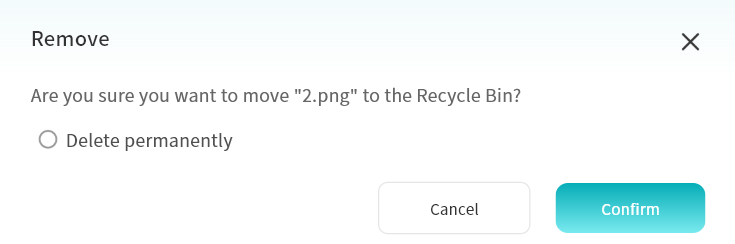
- Choose one of two options:
- Permanent Delete: When selected, the file is immediately deleted and cannot be recovered.
- Recycle Bin (default): If permanent delete is not selected, the file will first be moved to the Recycle Bin for 30 days before being permanently deleted.
- Files in the Recycle Bin can be restored to their original directory if deleted by mistake.
Hide Files
For sensitive files, you can hide them by doing the following:
- Select one or multiple files and click Hide.
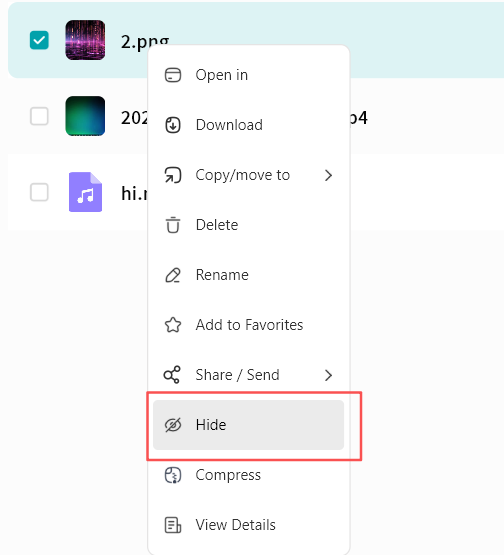
- Hidden files will no longer appear in the file list by default.
Show Hidden Files
If you want to display hidden files:
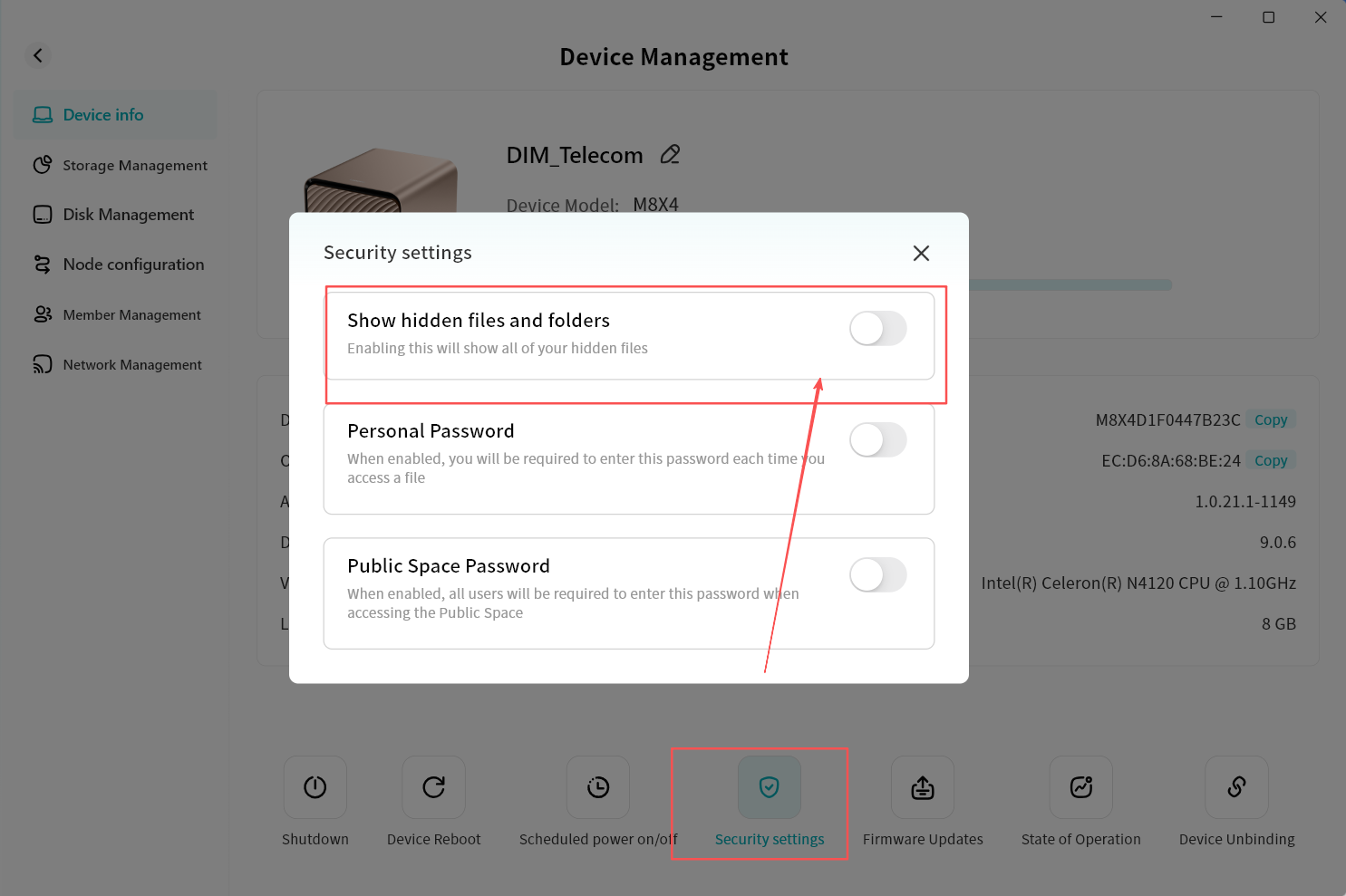
- On the device home page, click the top-right corner.
- Select Security Settings.
- Enable Show Hidden Files and Folders.
- Hidden files will now be visible in the file list.
File Compression and Decompression
DASSET supports online file compression and decompression without requiring local download.
- Supported Decompression Formats: .rar, .zip, .tar, .tar.gz
- Default Compression Format: Files are compressed into .zip for cross-platform compatibility.
Compression
- Select one or multiple files, then click Compress from the right-click menu or top menu bar.
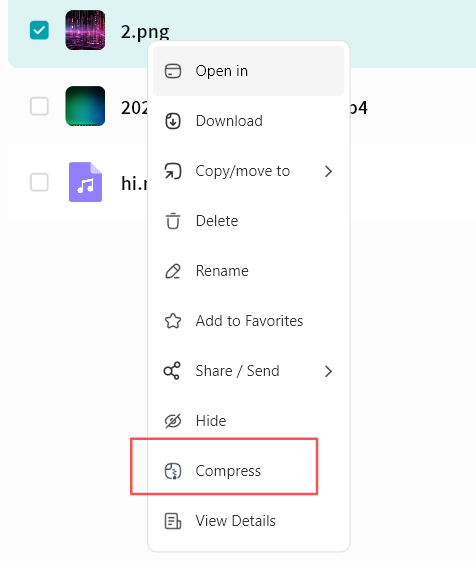
- In the pop-up window, choose the save path for the compressed file. You may also create a new folder.
- After completion, the compressed file will be saved to the selected path.
- Multiple files compressed together will generate an archive named Archiver.zip.
- A single file compressed will generate an archive named [Original Filename].zip.
Decompression
- Select a compressed file, then click Decompress from the right-click menu or top menu bar.
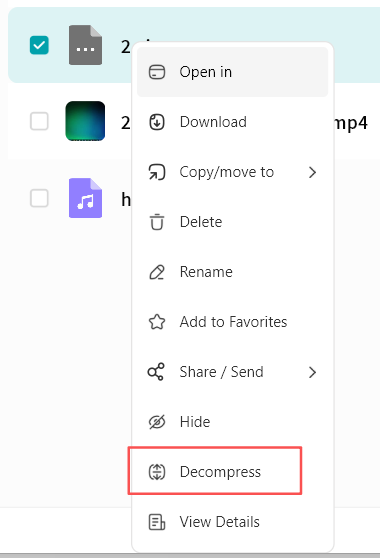
- In the pop-up window, choose the save path for the decompressed files. You may also create a new folder.
- After completion, the decompressed files will be saved to the specified path.
Progress Tracking
You can view compression and decompression tasks under Task Center - Other Operations.
View Details
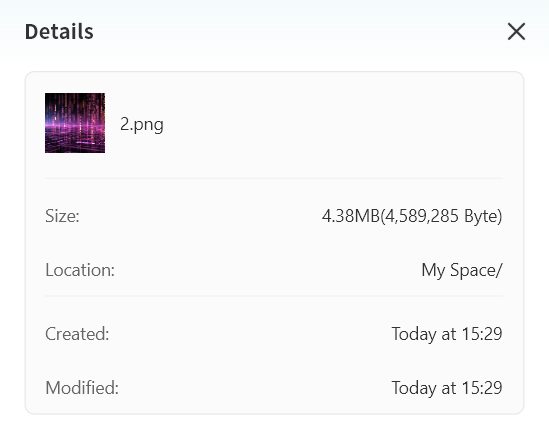
You can view details of files/folders at any time. Details include file size, file location, creation time, modification time, and other attributes. Displayed details may vary depending on the file type.