Voice & Video Calls
In addition to text-based messaging, the IM module supports high-quality voice and video calls. You can initiate a call within a one-on-one private chat or a group conversation.
- One-on-One Calls: **Supports private voice or video sessions.
- Group Calls: Supports multi-user voice or video conferencing.
Call Features:
- Voice Calls: The camera is disabled by default. You can choose to turn on your camera at any point during the conversation.
- Video Calls: The camera is enabled by default. You have the option to turn off your camera at any time during the call.
Initiating a Voice/Video Call
- Open a chat window and click on the Voice Call or Video Call icon in the top-right corner of the screen.
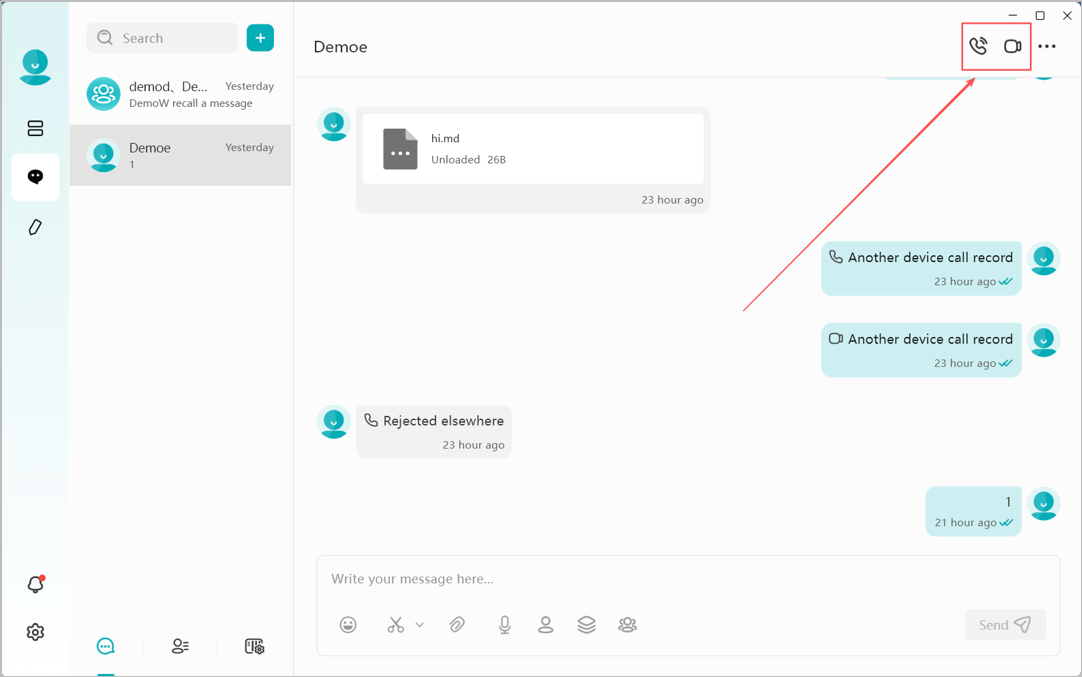
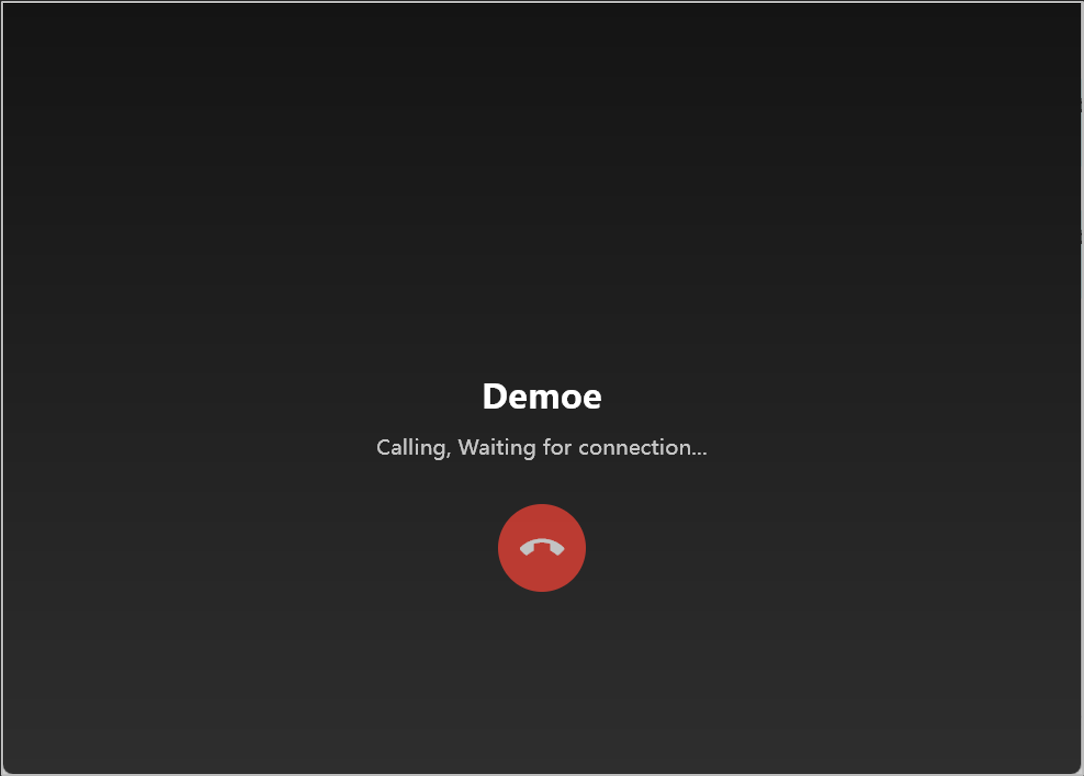
- The system will enter the Calling Interface.
- Once the other party (or parties) accepts the invitation, you will enter the Voice/Video Call Interface.
Voice/Video Call Features
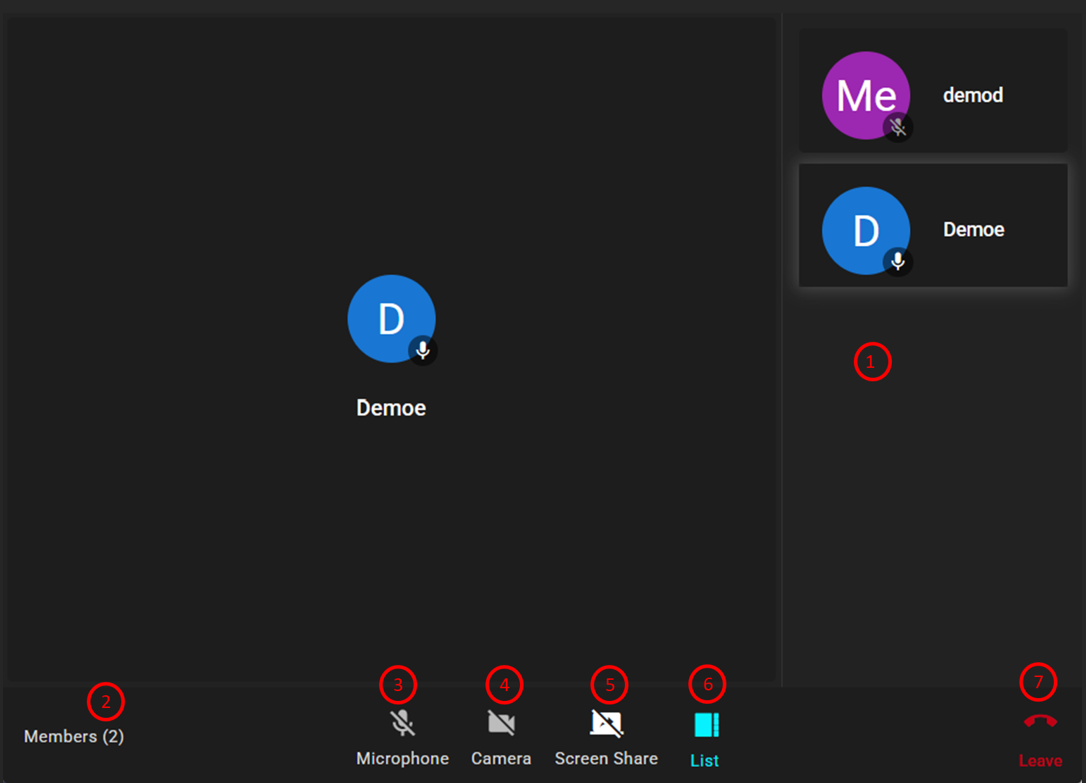
Inside the call interface, the following functions are available:
- Participant View: Displays the list of people in the call. You can toggle between List View and Grid View (using button ⑥).
- Member Count: Shows the total number of participants currently in the call.
- Mute/Unmute: Enable or disable your microphone.
- Camera Toggle: Turn your camera on or off.
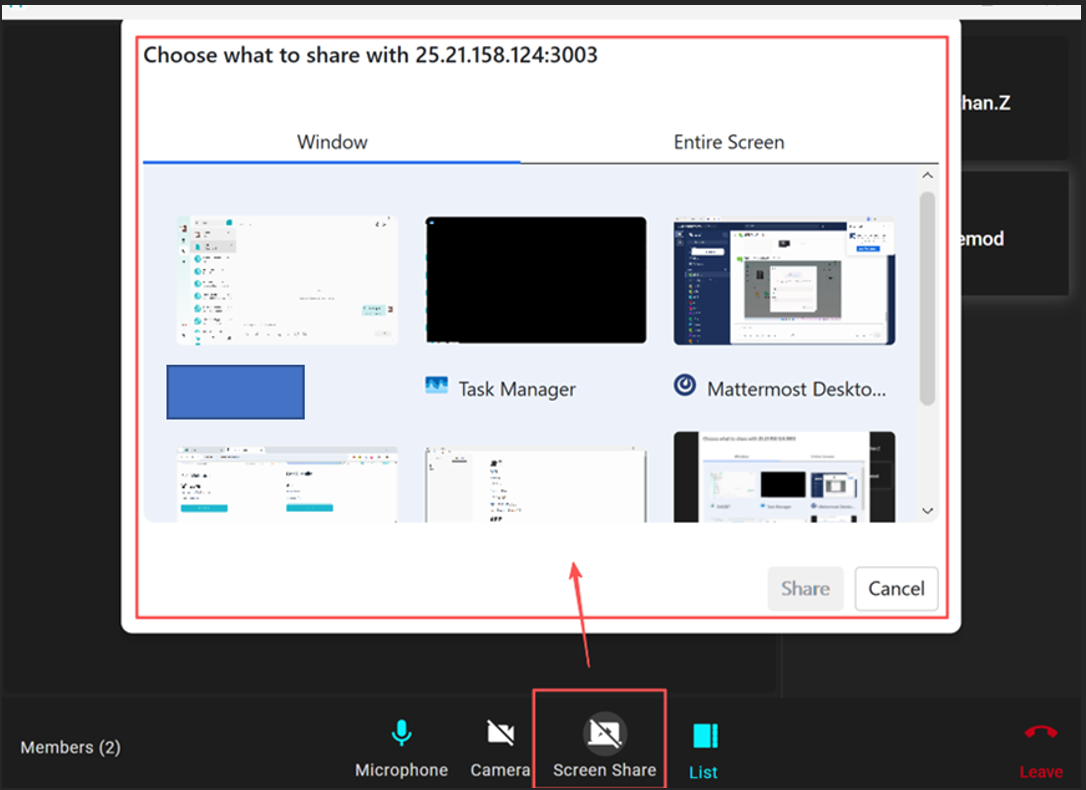
- Screen Sharing: Share your screen with other participants. You can choose to share a specific application window or your entire screen.
- Layout Switch: Toggle the display layout between List and Grid modes.
- Leave: Exit the current session.
- One-on-one calls: Clicking "Leave" will end the call for both parties.
- Group calls: Clicking "Leave" only removes you from the call while others continue.
Screen Sharing
During a voice or video call, you can click the Screen Share button ⑤ at any time to share your terminal's screen.
You can choose from the following sharing modes:
- Window: Select a specific application window from your currently open programs to share. Only the selected program interface will be visible to others.
- Entire Screen: Selecting this option will broadcast your terminal's complete desktop screen to all other participants in the call.
Answering Voice/Video Calls
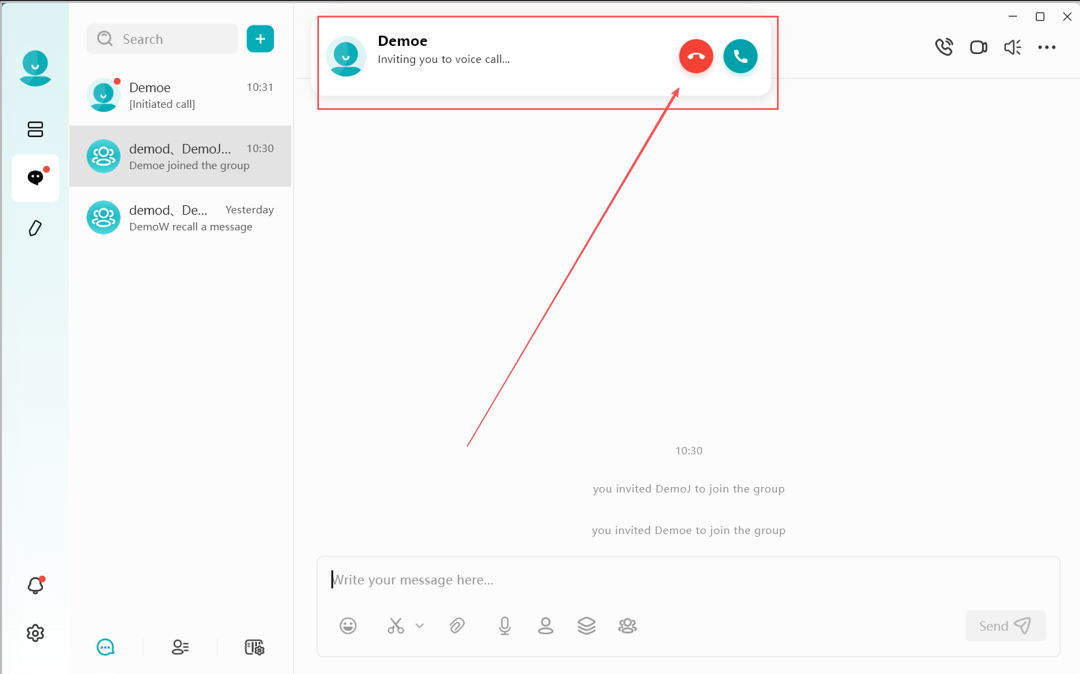
When a friend sends a voice or video call invitation, a call notification will appear at the top of the DASSET interface. You can choose to either Answer or Decline the call.
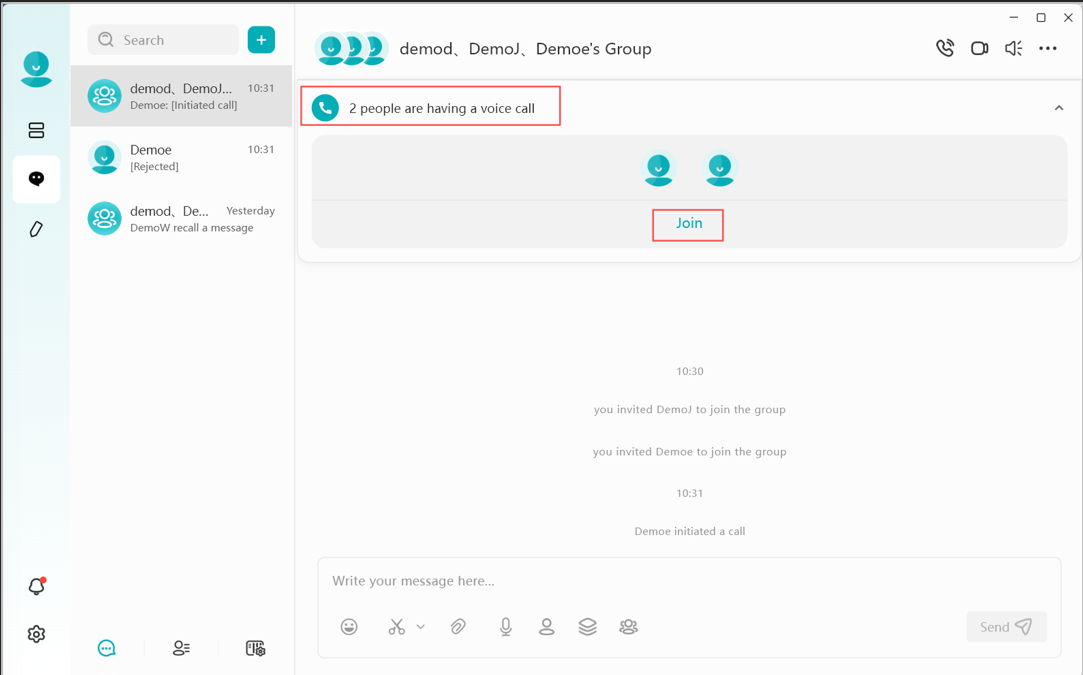
Joining a Group Call
If a call is initiated within a group you belong to, a status indicator will appear within the Group Chat window. Click the Join button to enter the ongoing group call at any time.