Chat Interface Overview
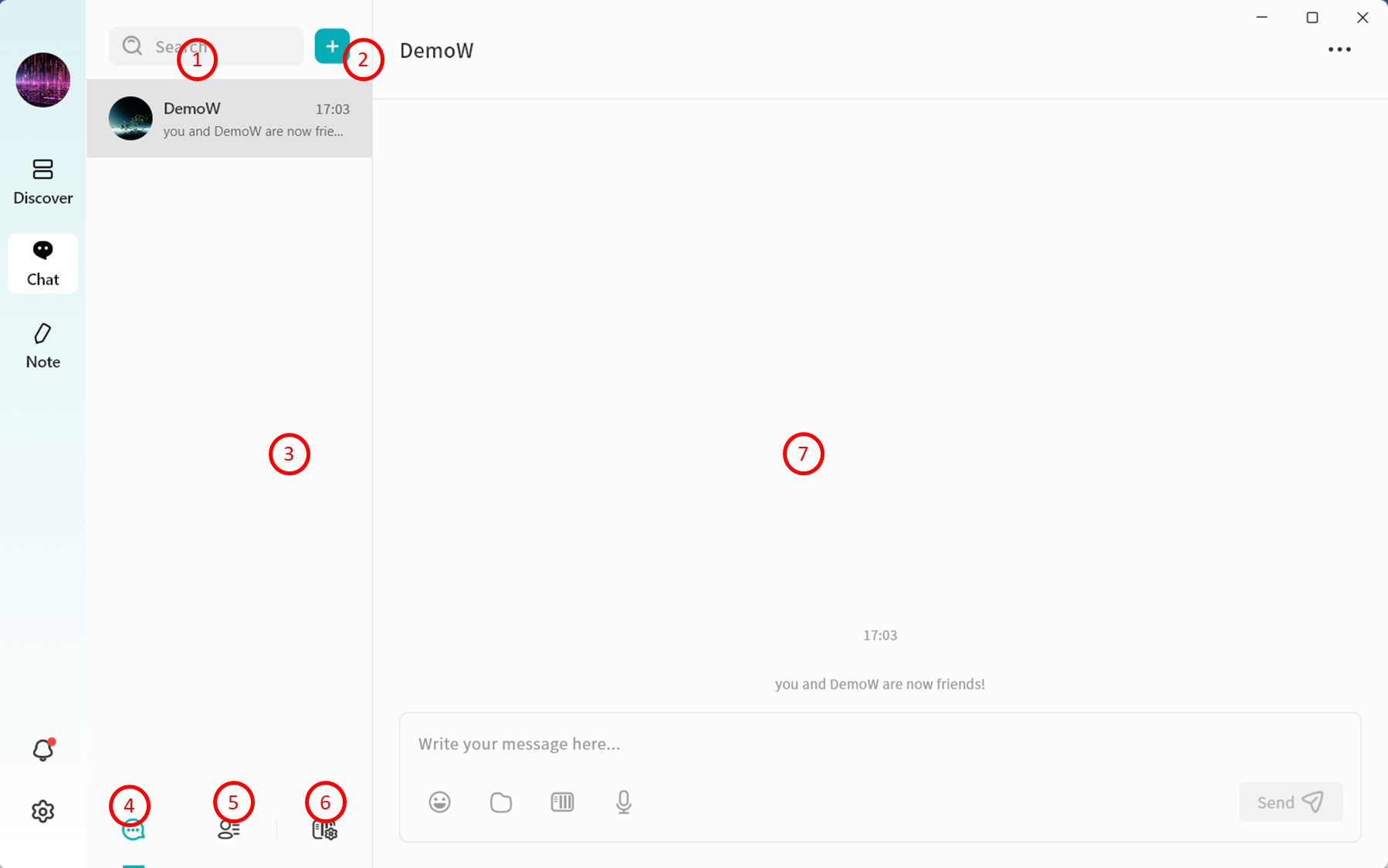
After selecting a chat server, you will enter the DASSET chat interface:
- Search: Search for contacts with whom you already have active conversations.
- Add (+): Select users connected to the current chat server to start a first-time conversation, or invite new users to join the server (available only to the device Owner).
- New Conversation: Start a first-time chat with users connected to the current chat server.
- Conversation List: Switch to view the list of chat conversations.
- Contacts: View all users currently on the selected chat server.
- Switch Chat Server: Switch between multiple chat servers at any time to communicate with users on different servers.
- Chat Window: Displays chat messages and conversation history.
Viewing the Contact List
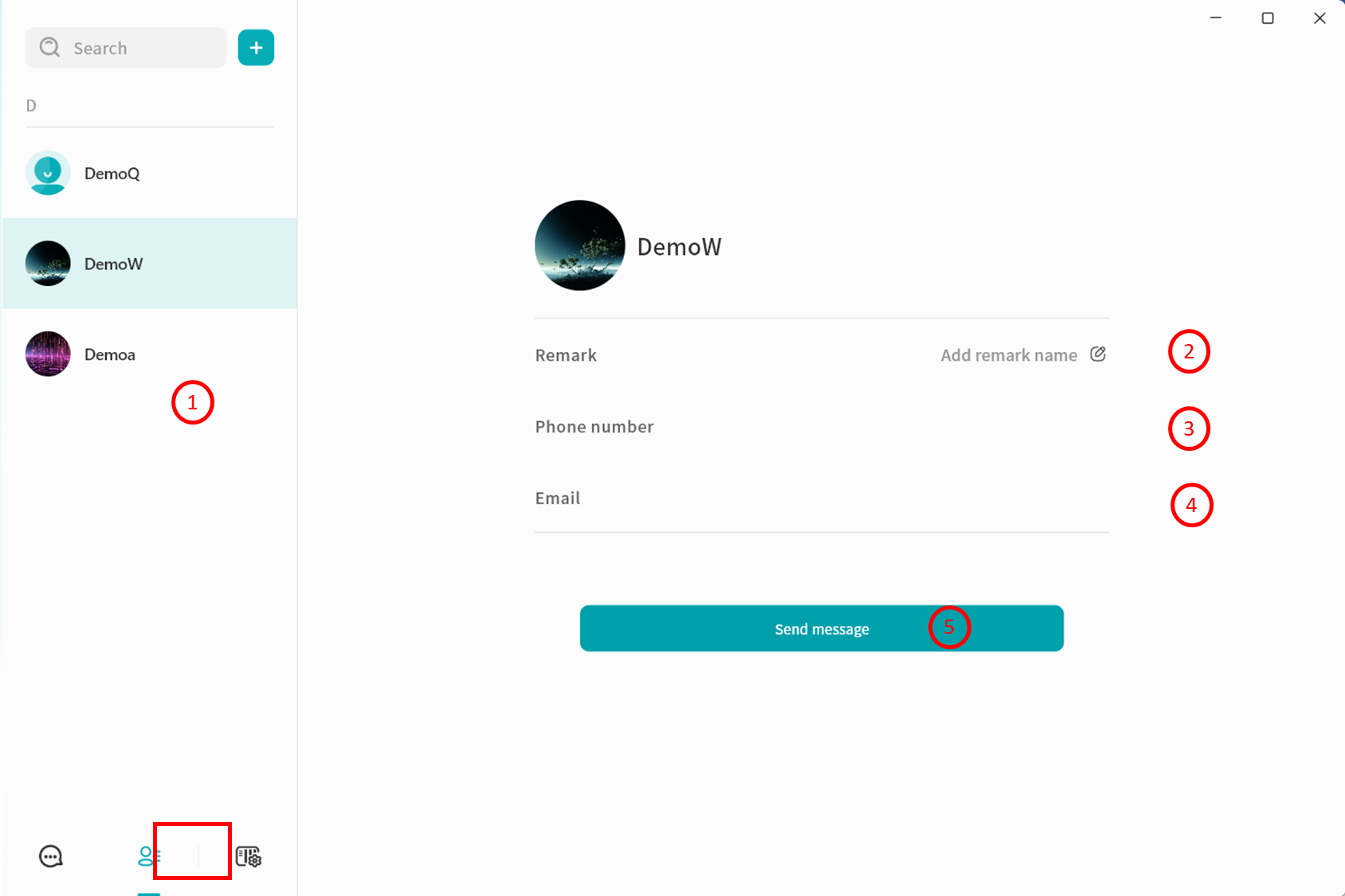
When you open the contact list, you can see all user accounts currently connected to the selected chat server:
- Contact List: Displays the names of all contacts.
- Remarks: Add or edit notes for contacts to make them easier to remember.
- Phone Number: View the contact's registered phone number.
- Email Address: View the contact's registered email address.
- Send Message: Start a conversation with the selected contact.
Switching Chat Servers
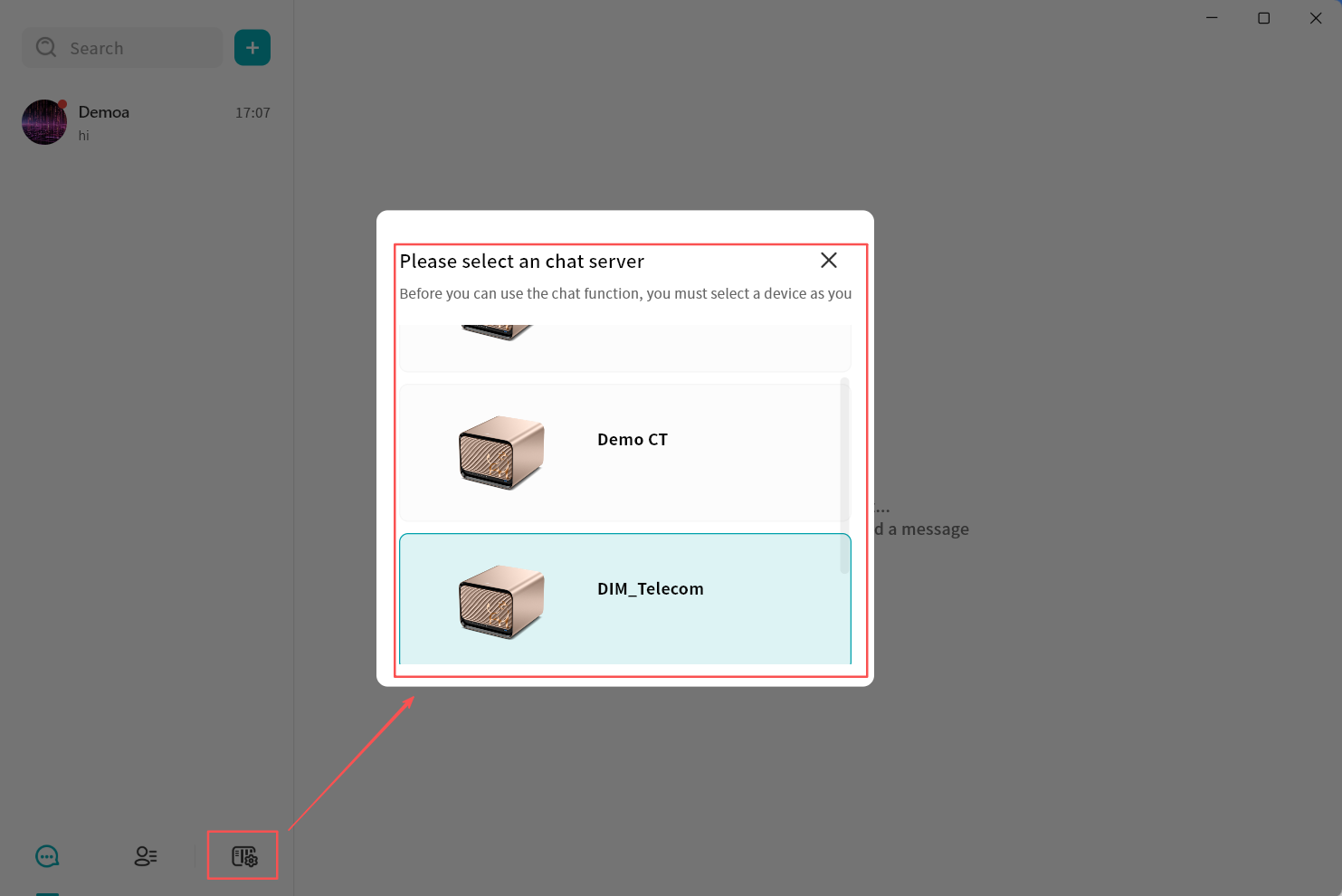
Click Switch Server to log in to another chat server and communicate with contacts connected to it.
- At any given time, you can only be connected to one chat server, and you may chat only with users on that server.
- The server list will only display your bound DASSET devices that support chat services.
New Message Notifications
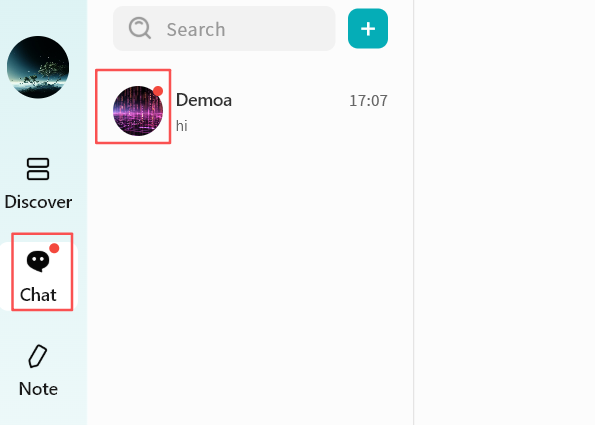
When a new message arrives, the DASSET client notifies you in two ways:
- A red dot appears on the chat icon in the client.
- A red dot appears on the contact's avatar in the chat interface.
Instant Chat Window
In DASSET IM, you can chat one-on-one or create group chats with users connected to the same chat server. The chat interface is designed to be familiar and intuitive, similar to other mainstream IM tools.
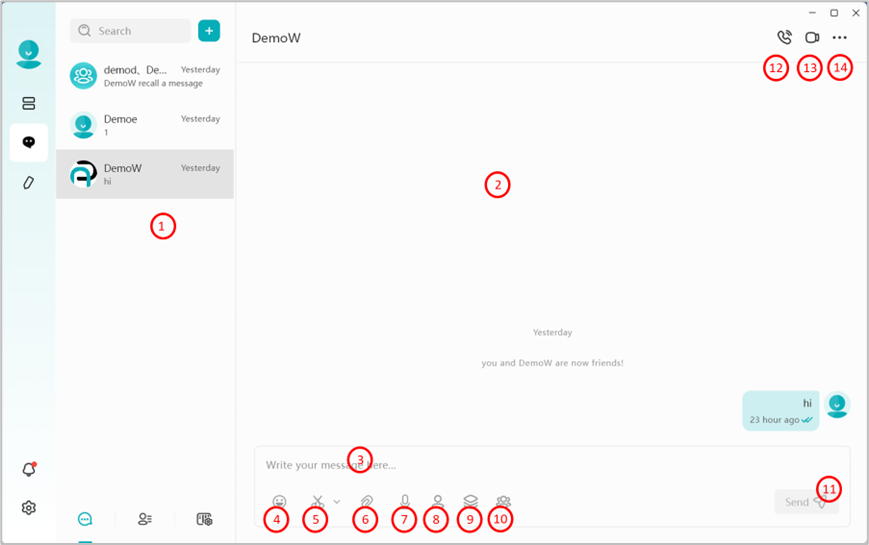
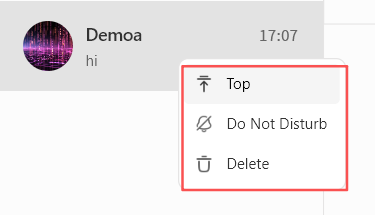
- Conversation Tabs: Switch between different chat conversations. Right-click on any chat record to:
- Pin the conversation
- Mute Notifications
- Delete the conversation
-
Chat Window: Displays the conversation history.
-
Input Box: Supports text input and pasting pc-images. Also supports sending long text and Markdown-formatted content. Messages exceeding 5000 characters will be automatically converted into a file for sending.
-
Emojis: Insert emojis into your messages.
-
Screenshot: Takes a screenshot for insertion into your chat.
-
Local Attachments: Send files stored on your computer.
-
Voice Messages: Record and send voice messages.
-
Send files from the "My Space" on the DASSET device that hosts the current IM chat server.
-
Send files from the "Public Space" on the DASSET device that hosts the current IM chat server.
-
Send files from the "Group Space" on the DASSET device that hosts the current IM chat server.
-
Send Message: Deliver the composed chat message.
-
Voice Call: Initiates a voice call with the participant(s) of the chat.
-
Video Call: Initiates a video call with the participant(s) of the chat.
-
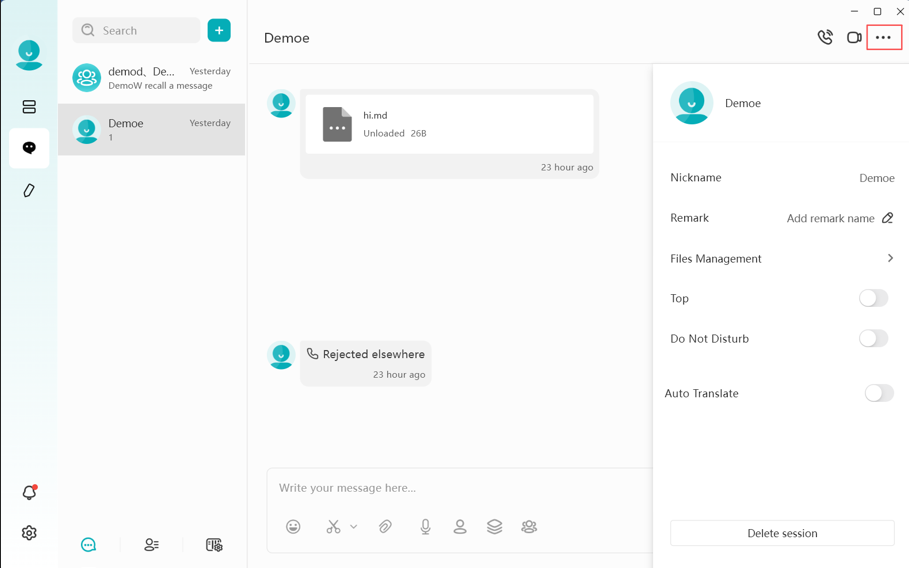
Chat Information Panel: View and manage details of the chat partner or group:
- View avatar
- View nickname
- Edit remarks
- Pin the conversation
- Mute the conversation
- Delete Conversation: Permanently remove the chat from your view.
warningDeleting a conversation removes all records from your side. Even if you start a new chat, previous messages will not be visible. However, the recipient's chat history will still remain intact.
Chat Message Interactions
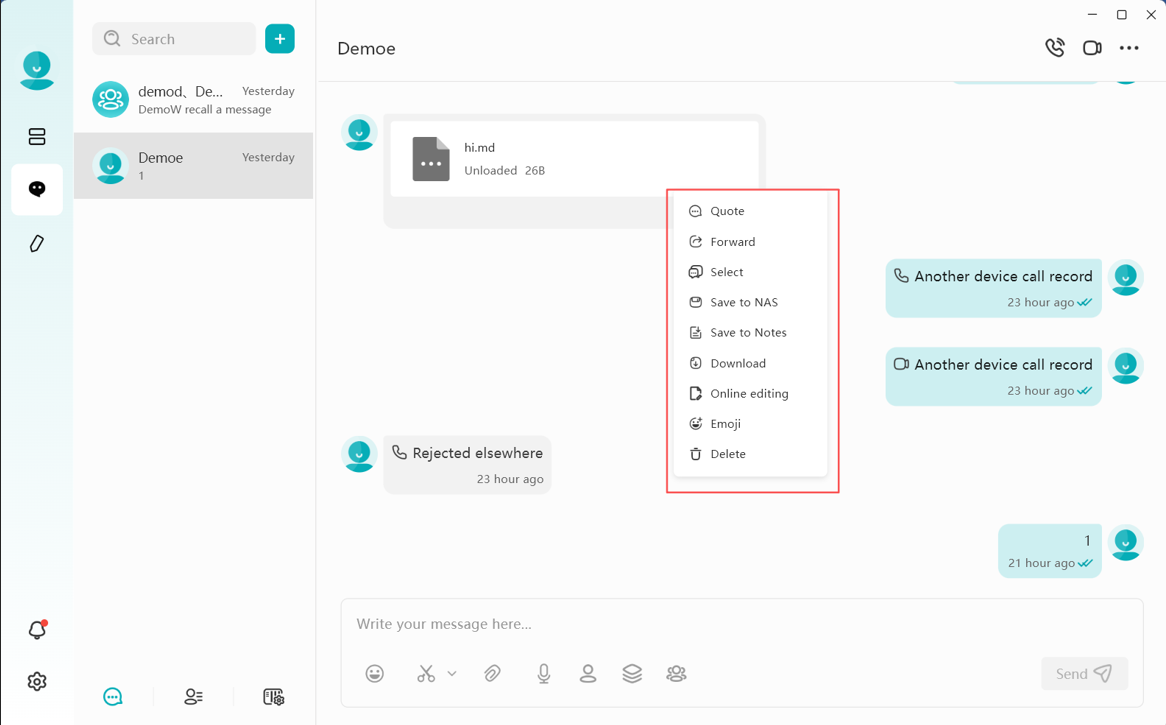
In the chat window, you can right-click on historical chat records to perform the following actions:
- Quote: Reply to a specific message by quoting it.
- Copy: Copy the content of the selected message.
- Image Recognition: Supports AI integration to analyze and interpret the content of images.
- Text Recognition (OCR): Supports AI-powered automatic identification and extraction of text from images.
- Speech Recognition: The AI Agent automatically recognizes voice messages and converts them into text output.
- Forward: Forward the message to another user.
- Multi-Select: Select multiple messages for combined forwarding or deletion.
- Save to NAS: Save attachments from the chat directly to your DASSET device.
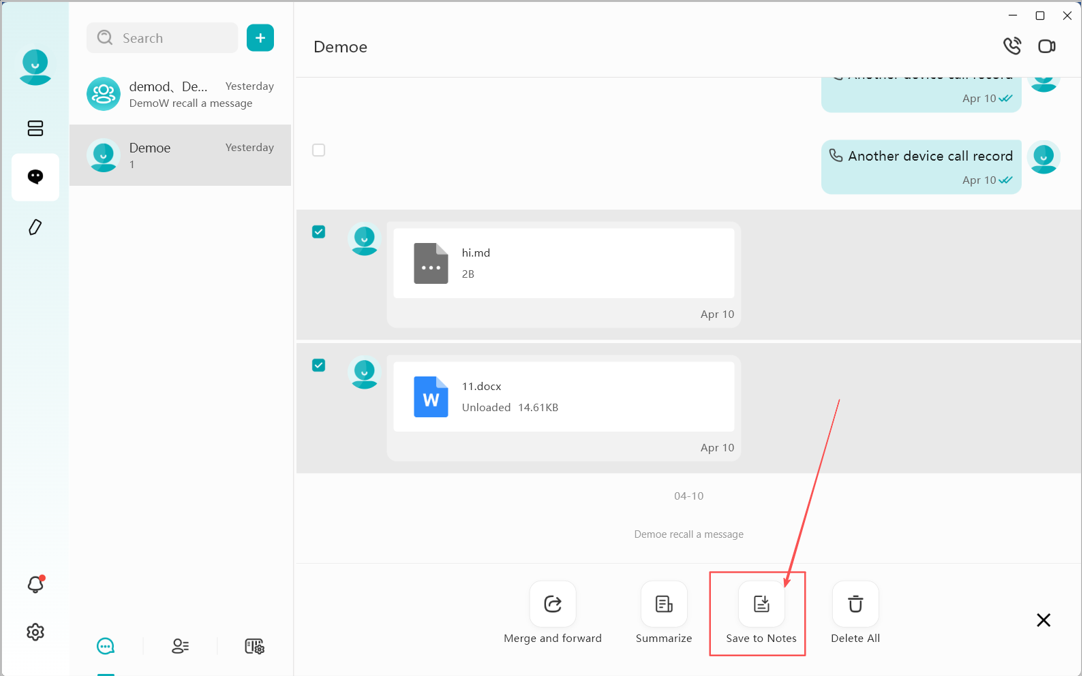
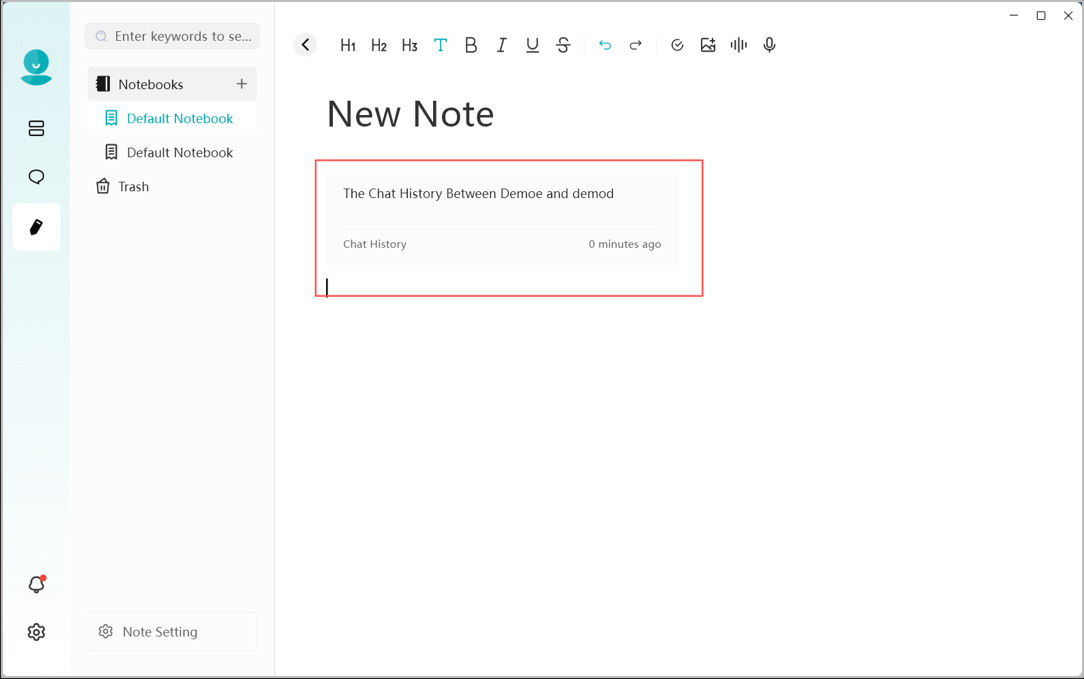
- Save to Notes: Save single or multiple chat messages directly to your notes. A new note containing the selected messages will be automatically created.
- Open in: Open selected chat messages in the built-in Markdown editor for viewing and editing.
- Download: Download attachments to your local computer.
- Emoji: Respond to a message with an emoji.
- Recall: Withdraw a message you sent.
- Delete: Delete selected messages.
warning
Deletion only removes the message from the current terminal. If you log in from another terminal, the deleted message will still be visible. To ensure the message is removed from all terminals and the recipient, use Recall instead.
- Open: Preview attachments directly if supported.
- Online Editing: Access and edit Word, PDF, Excel, and PPT documents online via third-party Office applications installed on your DASSET device. Note: This feature is only available on supported device models.
- URL Links: If a chat message contains a URL, clicking it will open the link in your browser.
Open in Reader
You can select a chat message (sent by yourself or others), right-click, and select Open in Reader. DASSET will automatically open the message using its built-in Markdown editor.
In the built-in reader, you can:
- Read: View the content in a clean, formatted layout.
- Edit: Modify the text as needed.
- Save to Device: Save the message as a .md file directly to your DASSET device.
- Forward to IM: Send the generated Markdown file to other chat contacts.
- Open with Local App: Open the file using other Markdown editors installed on your computer.

Editing Mode: To edit the Markdown file, click the Edit icon in the top right corner. The editor includes the following features:
- Set hierarchical Headings.
- Standard text formatting: Bold, Italic, Strikethrough, and Numbered Lists.
- Insert Code Blocks, Image URLs, and Hyperlinks.
- Create Task Lists.
- Once finished, click Done to preview the modified file.

Save to Notes
You can select one or multiple messages and save them directly to your personal notes.
- Operation: After selecting the messages, click Save to Notes.
- Auto-Redirect to Notes: The application will automatically jump to the Notes interface and generate a new entry.
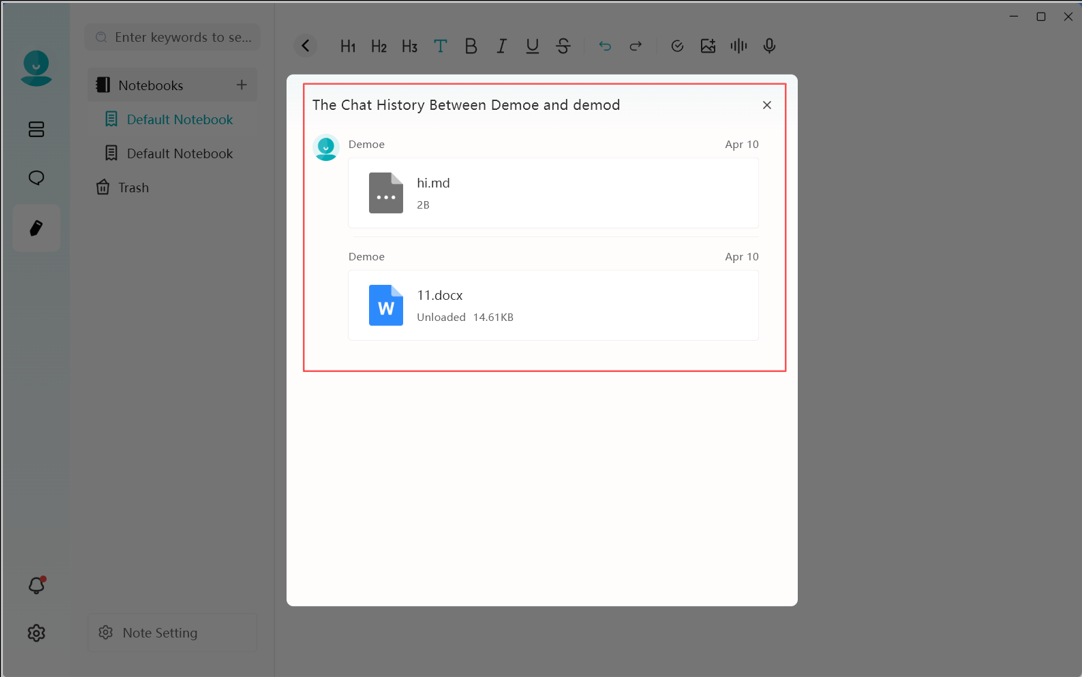
- View Details: Click on the chat history window within the note to view the specific content of the saved messages.
Online Editing
The IM module supports online editing for document attachments. You can access this by right-clicking a file and selecting the Online Editing function.
- Supported Formats: View and edit common document types, including .docx, .pptx, and .xlsx.
- Markdown Files: For .md files, simply double-click the file within the chat to preview or edit it directly.
- File Saving: After editing, changes are automatically saved to the local file downloaded on your terminal. Note: Editing a file will not modify the original source file already sent in the chat history.
Editing a file will not modify the original source file already sent in the chat history.