Security Settings
Click the Security Settings button at the bottom of the Device Information page to enter the Security Settings page.

- Show Hidden Files and Folders: When enabled, all hidden files and folders will be visible in the File Management page.
- Personal Password: When enabled, a password must be entered to access the device.
- Public Space Password: When enabled, a password must be entered to access data in the Public Space.
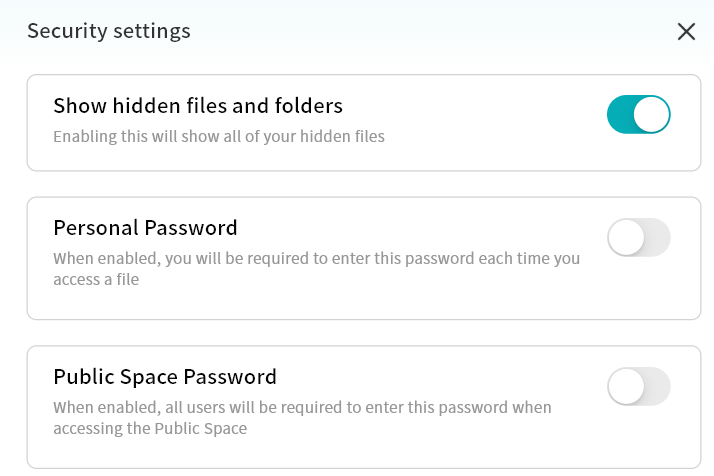
Show Hidden Files and Folders
If you have hidden certain files and wish to access them again, you can enable Show Hidden Files and Folders to display hidden files/folders in the File Management page.
Personal Password
To set a Personal Password:
- On the Device Information page, click Security Settings and enable Personal Password.
- In the pop-up input box, enter a password to complete the setup.
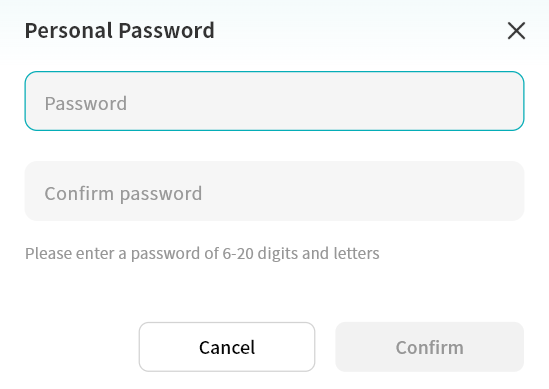
After setting a personal password, you will be prompted to enter it when accessing the device home page. Only after entering the correct password can you access the device.
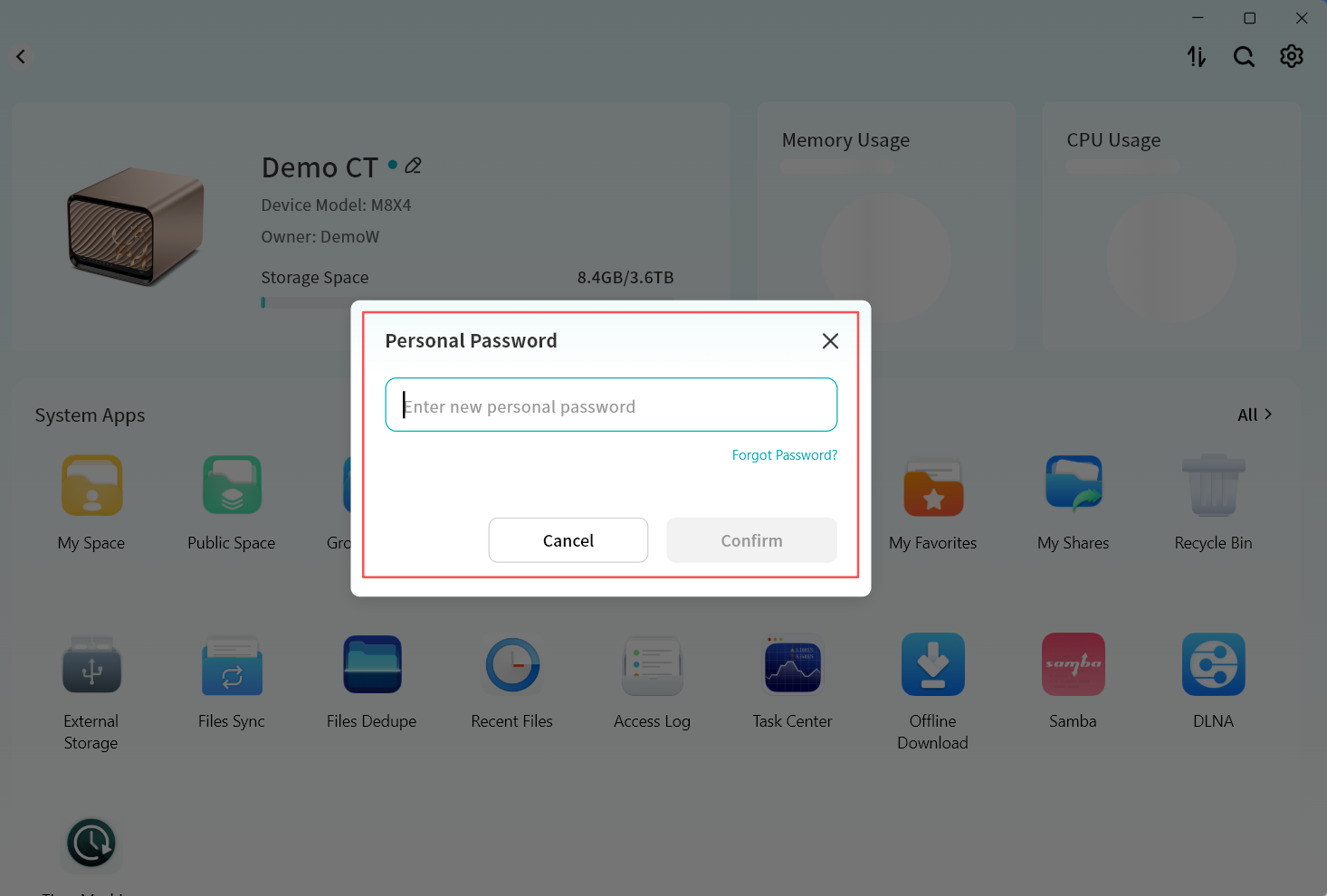
To change your Personal Password:
- Go to Device Information Security Settings - Personal Password and click Change Password.
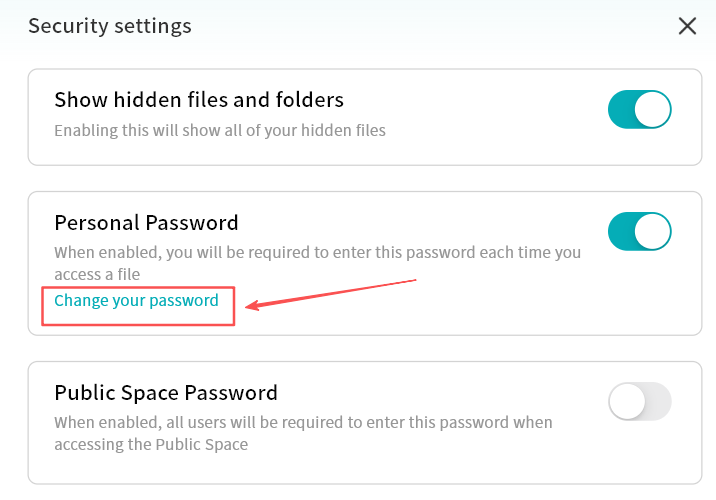
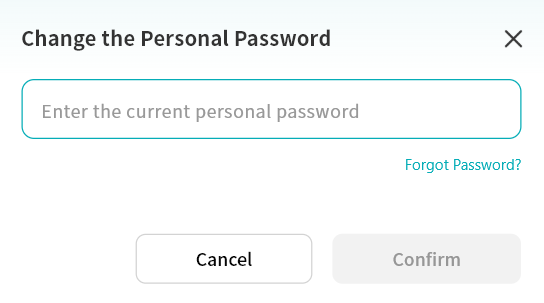
- In the pop-up window, enter the current personal password to verify your identity.
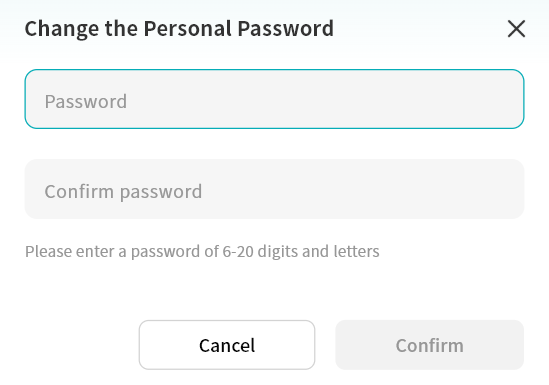
- Enter the new password to complete the change.
To recover a forgotten Personal Password:
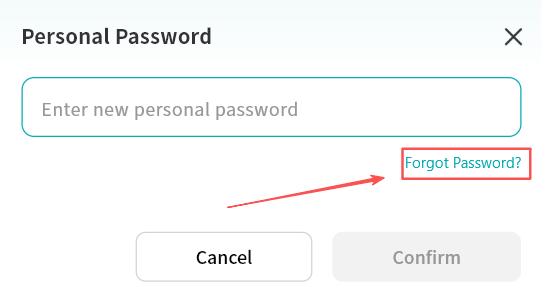
- In the personal password input or change password window, click Forgot Password.
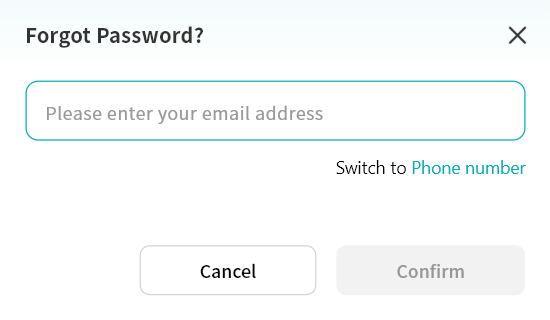
- Enter the email address or mobile phone number bound to your DASSET account.
- Enter the correct verification code.
- After verification, set a new personal password in the new password window.
Public Space Password
Setting a Public Space Password is available only to Owner and Administrator accounts.
To set a Public Space Password:
- On the Device Information page, click Security Settings and enable Public Space Password.
- In the pop-up input box, enter a password to complete the setup.
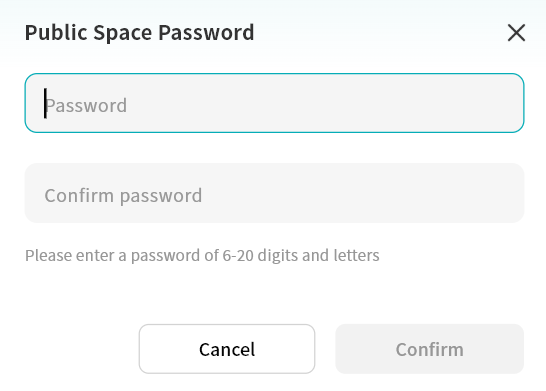
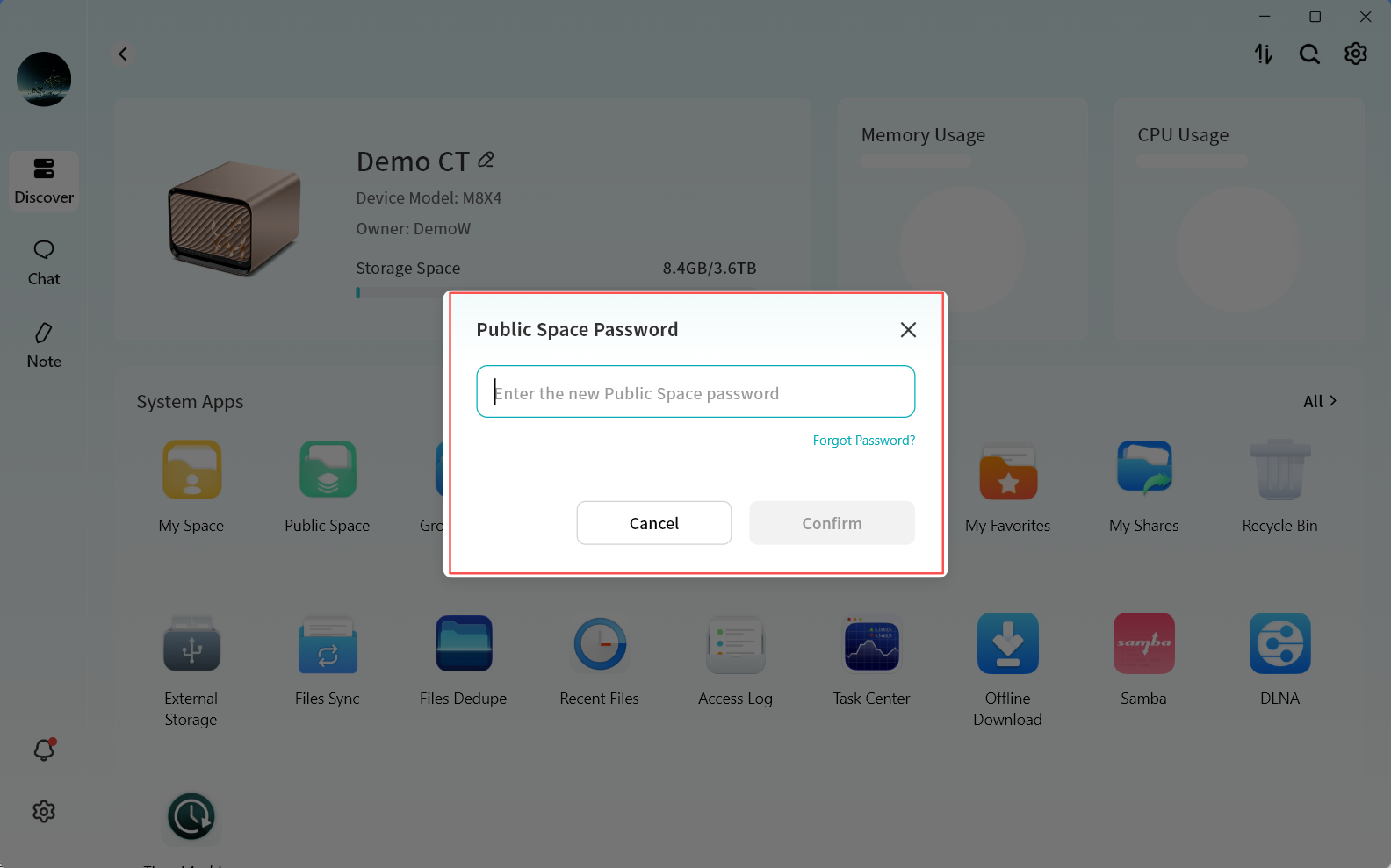
When attempting to enter a password-protected Public Space, you will be prompted to input the correct password before access is granted.
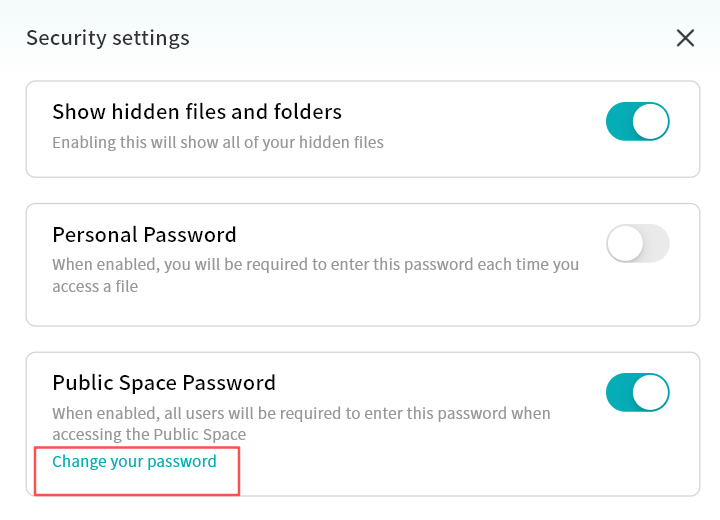
To change the Public Space Password:
- To change the Public Space password, go to Device Information Security Settings Public Space Password and click Change Password.
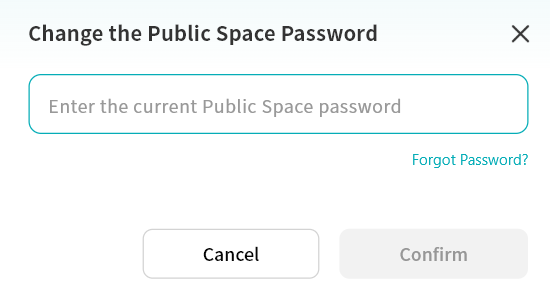
- In the pop-up window, enter the current Public Space password to verify your identity.
- Enter the new password to complete the change.
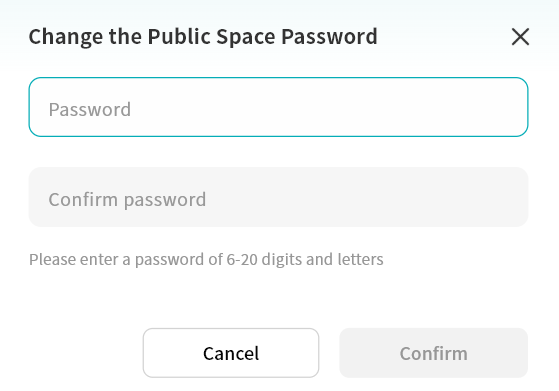
Forgot Public Space Password -- Recovery
This recovery function is available only to Owner and Administrator accounts.
- In the Public Space password input or change password window, click Forgot Password.
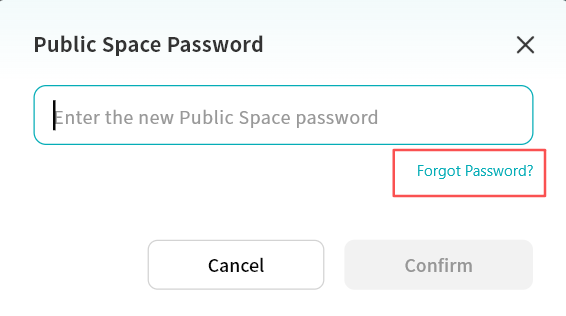
- Enter the email address or mobile phone number bound to your DASSET account.
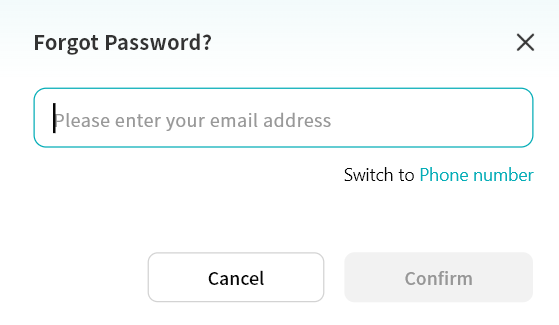
- Enter the correct verification code.
- After verification, set a new Public Space password in the new password window.