Cloud Drive
DASSET supports integration with third-party cloud drives. You can upload files from the DASSET device to a cloud drive, download files from a cloud drive to the device, and synchronize data between them. Currently supported services include Google Drive, OneDrive, and Dropbox.
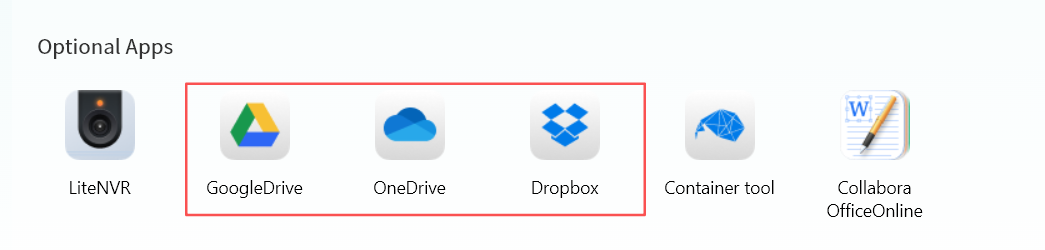
Cloud Drive Login
Log in to Google Drive
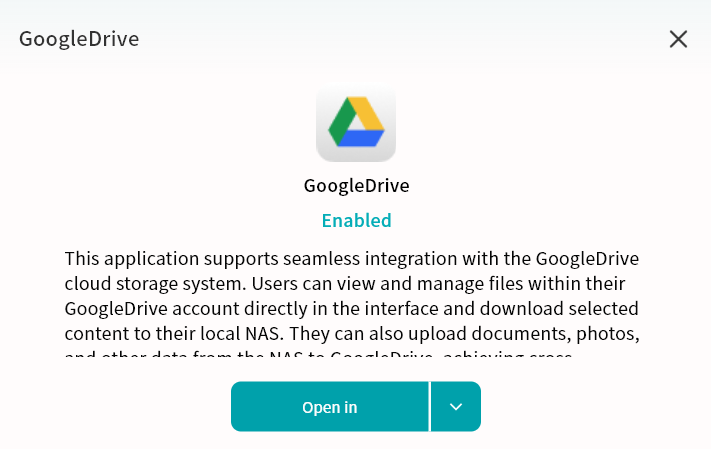
- For first-time use, click Install.
- After installation, click Open.
- Read and agree to the Google Drive usage terms, then click Confirm.
- Click Authorize Login.
- Enter your Google account on the authorization page and click Next.
- Enter your password and click Next.
- Click Advanced.
- Select Proceed to Google Drive.
- On the permissions page, click Continue.
- Once logged in, your Google Drive files will be accessible.
Log in to OneDrive
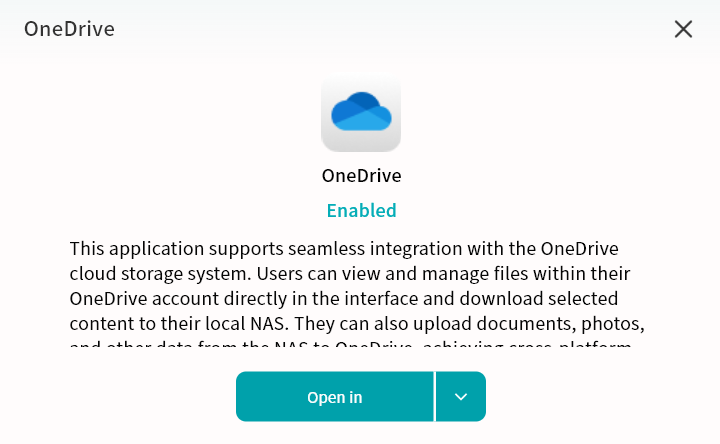
- For first-time use, click Install.
- After installation, click Open.
- Read and agree to the OneDrive usage terms, then click Confirm.
- Click Authorize Login.
- Enter your OneDrive (Microsoft) account and click Next.
- Verify using either a password or a verification code.
- Choose whether to stay logged in (recommended for convenience).
- Once logged in, your OneDrive files will be accessible.
Log in to Dropbox
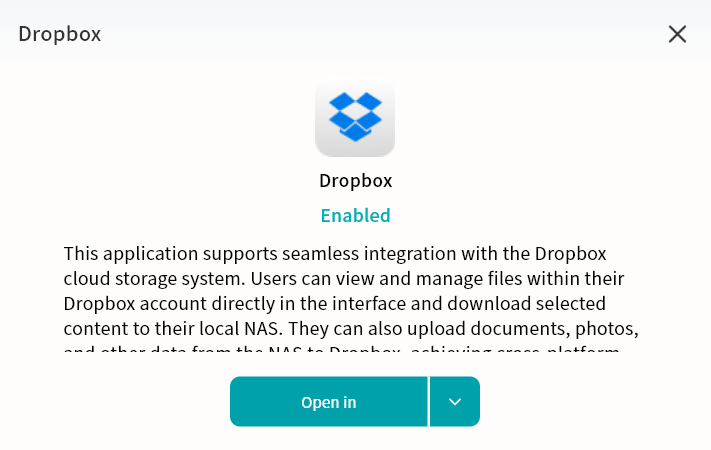
- For first-time use, click Install.
- After installation, click Open.
- Read and agree to the Dropbox usage terms, then click Confirm.
- Click Authorize Login.
- Log in using your Dropbox account credentials, or with a Google or Apple account.
- Once logged in, your Dropbox files will be accessible.
Cloud Drive Operations
Interface
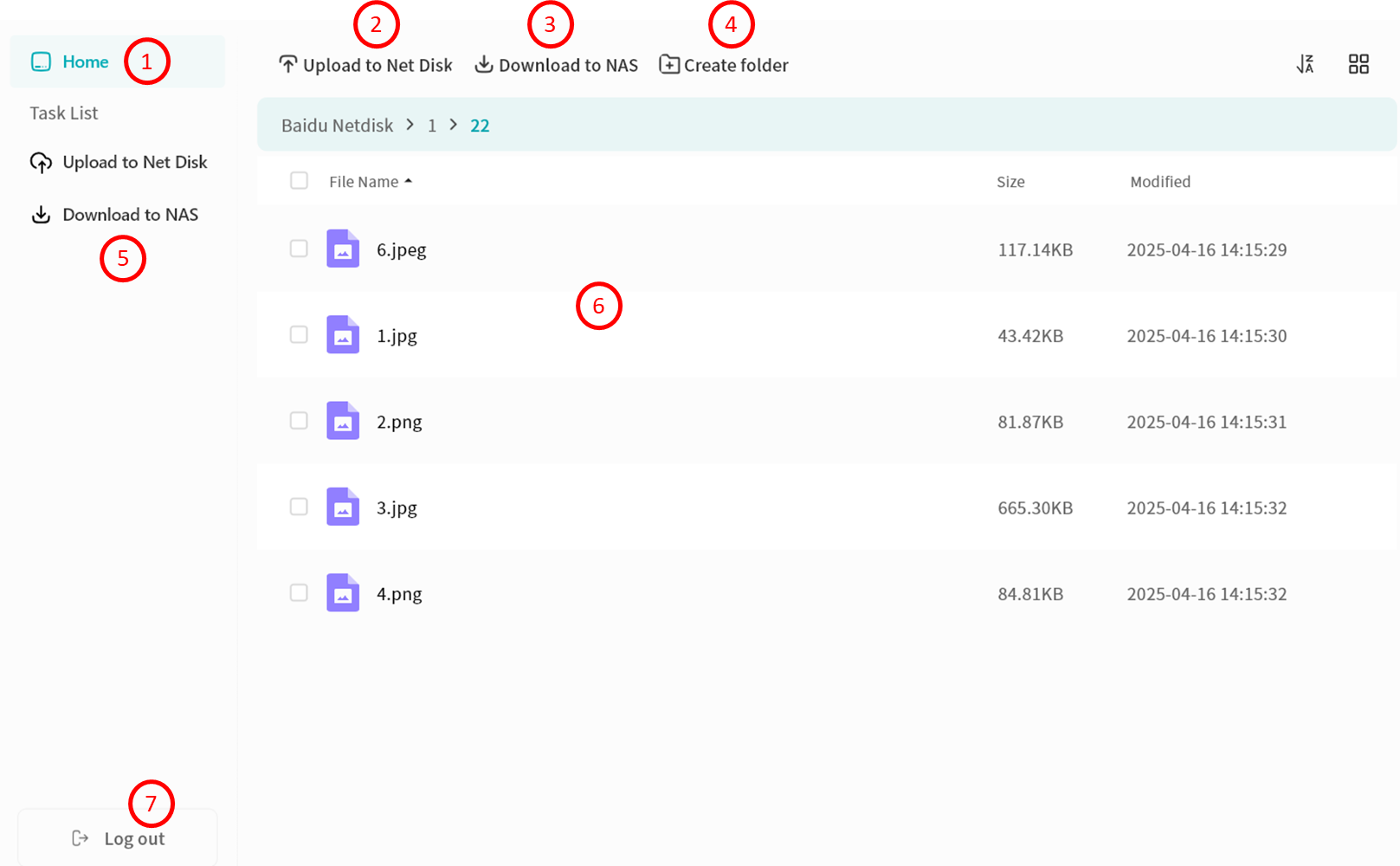
After login, the Cloud Drive interface provides:
- Home: Access the file list of the cloud drive.
- Upload to Net Disk: Upload files from the DASSET device.
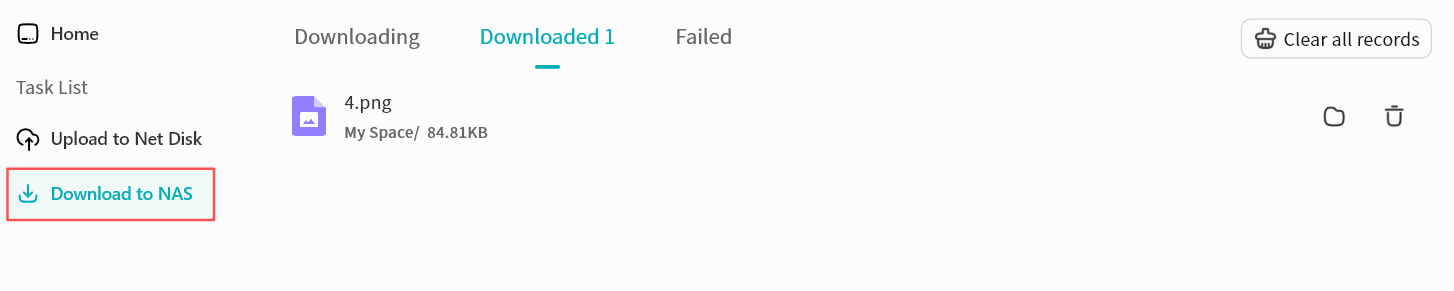
- Download to NAS: Download files from the cloud drive to the DASSET device.
- Create Folder: Create folders in the cloud drive.
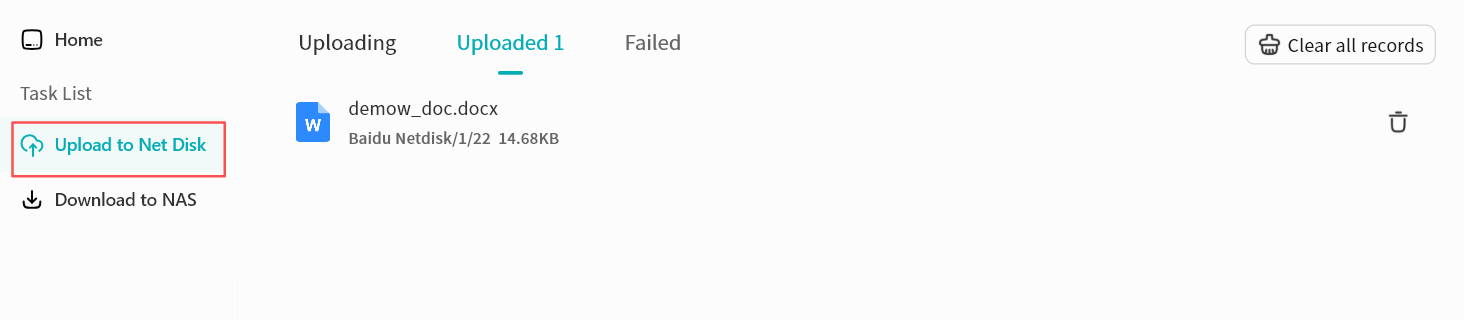
- Task List: View upload/download progress and history.
- File List: Browse files in the drive.
- Logout: Exit the cloud drive (requires re-login for next access).
Upload Files to Net Disk
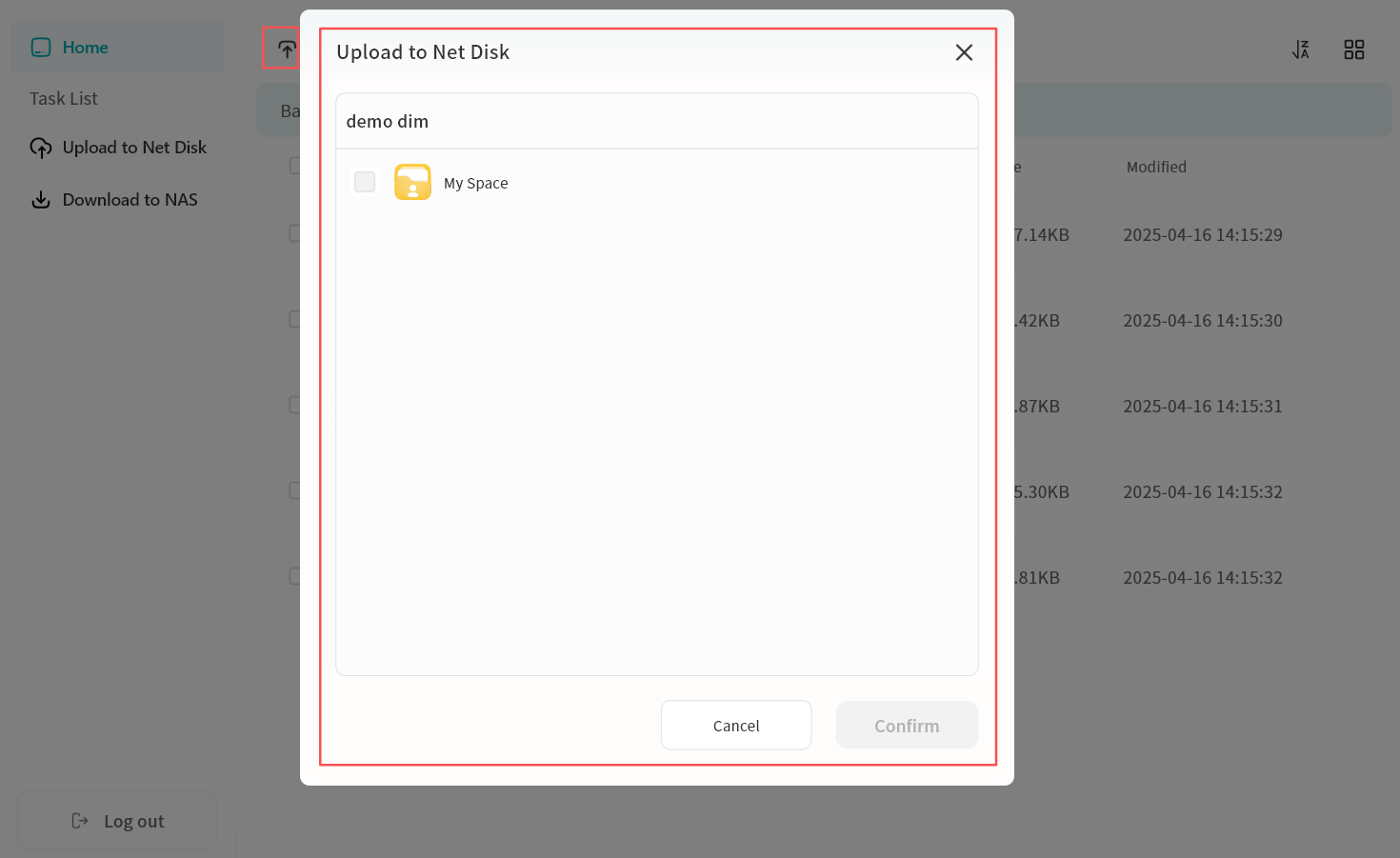
- Click Upload to Net Disk.
- In the pop-up, select files or folders from My Space (multi-select supported).
important
For security reasons, only files from My Space can be uploaded.
- Confirm to start upload.
Download Files to NAS
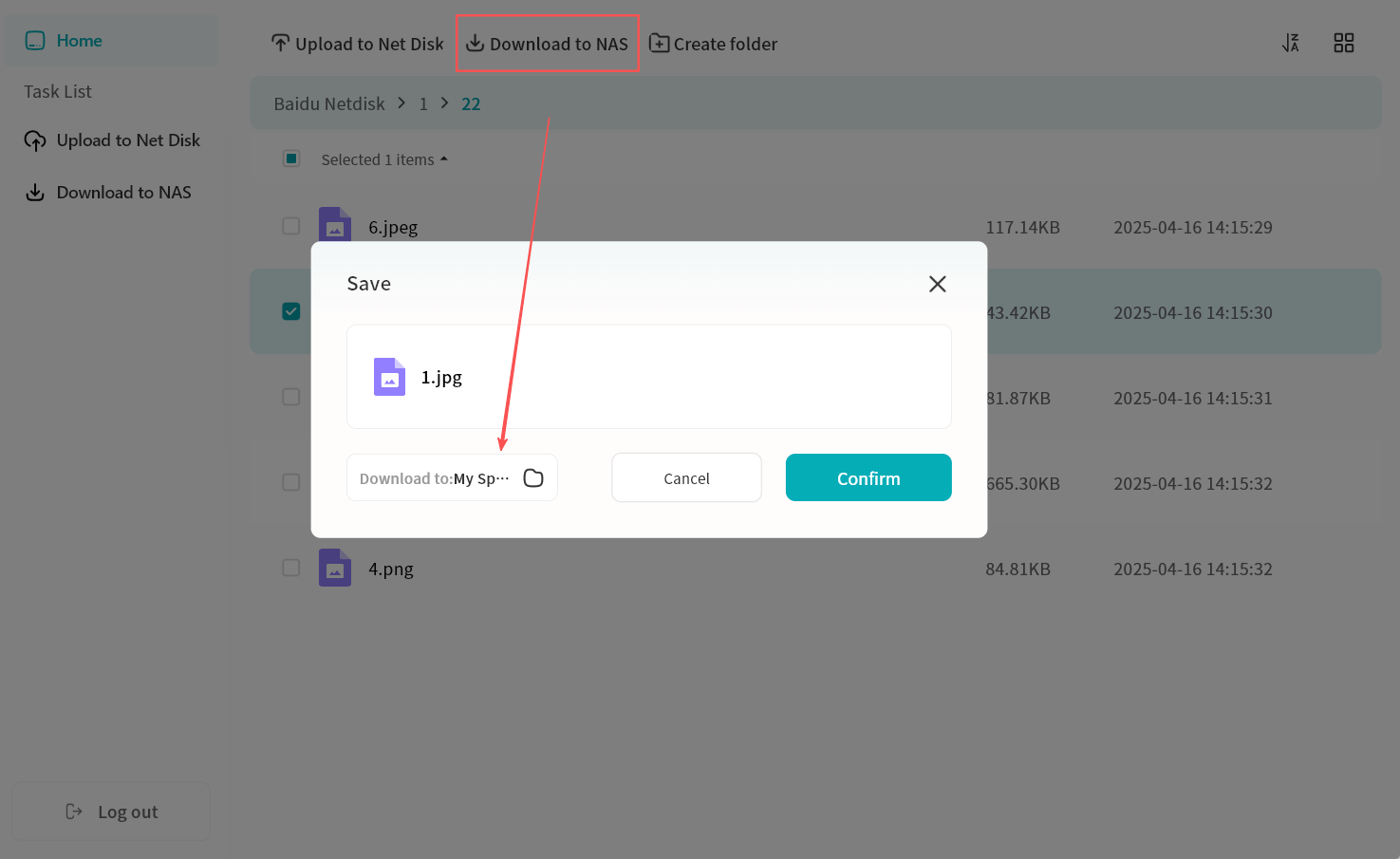
- Select files (single or multiple) and click Download to NAS.
- In the pop-up menu, choose a target path.
important
For security reasons, files can only be downloaded to My Space or My Vault.
- Confirm to start download.
File Operations
- Top Menu: Create new folders in the cloud drive.
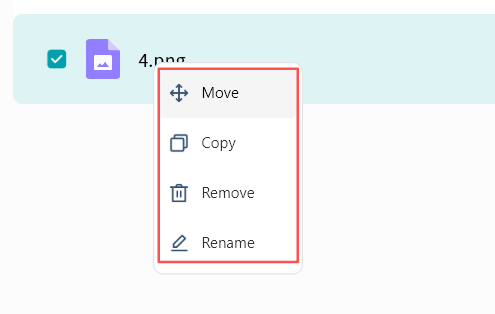
- Right-Click Menu:
- Move: Move files between folders in the cloud drive (batch supported).
- Copy: Copy files to other folders in the cloud drive (batch supported).
- Delete: Remove one or more files.
- Rename: Edit file or folder names.
Task List
All upload and download activities are displayed in the Task List.
- Uploads:
- Pause, resume, or cancel multiple tasks.
- View or clear completed tasks.
- Review failed uploads.
- Downloads:
- Pause, resume, or cancel multiple tasks.
- View, clear individual tasks, or clear all completed tasks.
- Jump directly to the file's save location.
- Review failed downloads.