Container Tool
Using Docker containers, you can run a variety of third-party applications on the DASSET device to expand its capabilities. The container tool is available only to the Owner account.
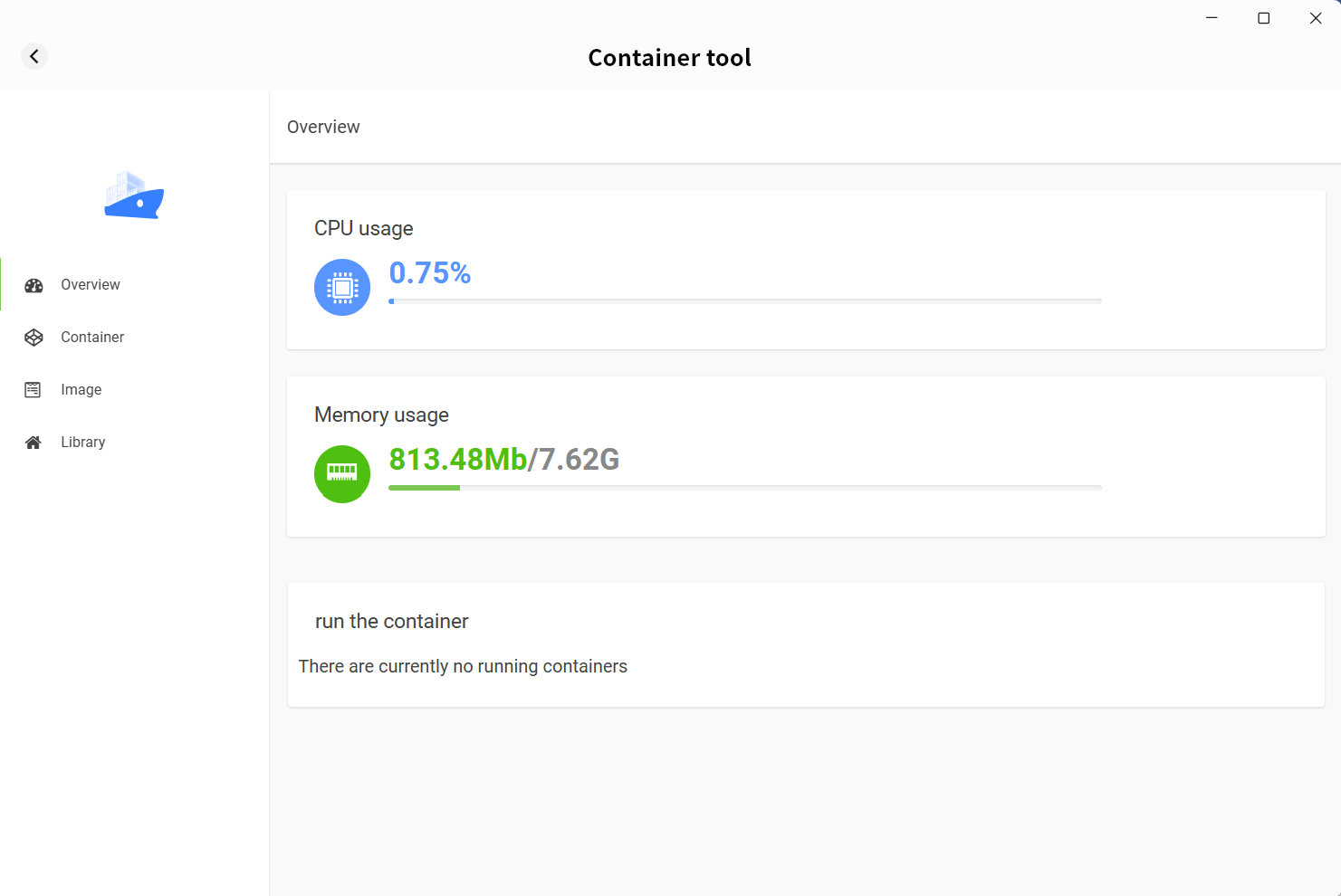
- Overview: Displays current CPU usage, memory usage, and the list of running containers on the DASSET device.
- Containers: Create and manage your containers.
- pc-images: Manage stored image files.
- Repository: Connect to image repositories to search and download required pc-images.
Containers
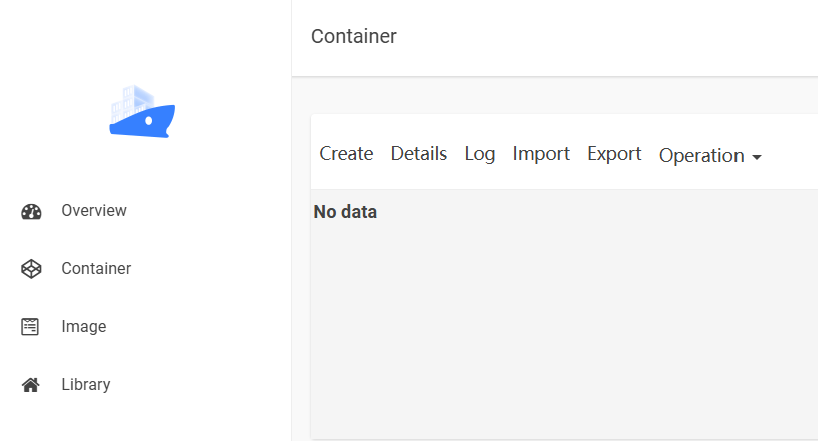
On the container page, you can create new containers using previously added pc-images.
- Basic settings:
- Select image
- Set container name
- Allocate memory for the container
- Set CPU priority (not recommended to set to High, to avoid excessive resource consumption)
- Advanced settings: Configure additional parameters required for container creation, including:
- Run with high privileges or not
- Automatically restart container after DASSET device reboot
- Container network mode
- Container startup parameters
- Port mapping (defines which port to use when accessing the container)
- Directory mapping between the container and the DASSET device (enables the container to access specific directories on the device)
- Environment variables required for the container
note
Different containers may have different configuration requirements. Refer to the official configuration guide of the container you are creating. For detailed container creation steps, see Appendix 1.
Image
All downloaded pc-images are stored on the pc-images page for unified management.
- Import: Import image files from the computer into the DASSET device.
- Export: Export stored image files from the DASSET device to the computer.
- Batch delete: Select multiple image files to delete at once.
Library
The library connects to centralized Docker image distribution sites, allowing you to search for and download any required pc-images directly to the DASSET device.